The guide · 71 screens
Every screen, step by step.
What the guest taps, what Dava the AI waiter does, what your staff see and what the owner reads. Every picture is the live app on a phone today.
Best on two screens. Keep this guide open on a laptop or monitor, and follow along on your phone.
Test card · use this to pay · no real money
4242 4242 4242 4242
Any future expiry · CVC 123 · Stripe test mode, nothing is charged
Customer
- pubpal.com.au
- No login
Staff
- pubpal.com.au/staff
- Passcode: Cat123
Owner
- pubpal.com.au/owner
- Passcode: owner2024
On the guest’s phone
Customer
No app to download and no login. Everything happens in the browser on the guest’s own phone.
Watch it live
A guest sits at table 1, picks a Classic Parma, adds it and gets to the pay step. Recorded on the real app.
Start here
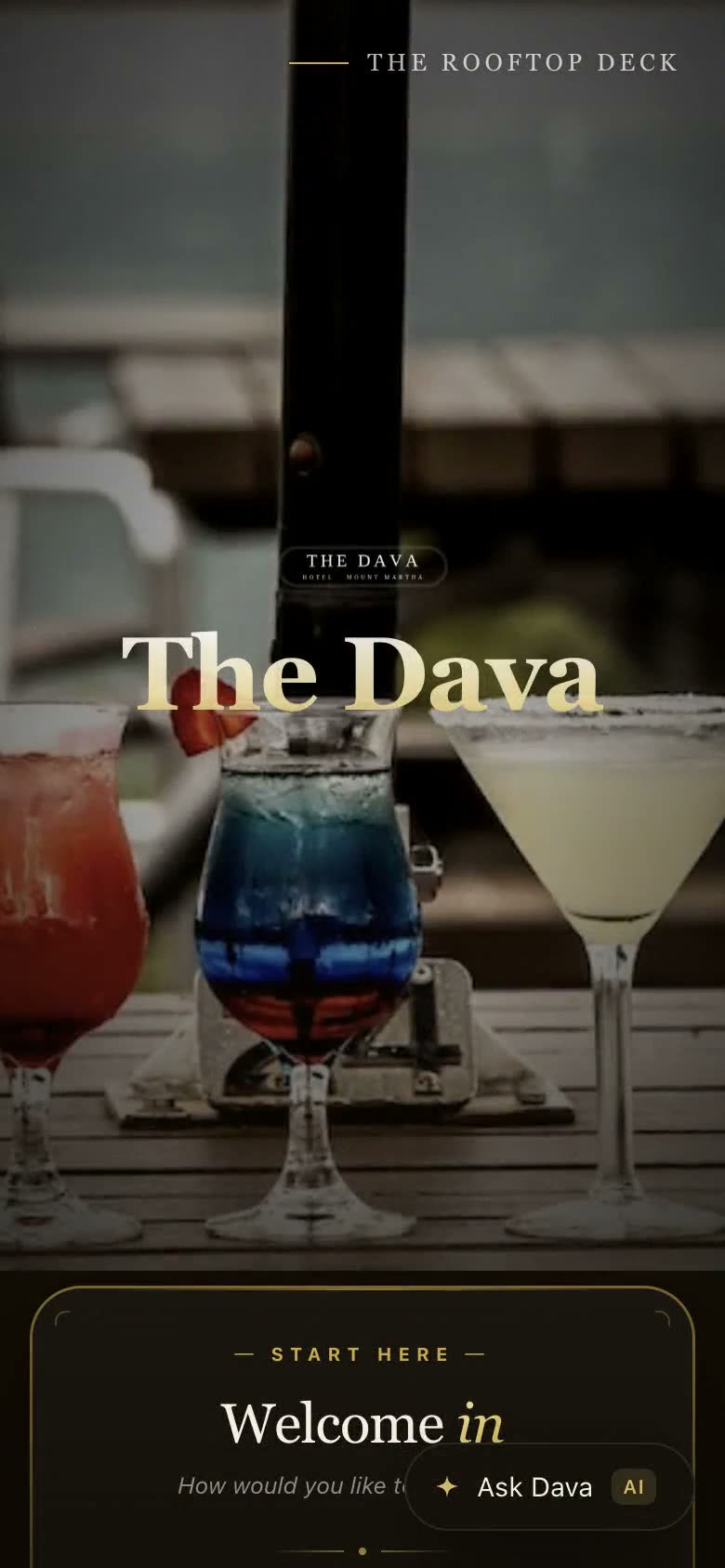
The front page every guest lands on.
STEP 1 OF 2
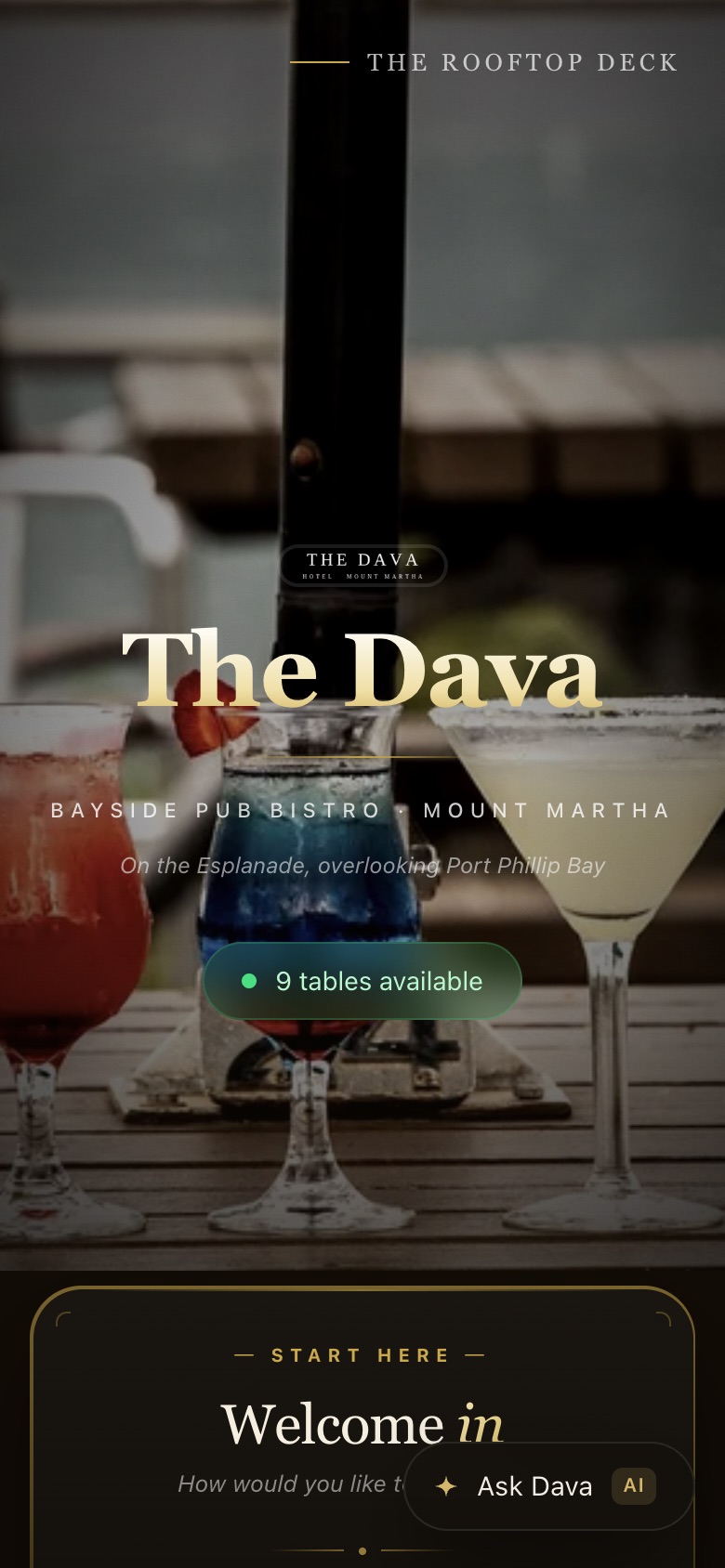
Open the app
The Dava’s own front page, with how many tables are free right now.
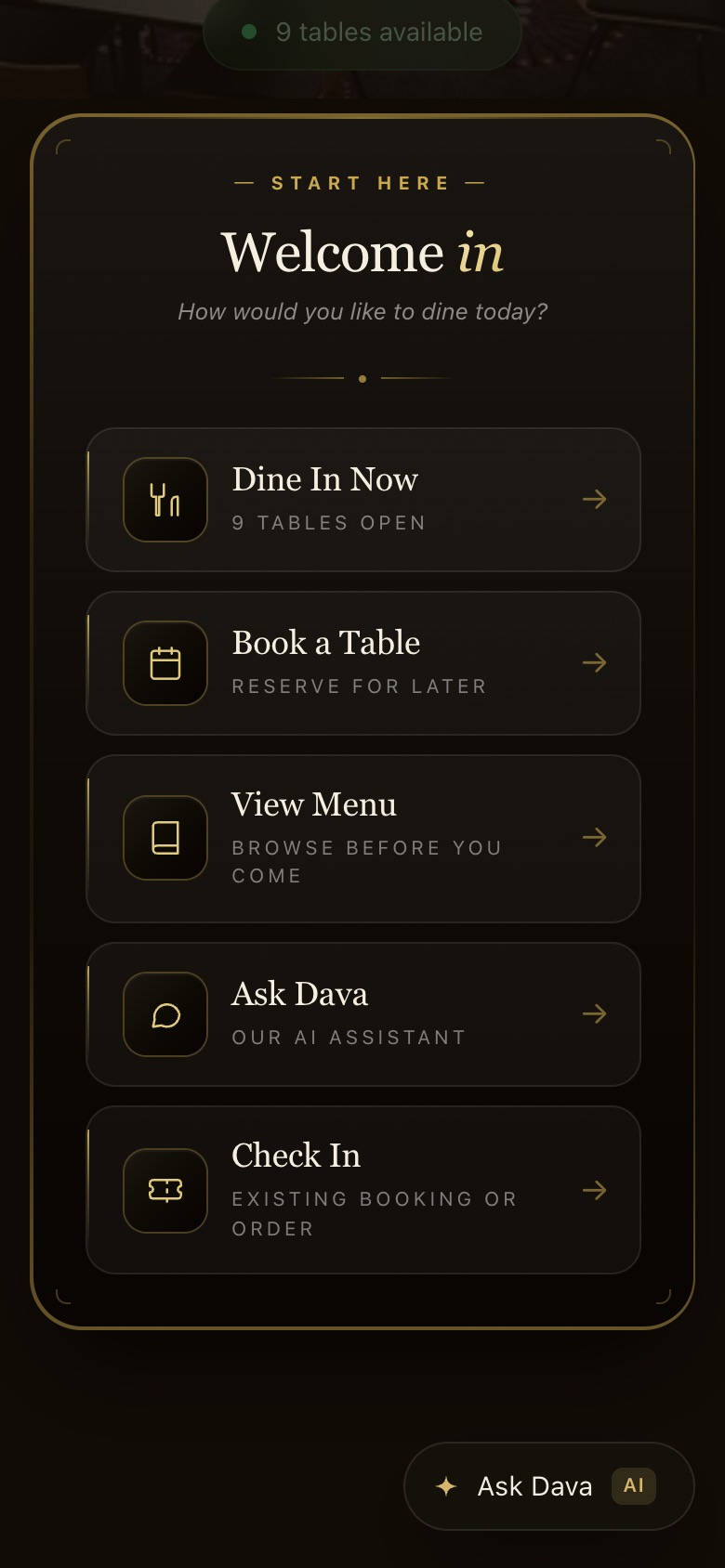
STEP 2 OF 2
Pick what you came for
Dine In Now, Book a Table, View Menu, Ask Dava or Check In. Ask Dava sits at the bottom of every page.
Dine in with the table QR
Sit down, scan the code on the table, order and pay from the phone. The full order from scan to plate.
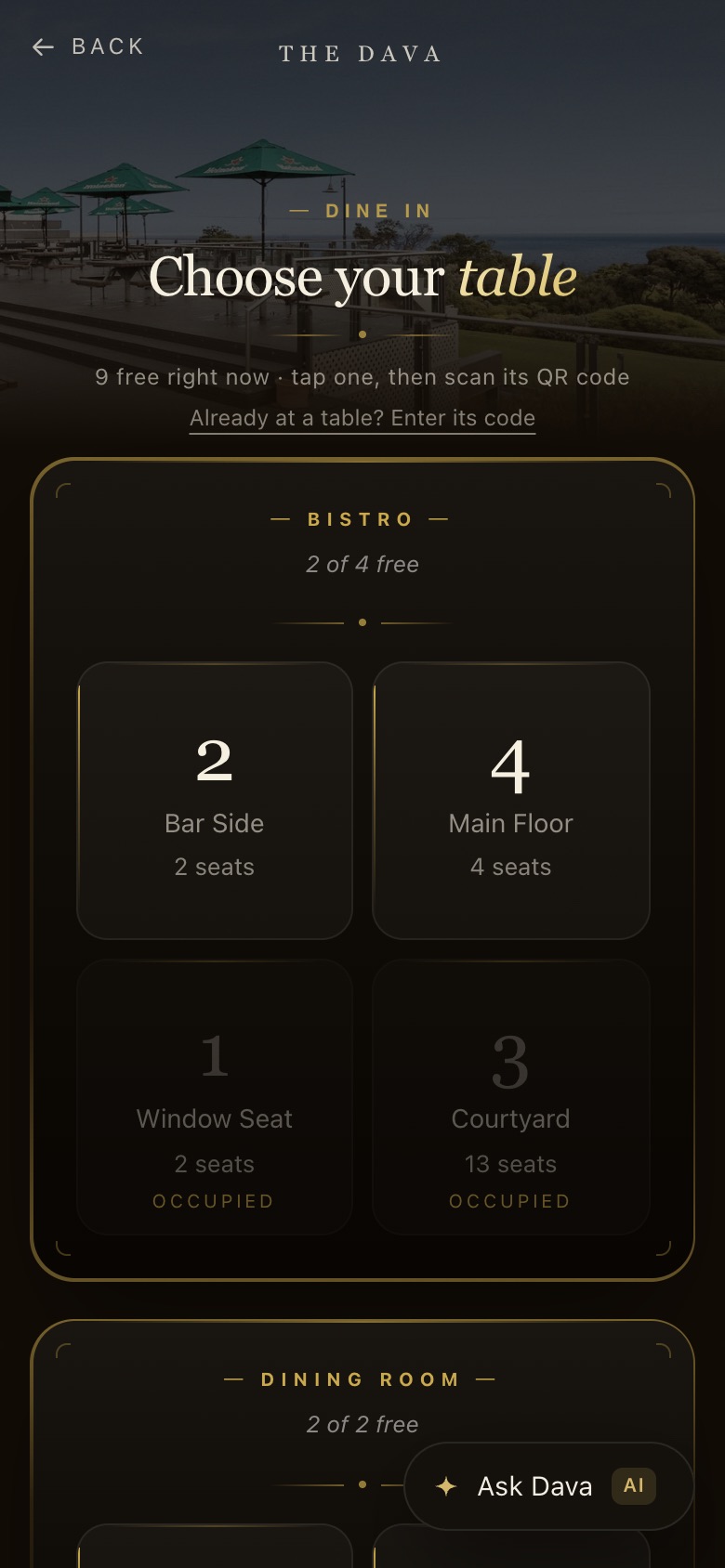
STEP 1 OF 17
Tap Dine In: Choose your table
Dine In opens every area and its tables, with seats. Free tables can be tapped; taken ones are greyed out. Pick yours, then scan the QR on it or type its number.
STEP 2 OF 17
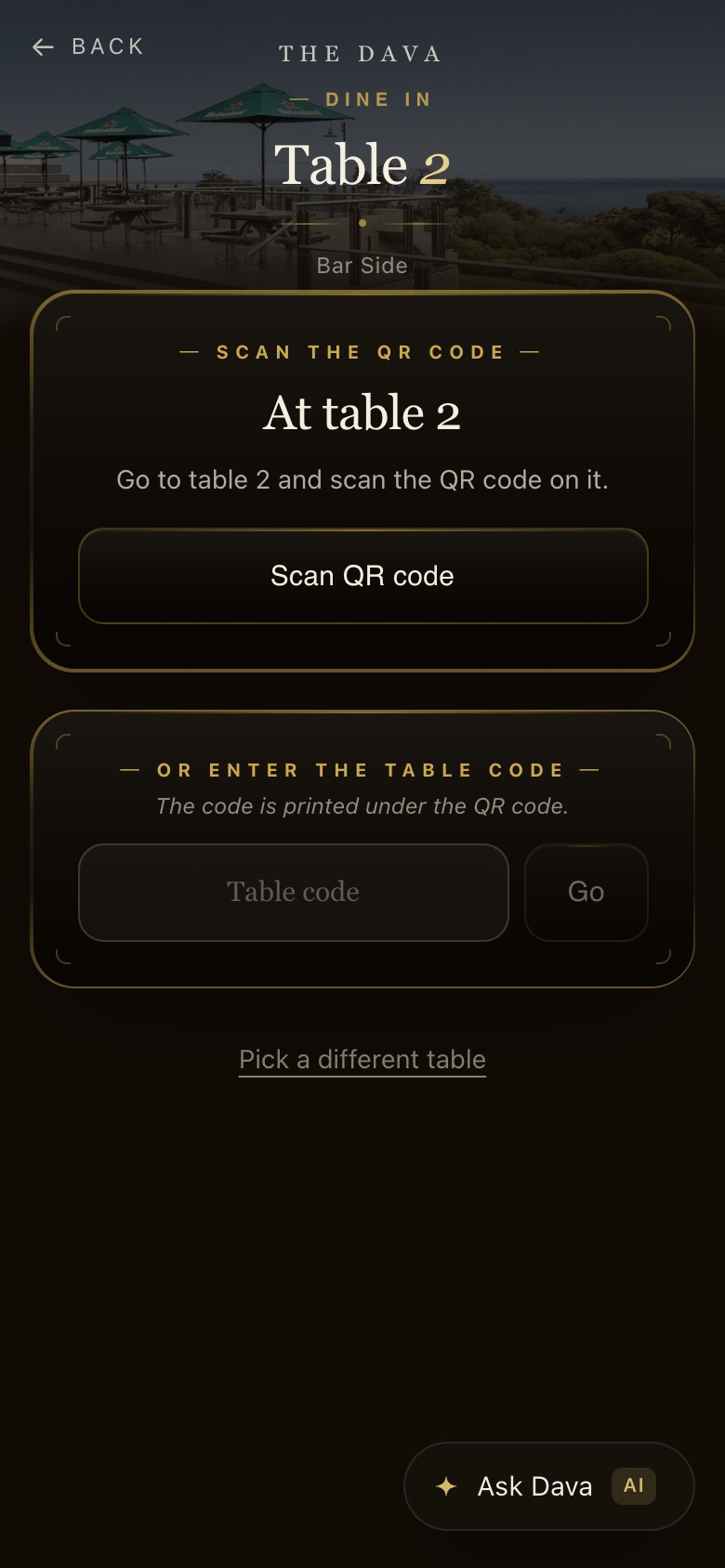
Scan the QR or type the table code
Tapping a table opens it: here Table 2 · Bar Side. Go to the table and tap Scan QR code, or type the code printed under the QR and tap Go. Pick a different table goes back.
STEP 3 OF 17
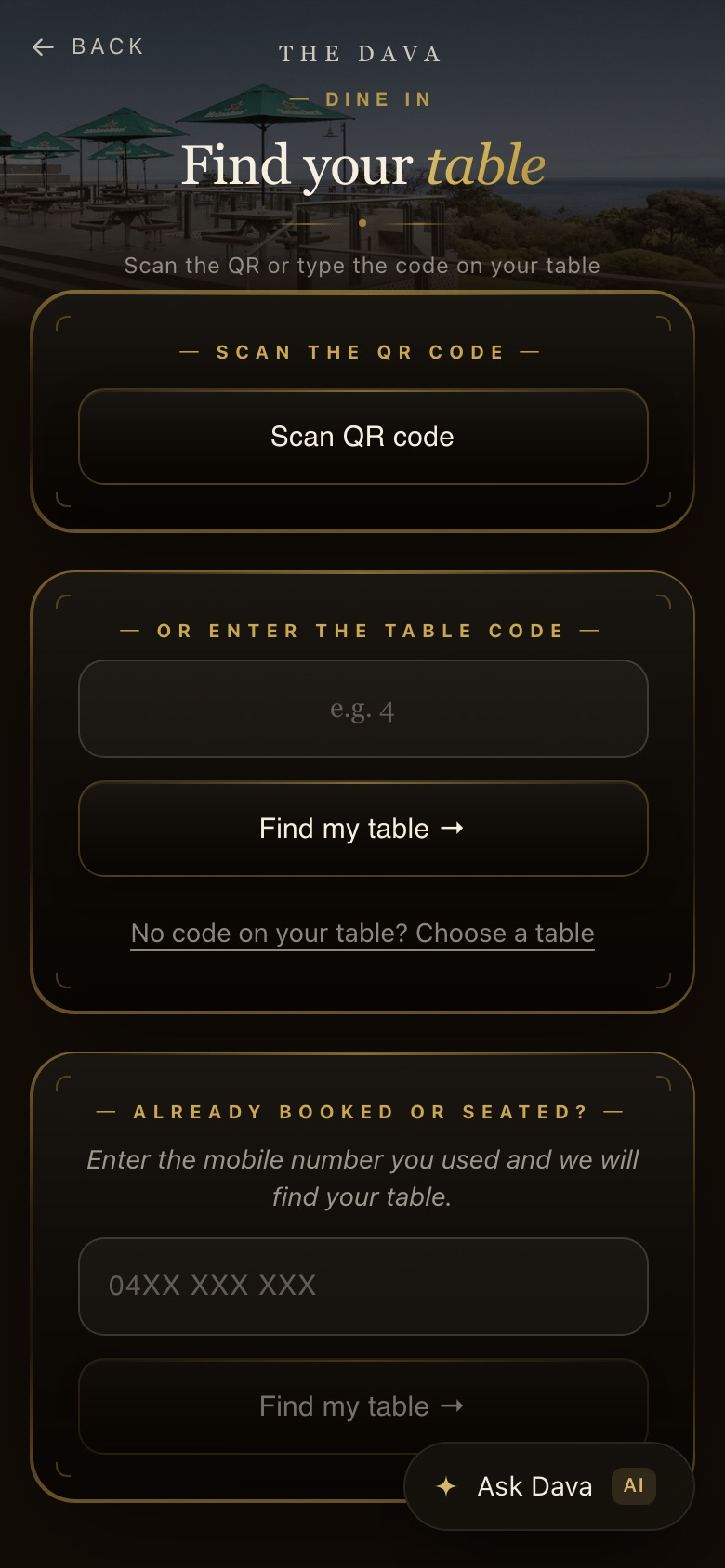
Find your table
The Find your table page: scan, type a table code, or type the mobile you booked or sat with and the app finds the table.
STEP 4 OF 17
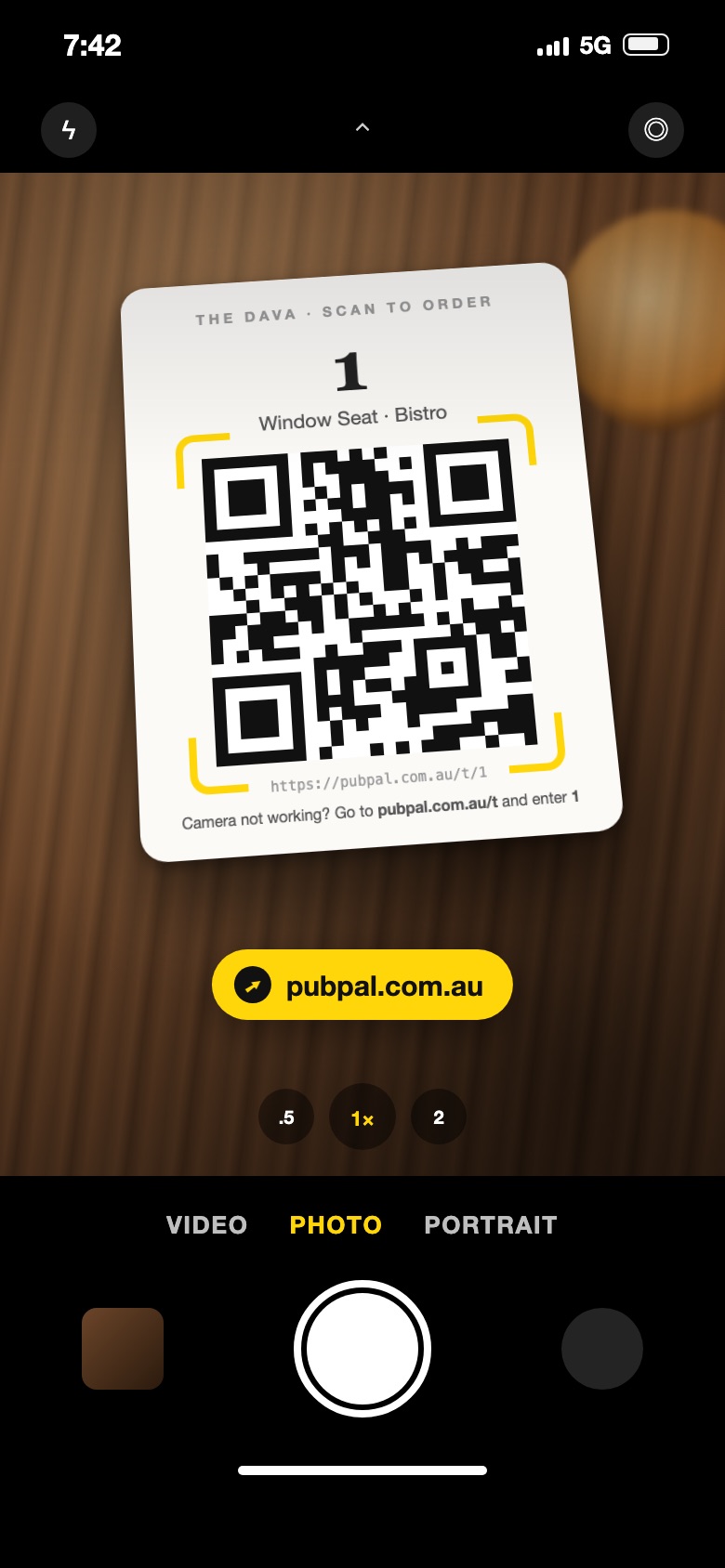
Scan the QR on the table
Open the normal phone camera and point it at the card on the table. A yellow box locks onto the QR and a PubPal link pops up. Tap it and the table opens. Nothing to download.
STEP 5 OF 17
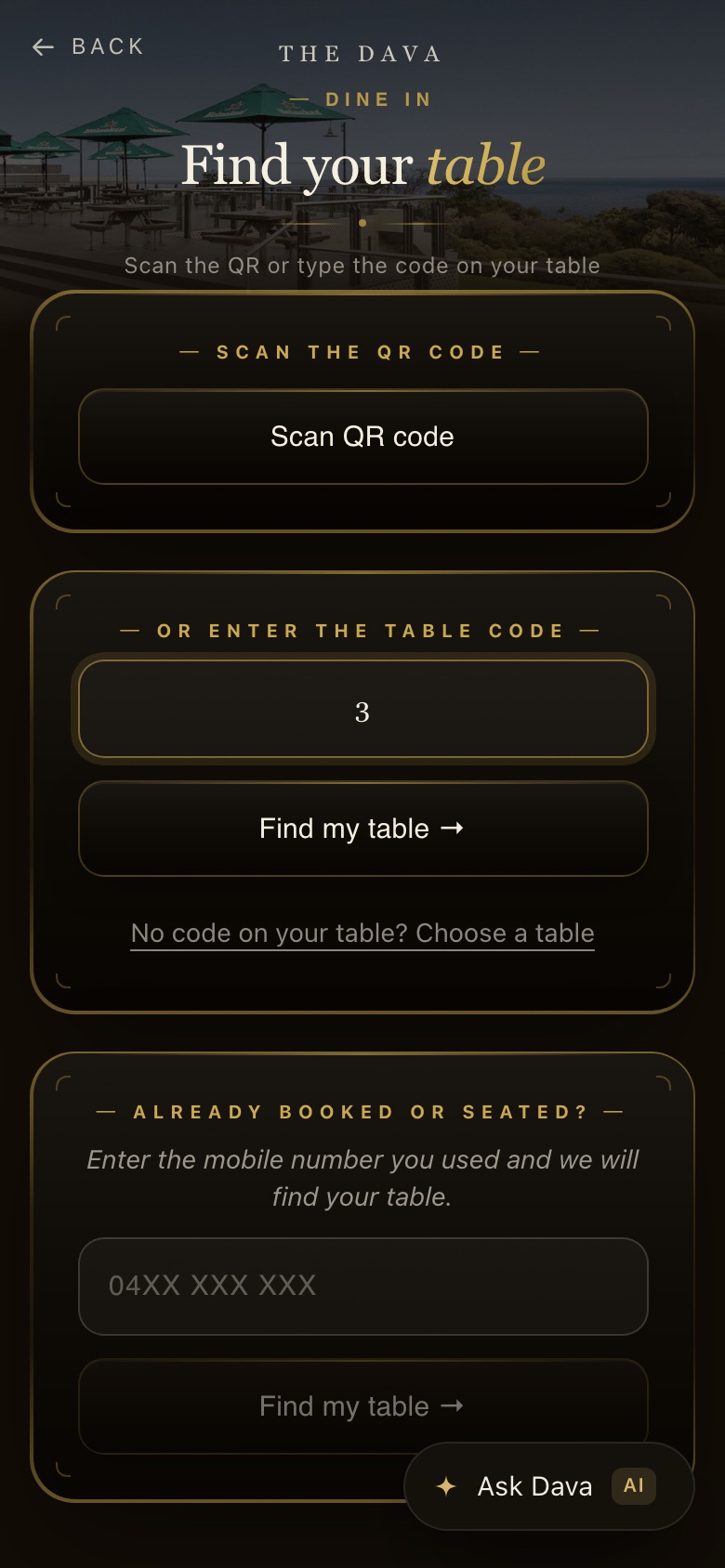
No QR handy? Type the table number
For now the table code is just the table number. On Find your table, type 3 under Or enter the table code and tap Find my table. Same as scanning.
STEP 6 OF 17
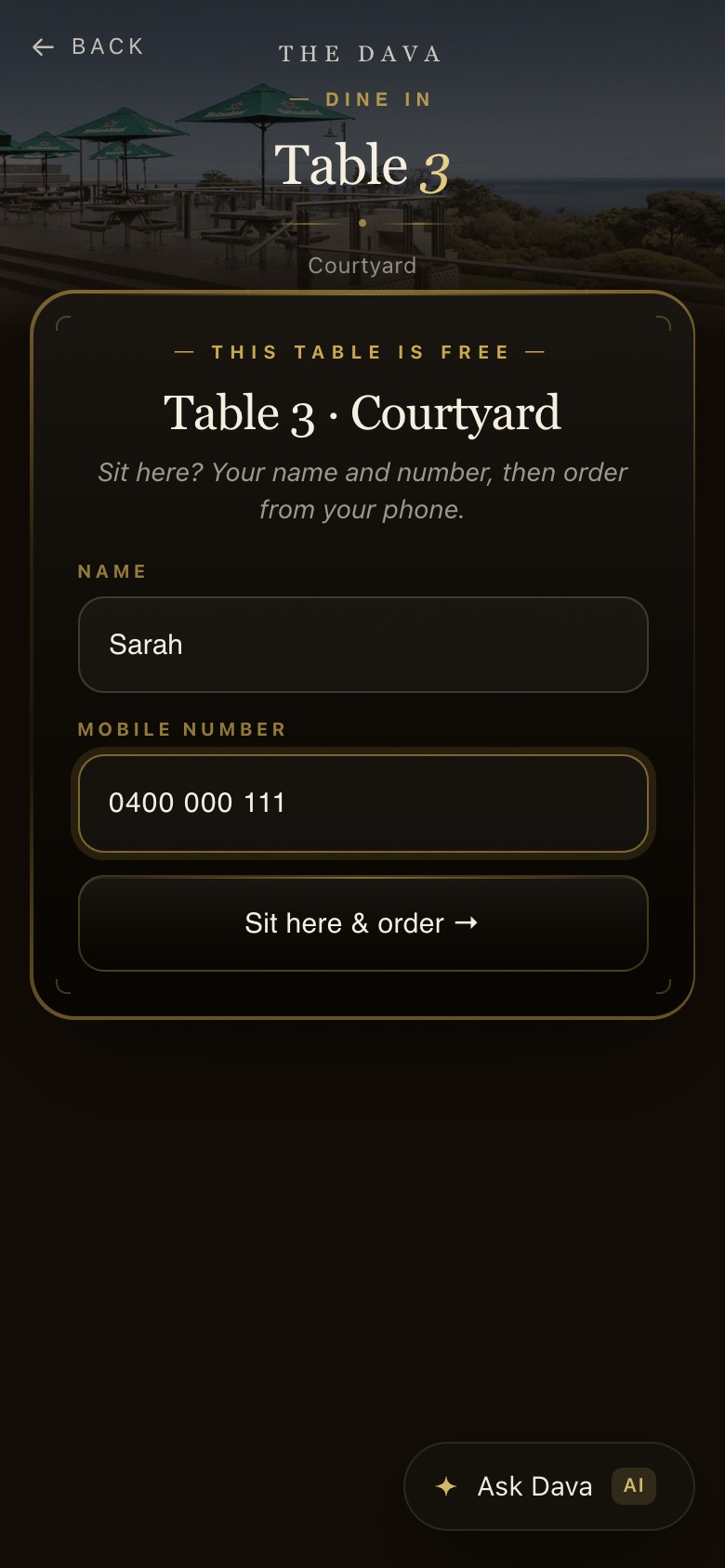
The table opens on the phone
The scan or the typed number lands straight on that table: here Table 3. “Sit here?” Type a name and mobile, tap Sit here & order. The table shows as taken on the staff Tables screen at once.
STEP 7 OF 17
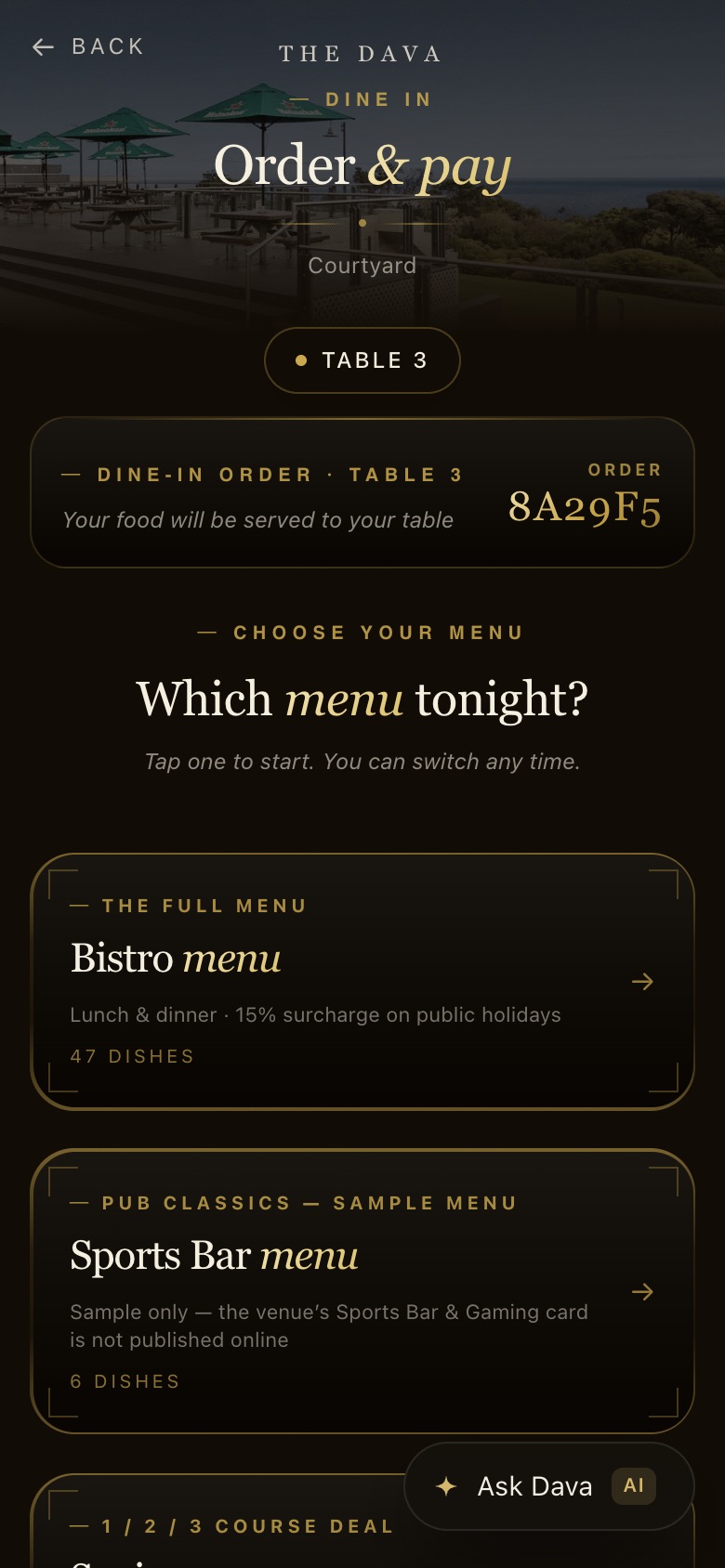
Pick a menu
Bistro, Sports Bar, Seniors, Kids or Drinks. The chip at the top says which table the food goes to.
STEP 8 OF 17
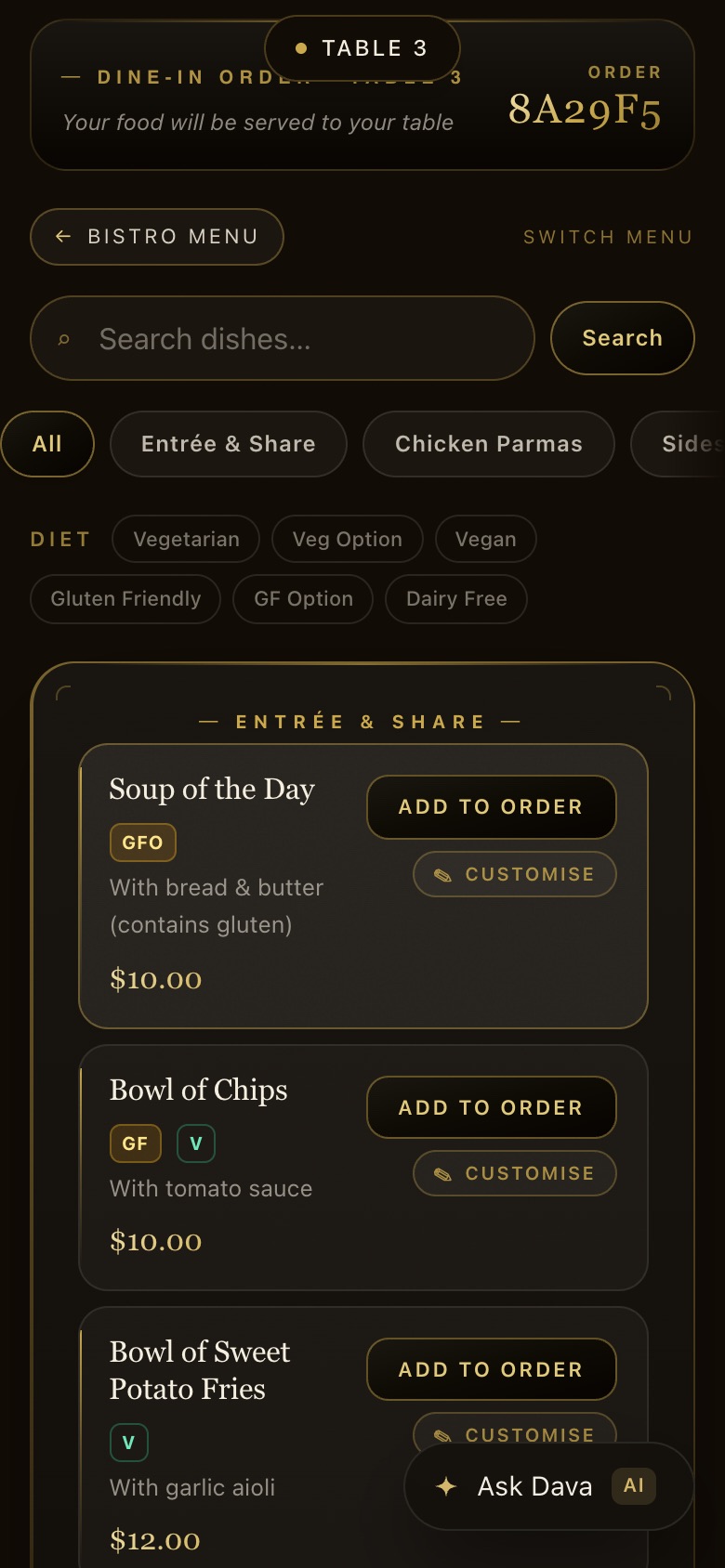
Browse and add
Search, category chips and diet filters (vegetarian, vegan, gluten friendly, dairy free). Add to order puts a dish straight in; Customise adds a note first.
STEP 9 OF 17
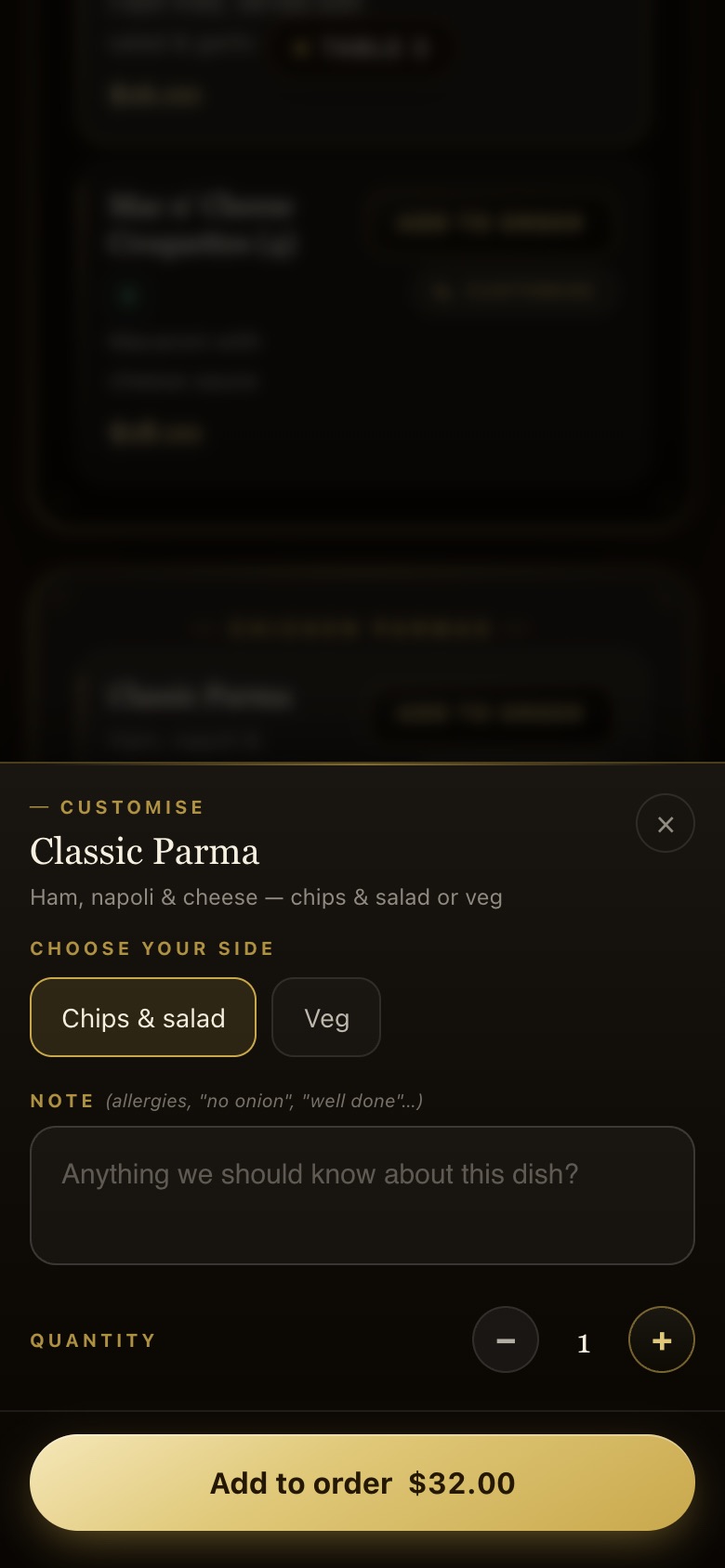
Choose the options
A dish with a choice asks for it: the Classic Parma ($32) needs chips & salad or veg. A note for the kitchen, the quantity, then Add to order.
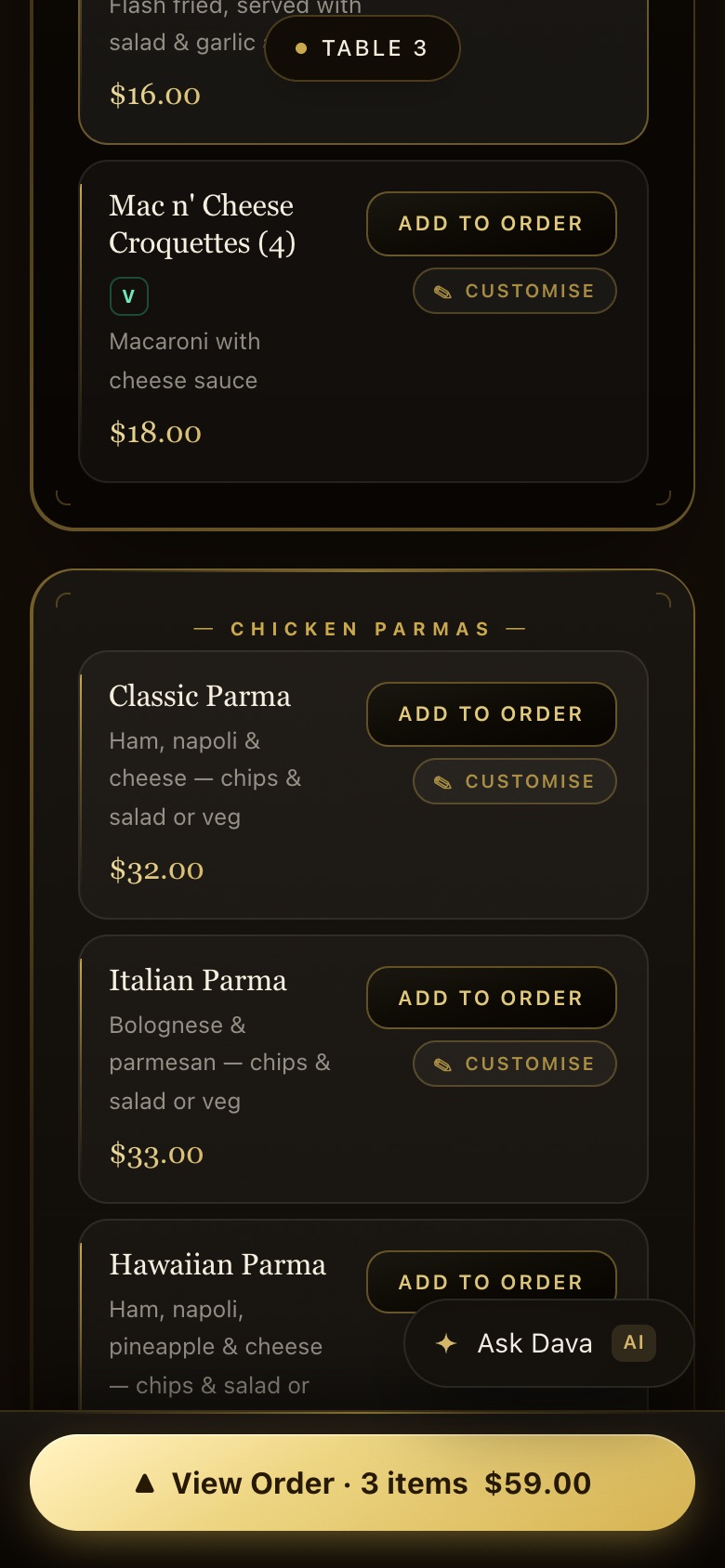
STEP 10 OF 17
Watch the order add up
A gold View Order bar keeps the count and the total: 3 items, $59.00.
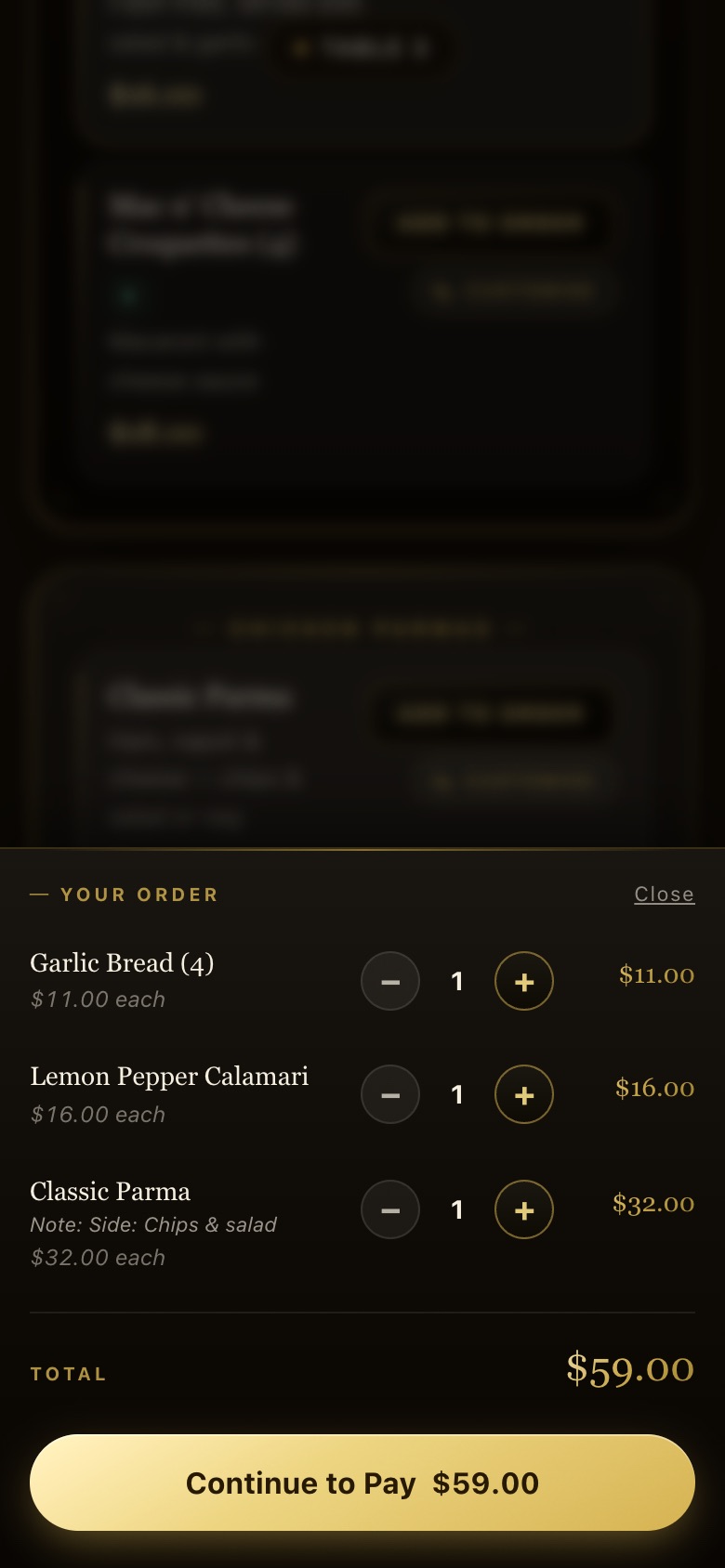
STEP 11 OF 17
Check the order
Tap the bar to change quantities with − and +, then Continue to Pay.
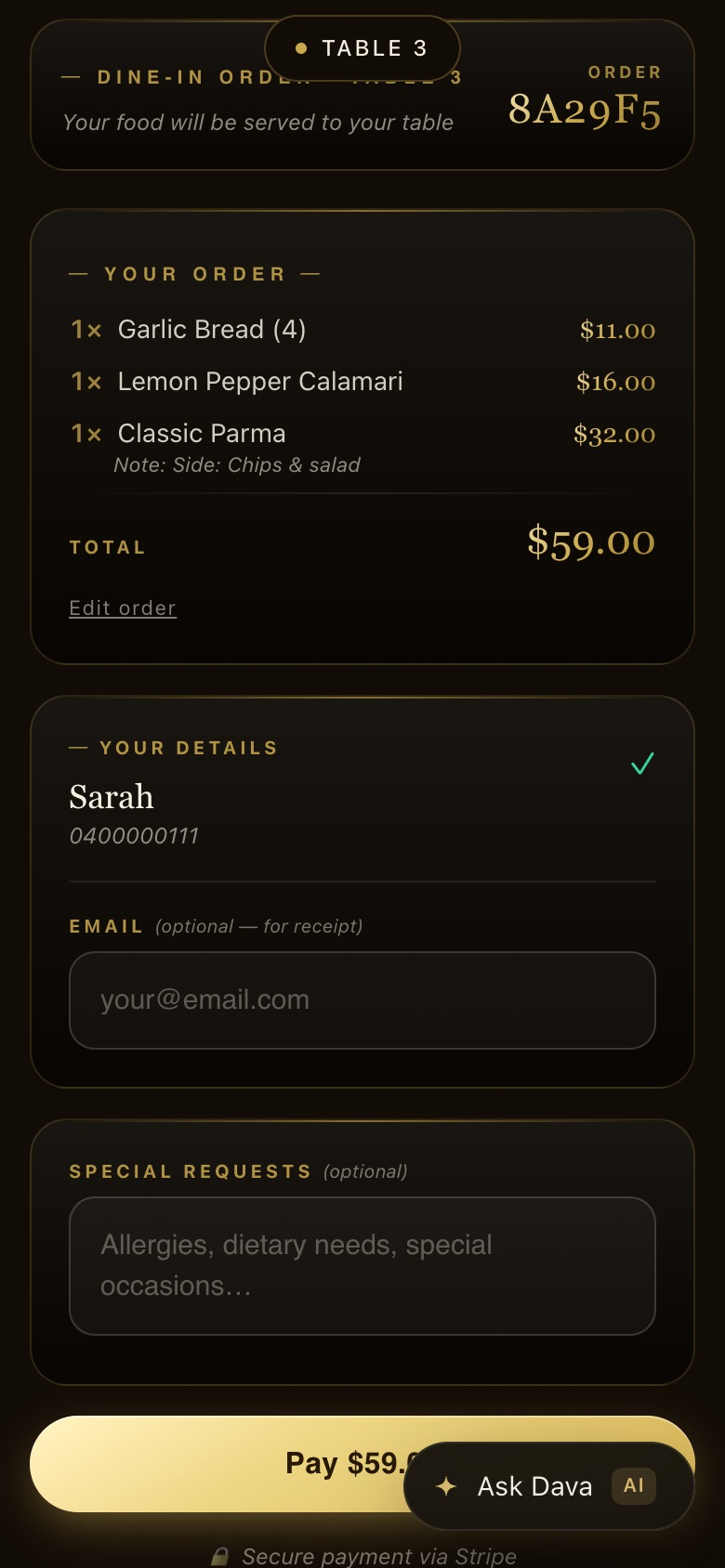
STEP 12 OF 17
Confirm
The order, the table, and the name and mobile from the scan, already filled in. Email for a receipt and special requests are optional.
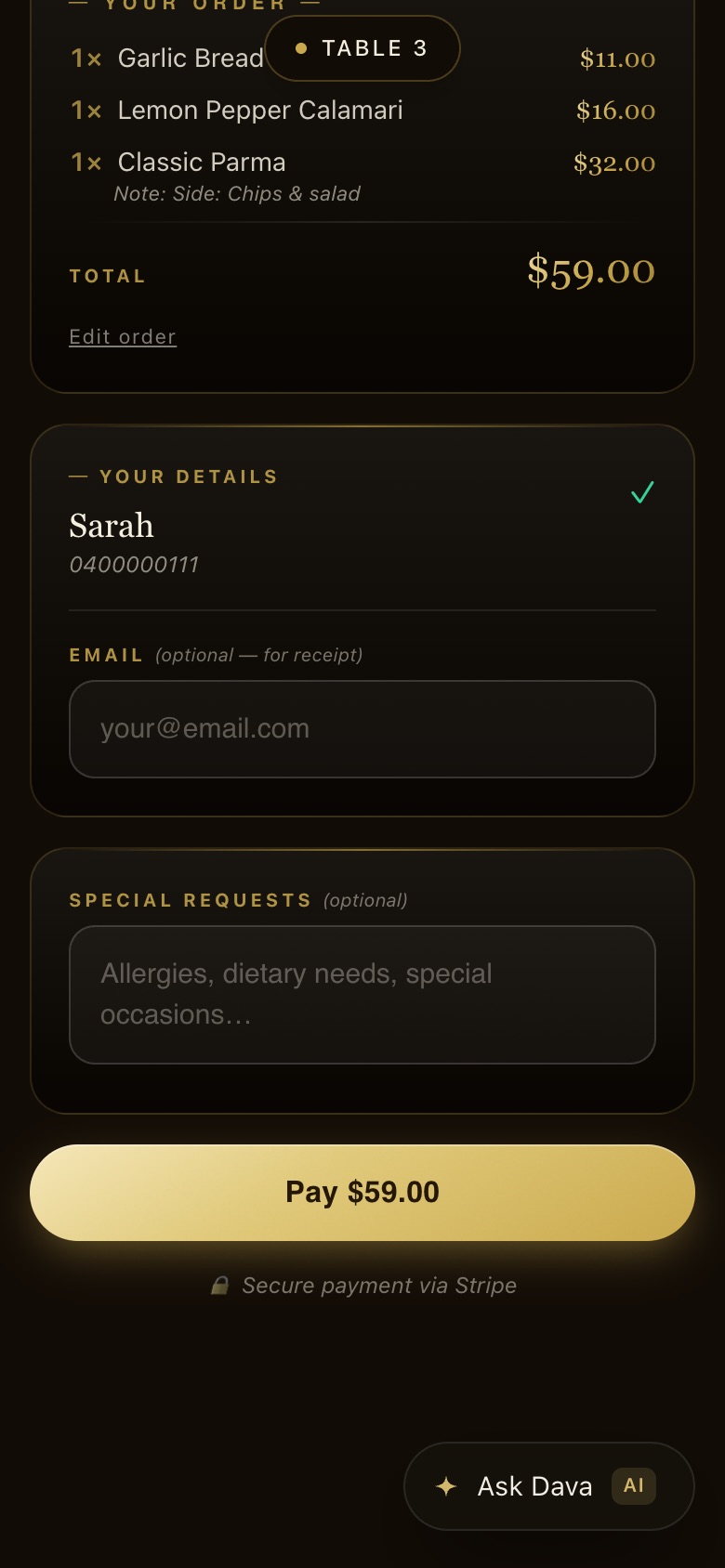
STEP 13 OF 17
One button to pay
Pay $59.00, secured by Stripe.
STEP 14 OF 17
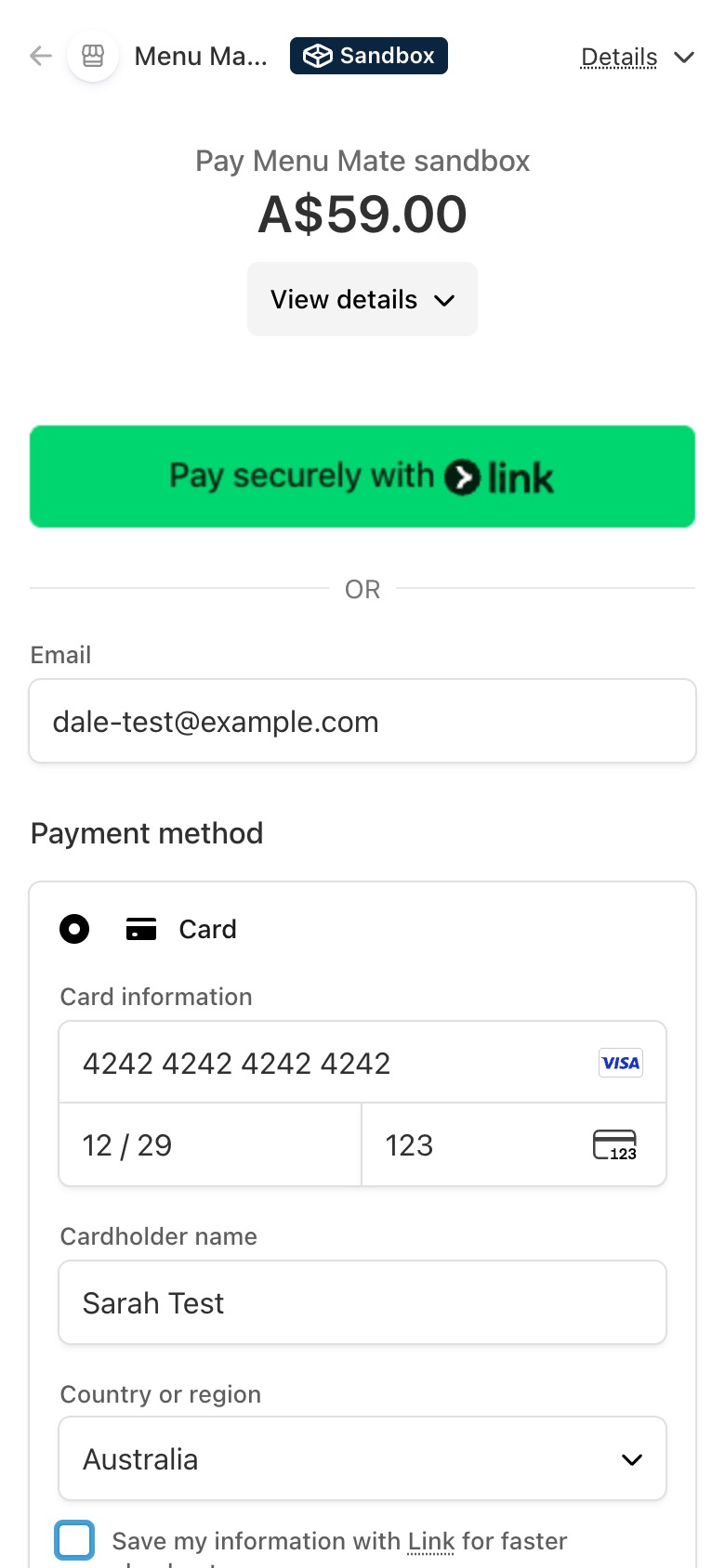
Pay with Stripe
Card, PayTo or Link. The demo runs on Stripe’s sandbox, so no money moves: card 4242 4242 4242 4242, any future expiry, CVC 123.
STEP 15 OF 17
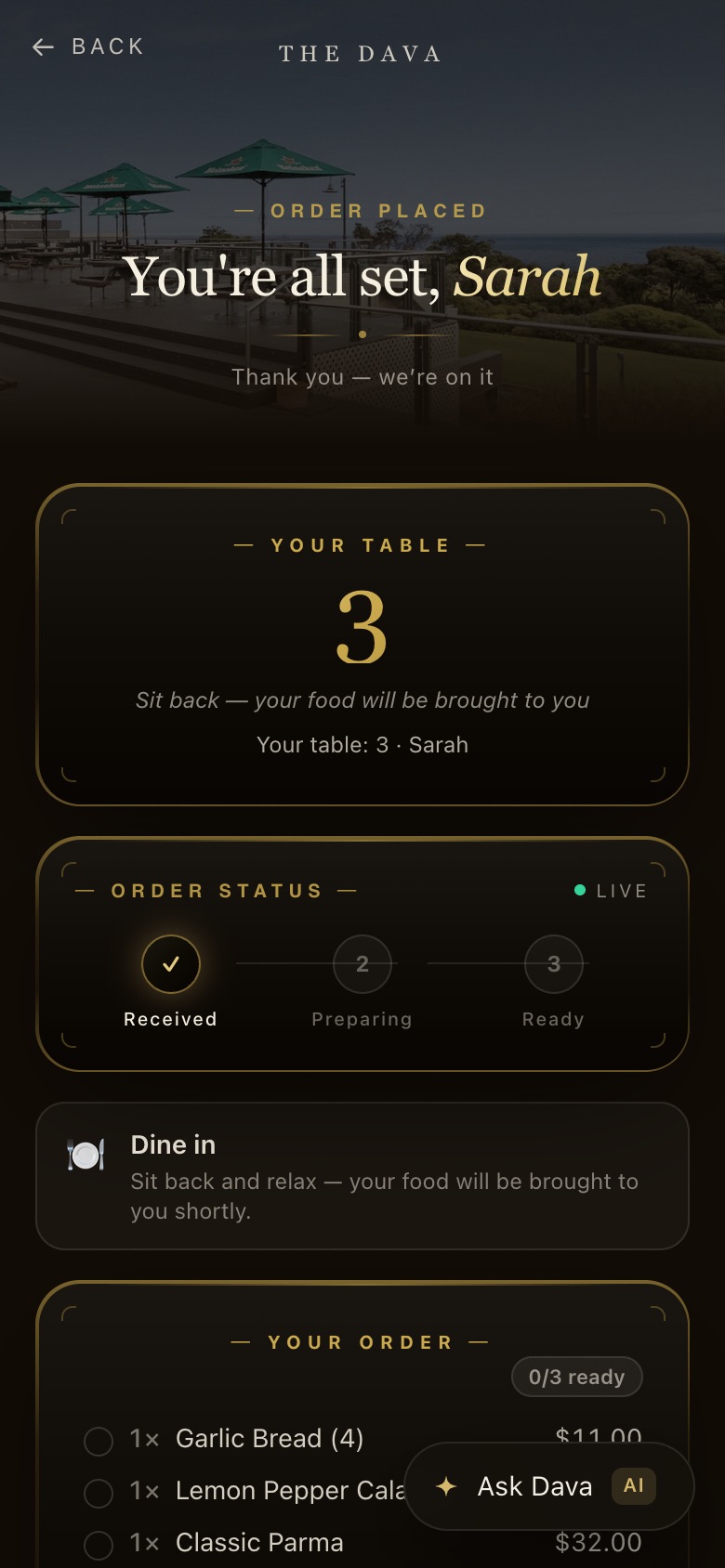
The live order page
“You’re all set, Sarah.” Table 3 and the status: Received, Preparing, Ready. Dine-in guests get no text; this page is their receipt.
STEP 16 OF 17
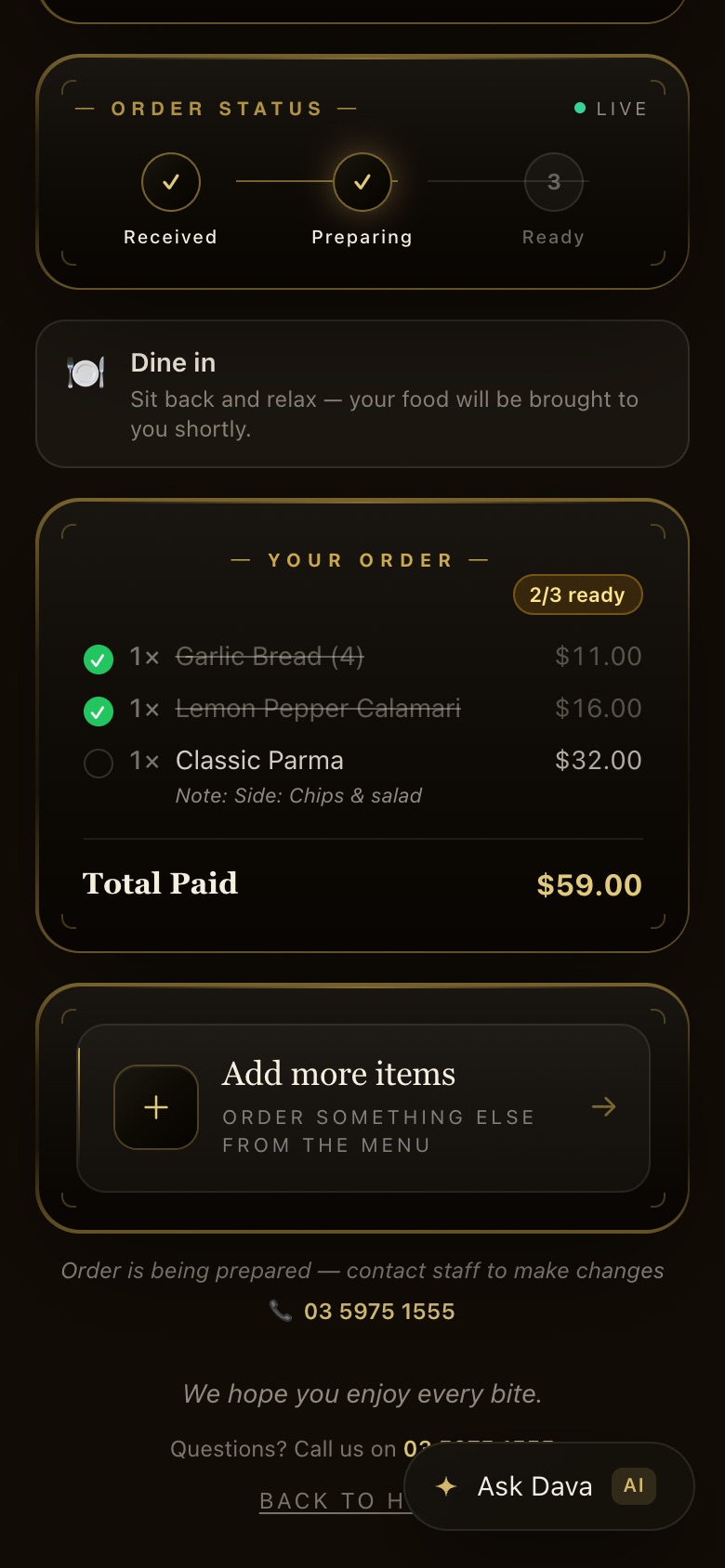
Watch it cook
Each dish ticks off as the kitchen plates it up: here 2 of 3 are ready. Add more items orders another round from this page.
STEP 17 OF 17
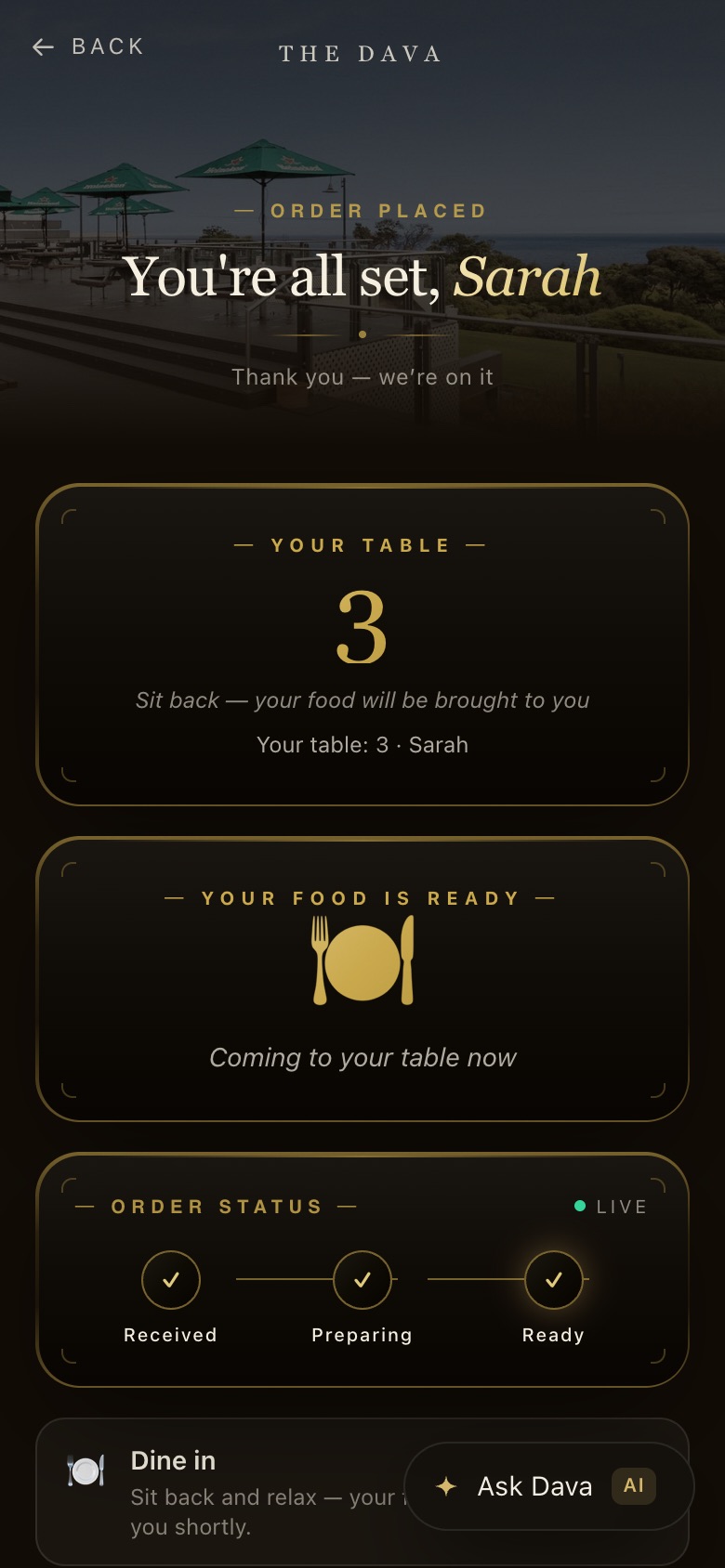
Food on its way
When the kitchen taps Food’s ready the page says “Your food is ready. Coming to your table now.”
Friends at one table, paying separately
Everyone at the table orders and pays for their own, and it all goes to the same table.
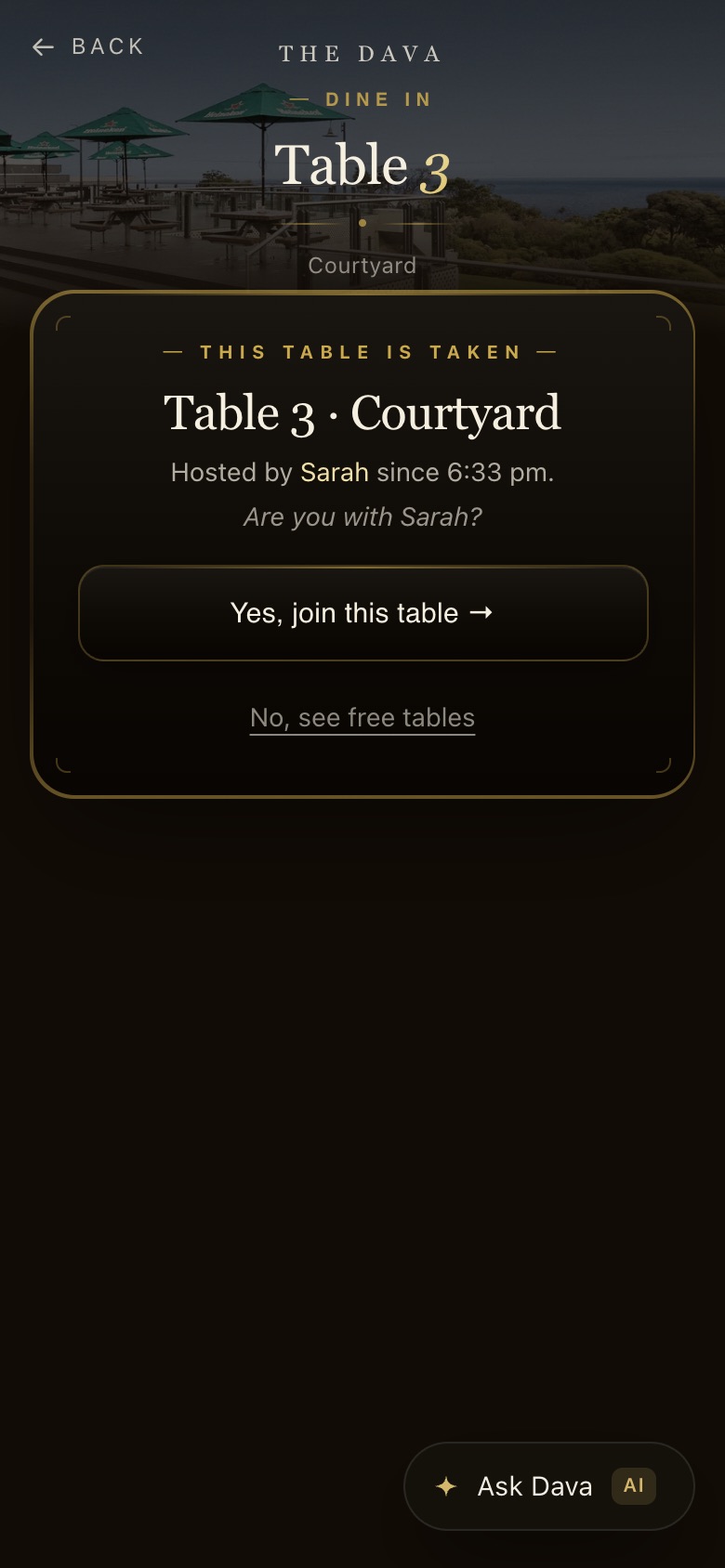
STEP 1 OF 3
A friend scans the same QR
“This table is taken. Hosted by Sarah. Are you with Sarah?” Yes, join this table, or No, see free tables.
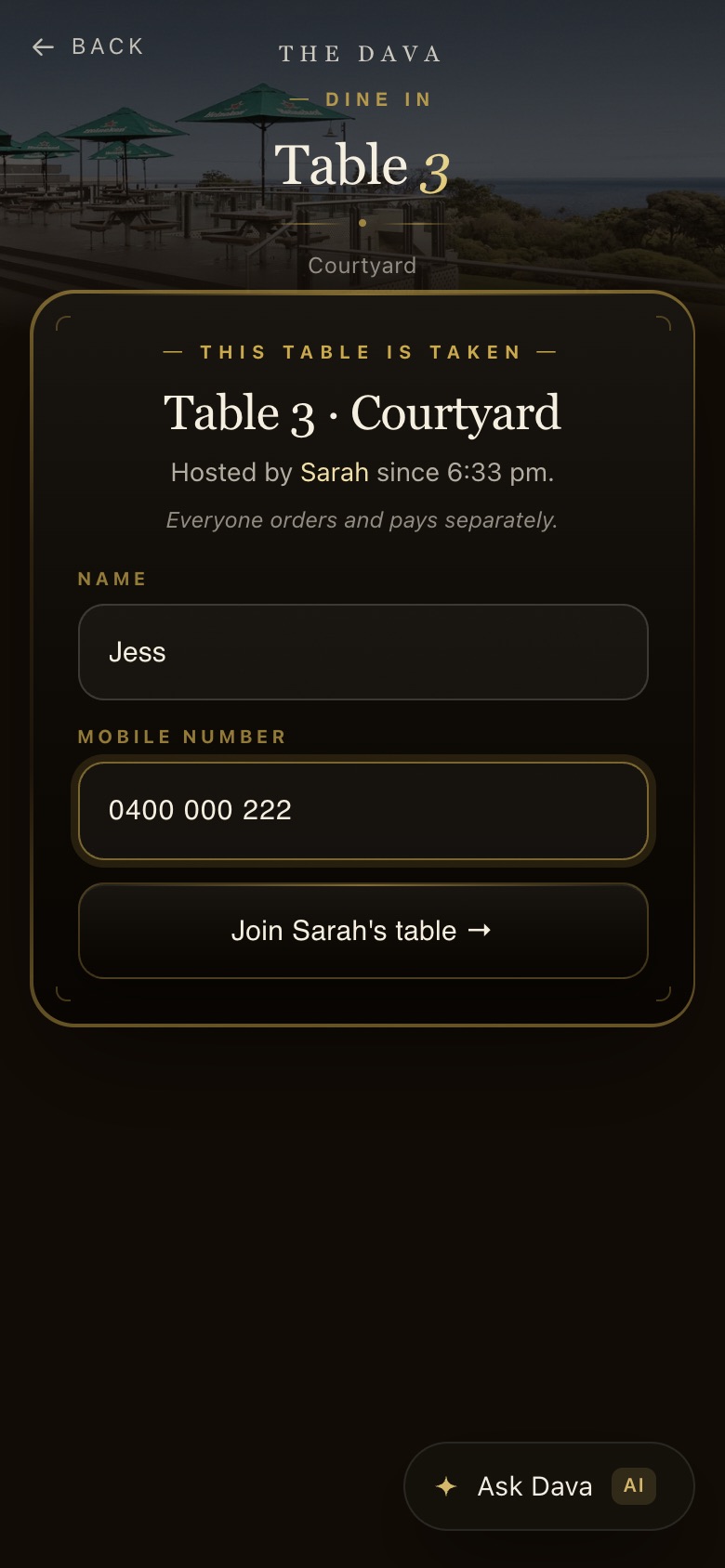
STEP 2 OF 3
Join the table
A name and mobile, then Join Sarah’s table. “Everyone orders and pays separately.”
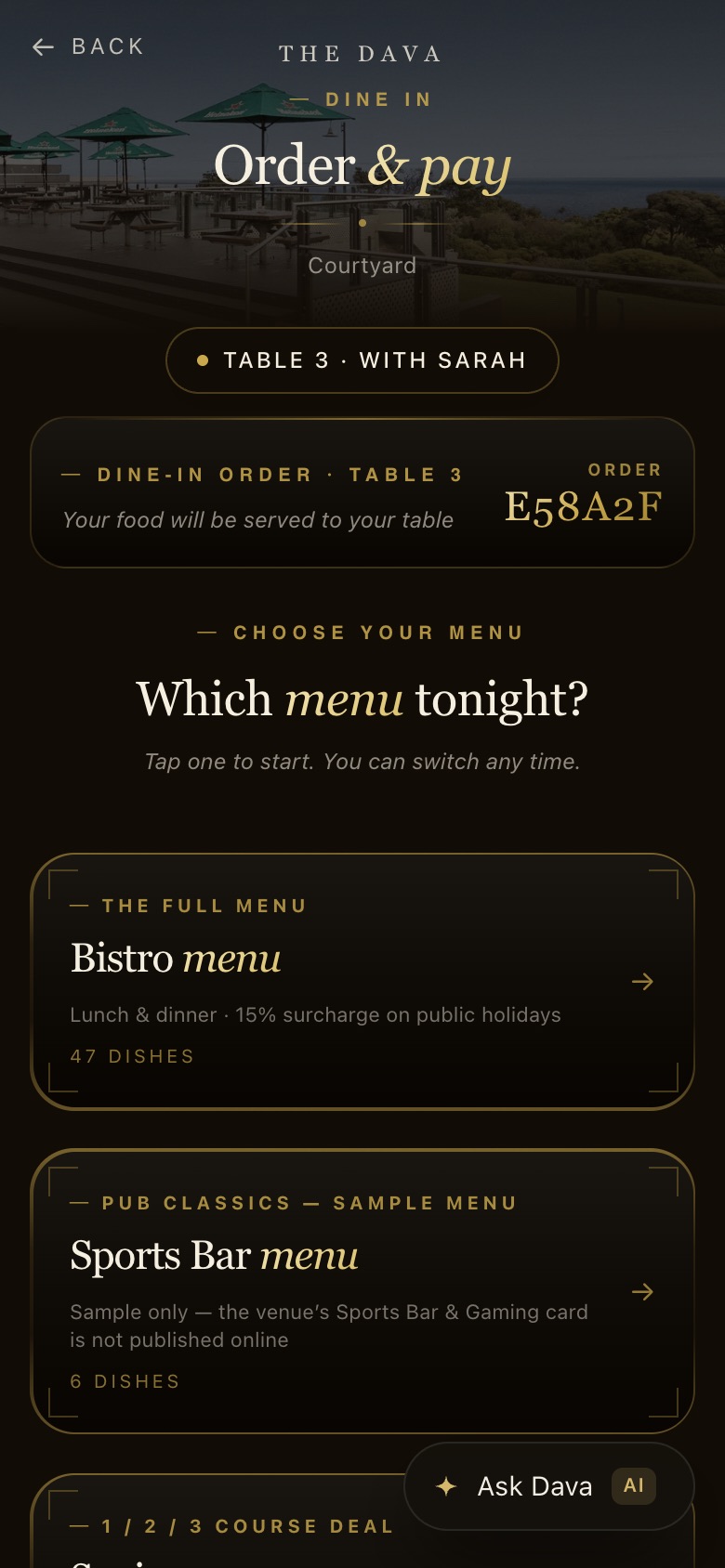
STEP 3 OF 3
Their own order, same table
Jess gets her own order number and the chip says Table 3 · with Sarah. She pays for her own; the kitchen sends it all to table 3.
Room full: the queue
When every table is taken, walk-ins join a queue on their phone and get a text when a table frees up.
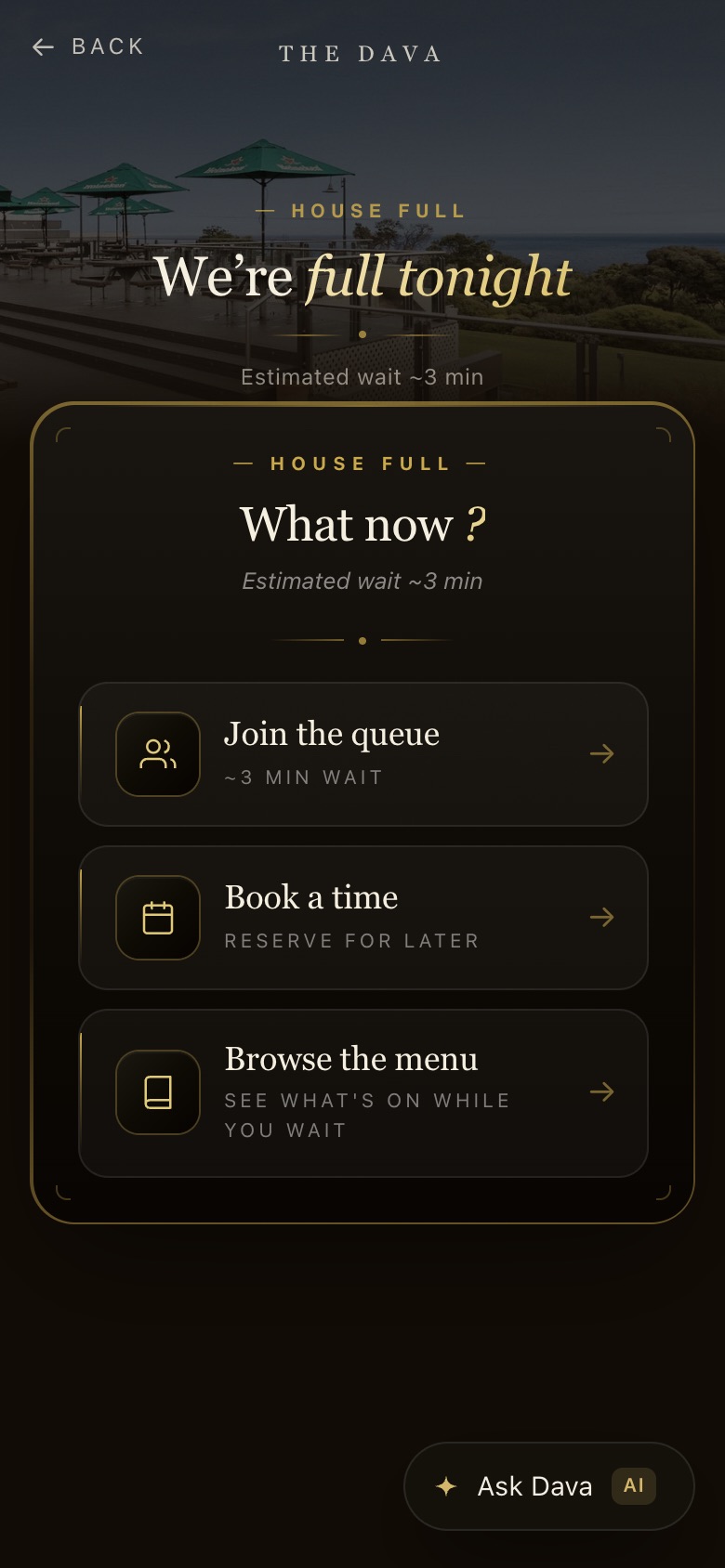
STEP 1 OF 7
We’re full tonight
Dine In shows the estimated wait and three ways on: Join the queue, Book a time, Browse the menu. (Every table was marked taken for this one picture.)
STEP 2 OF 7
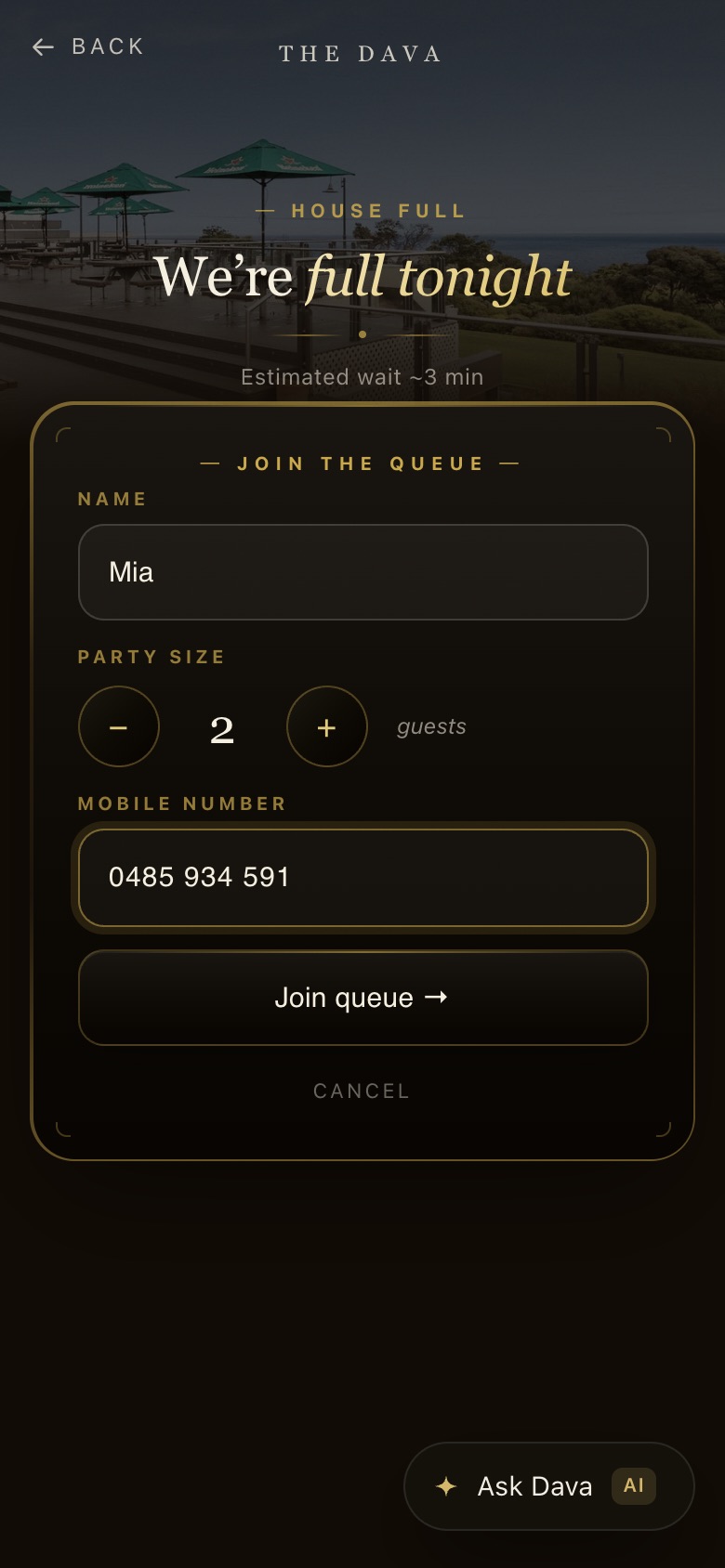
Join the queue
Name, party size and mobile, then Join queue. A text arrives with a link to their spot.
STEP 3 OF 7
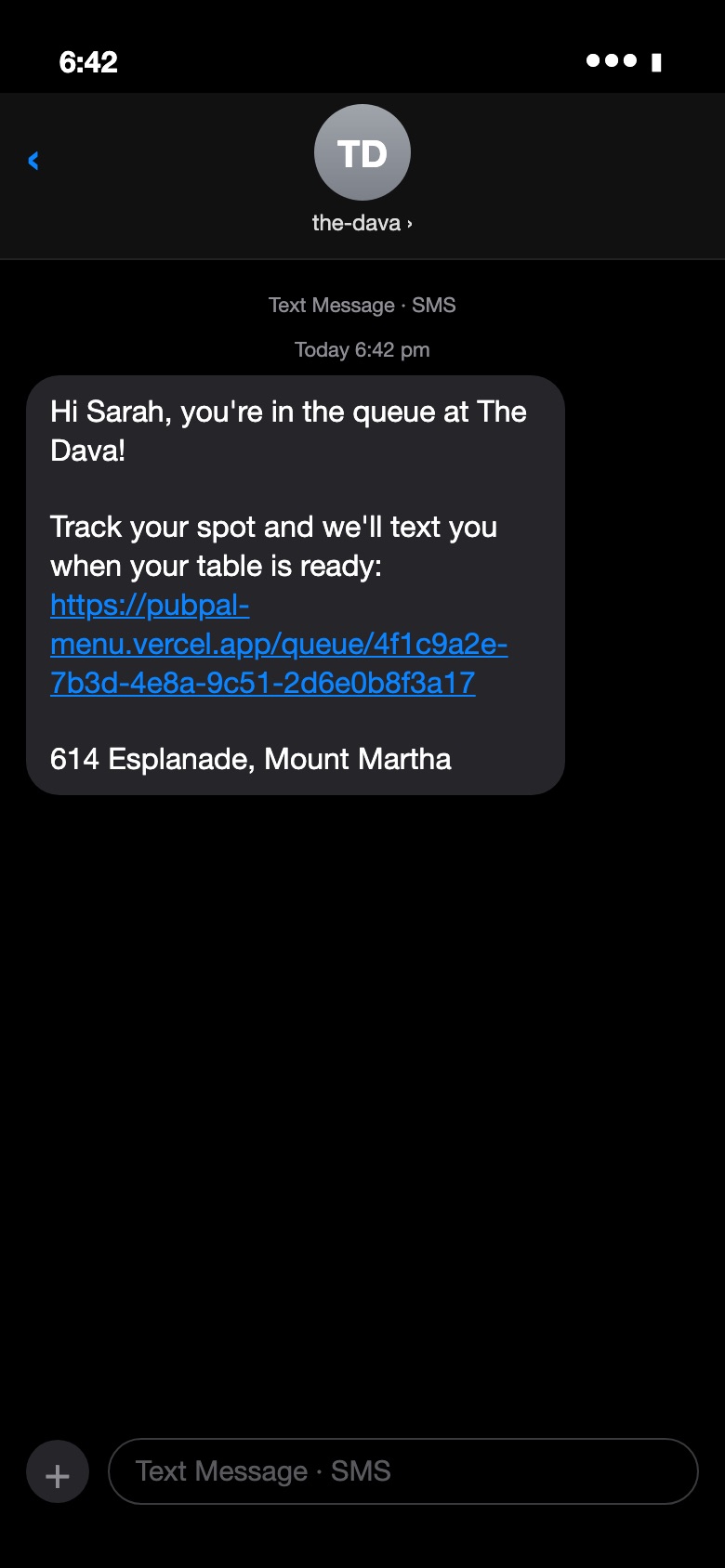
The text they get
Straight away, from the-dava: “Hi Sarah, you’re in the queue at The Dava!” with a link to track their spot, so they can wait at the bar or go for a walk.
STEP 4 OF 7
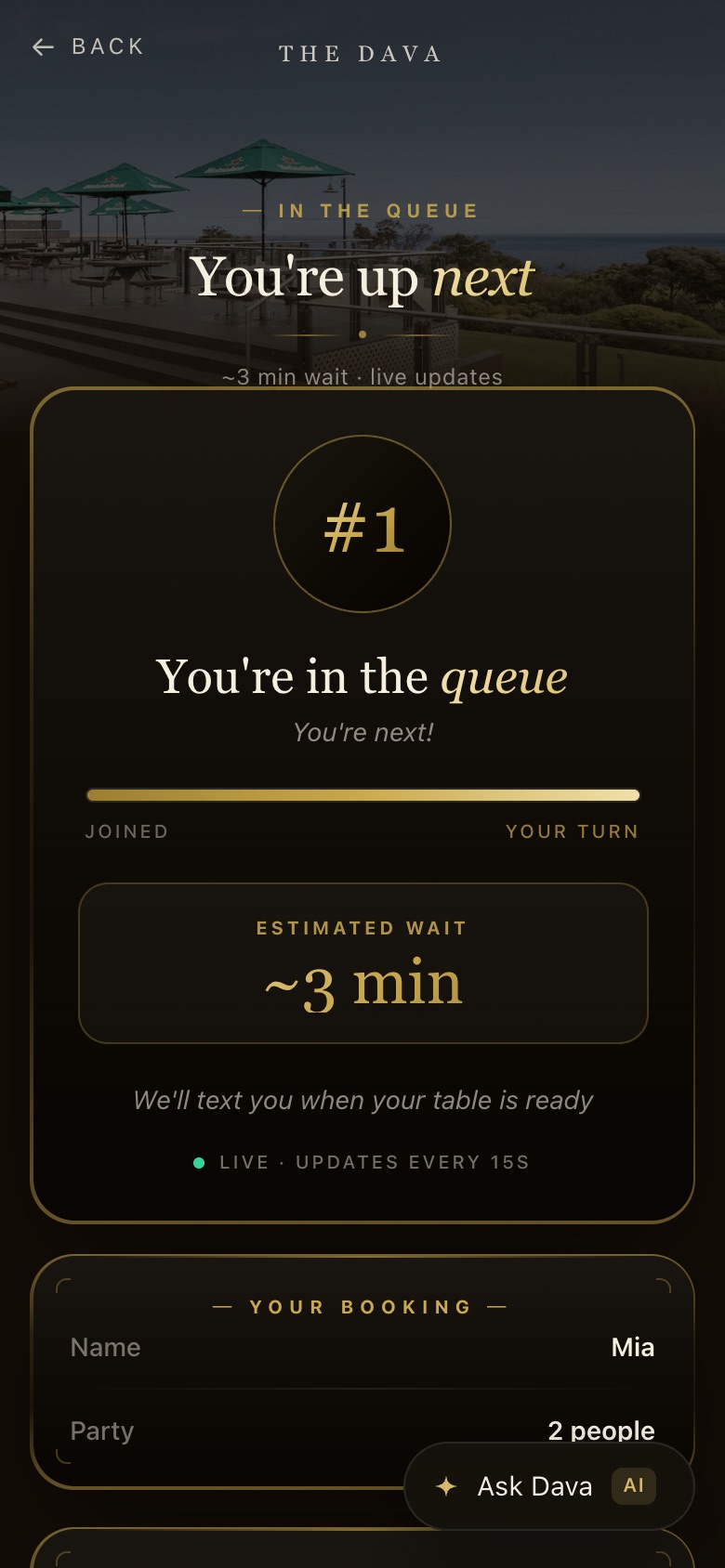
Their place in line
Their number, the estimated wait, updated every 15 seconds. They can order and pay now so the food is ready when they sit, or leave the queue.
STEP 5 OF 7
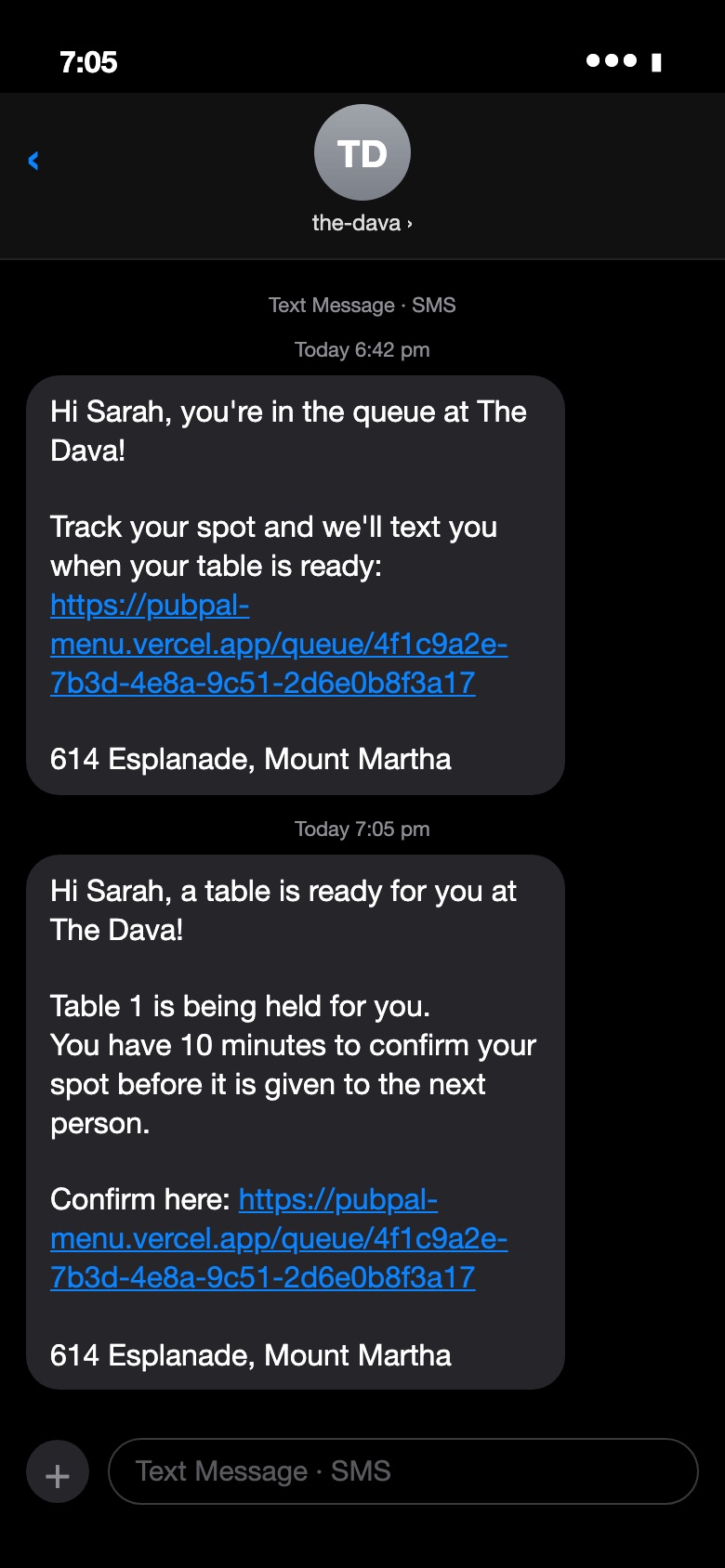
The table is ready text
When staff call them: “A table is ready for you. Table 1 is being held for you. You have 10 minutes to confirm.” The link opens the page below. Paid ahead? The text just says head over, the food is on its way.
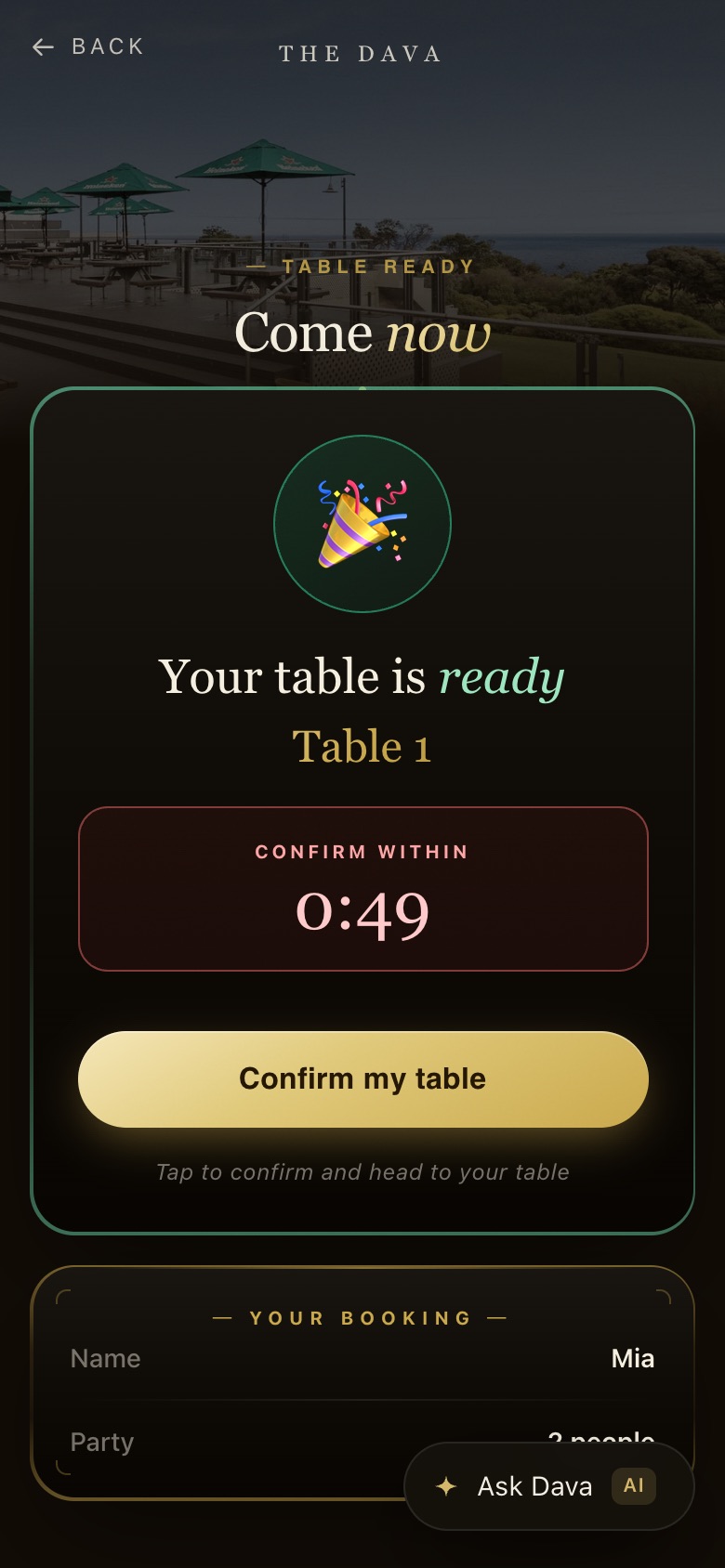
STEP 6 OF 7
Your table is ready
When staff call them they get a text and this page: the table number and a countdown to confirm. The time allowed is set in Settings.
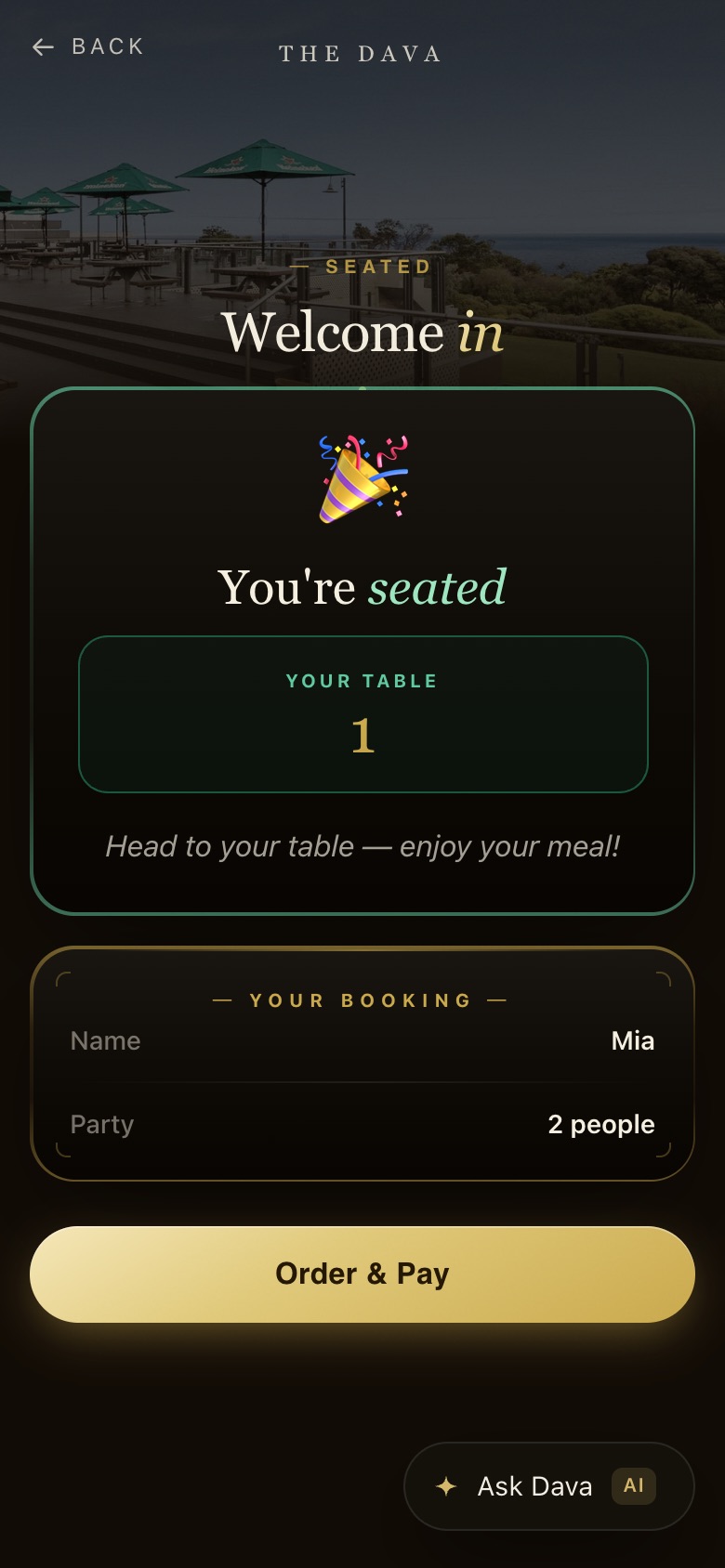
STEP 7 OF 7
Seated
Confirm my table: “You’re seated”, table 1, then Order & Pay.
Book a table
Book ahead online, get a text, keep the table by checking in on arrival.
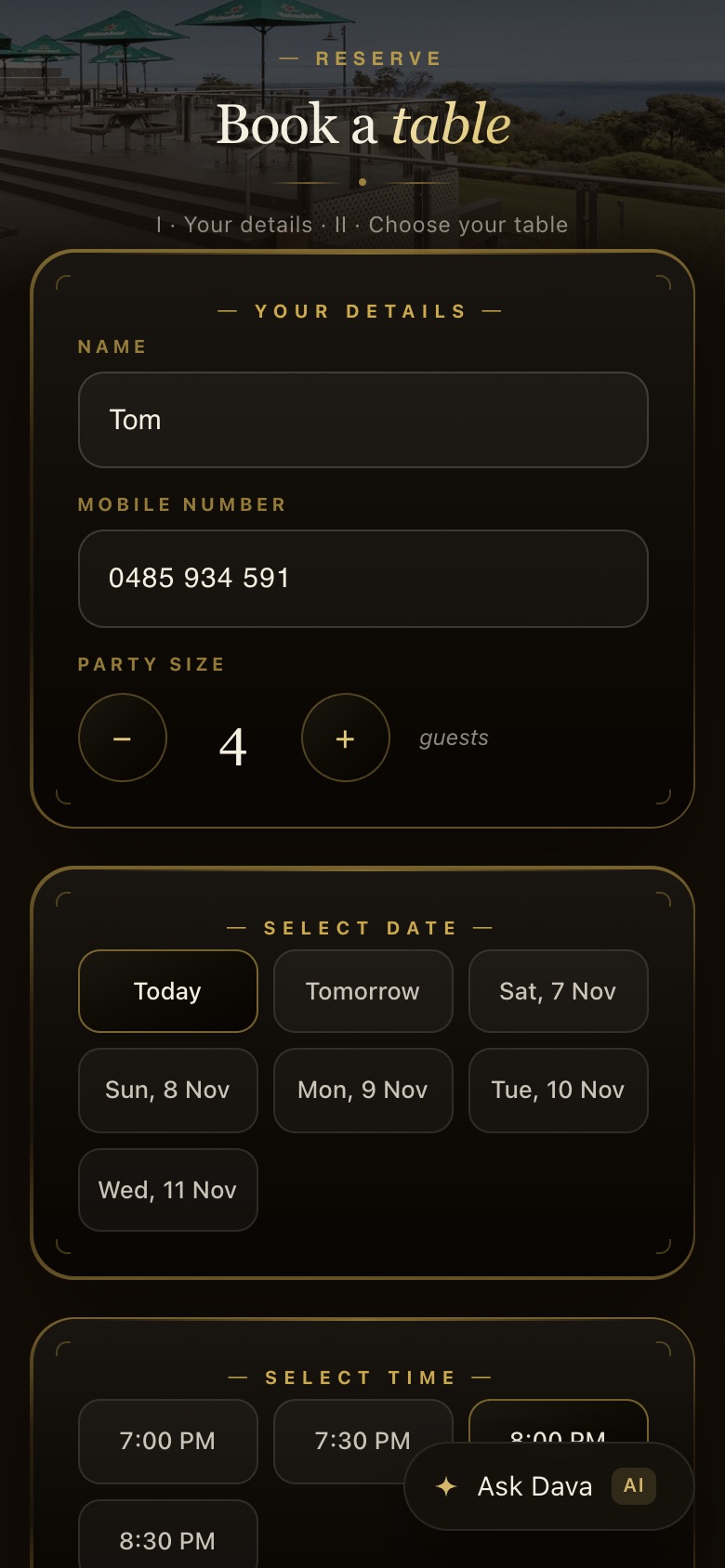
STEP 1 OF 10
Your details and a date
Name, mobile, party size, then today or one of the next six days.
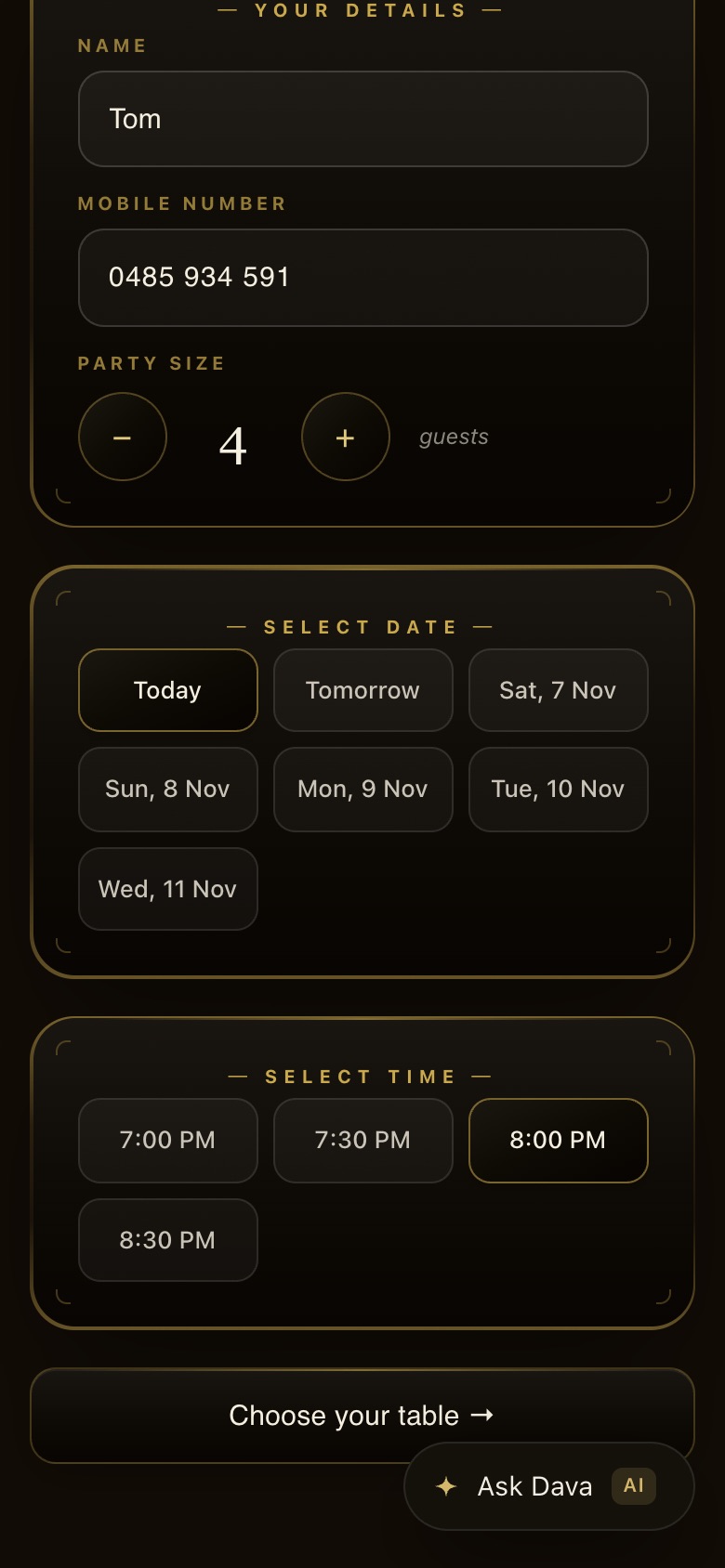
STEP 2 OF 10
A time
Only times the venue is open that day. Pick one, then Choose your table.
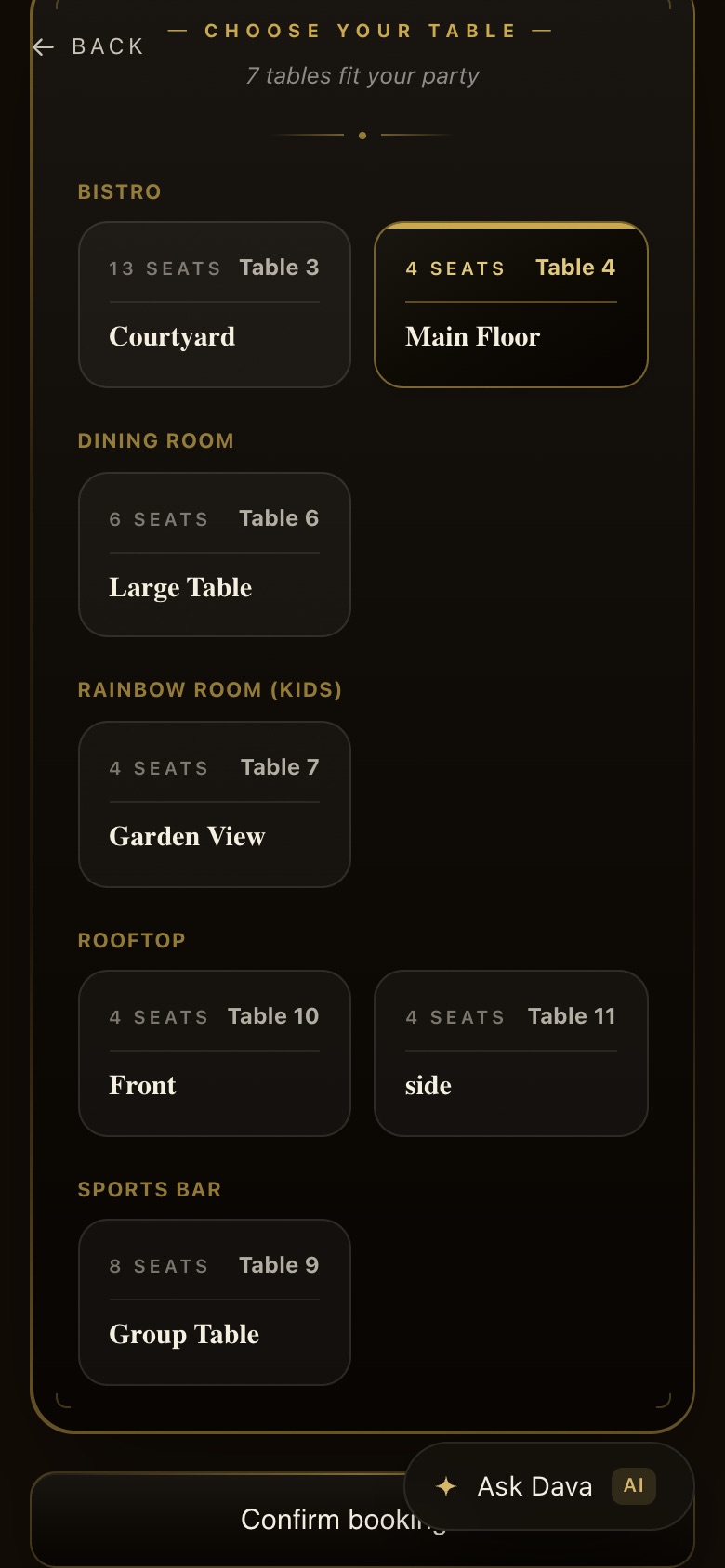
STEP 3 OF 10
A table
Only tables that fit the party and are free at that time. Tap one, then Confirm booking.
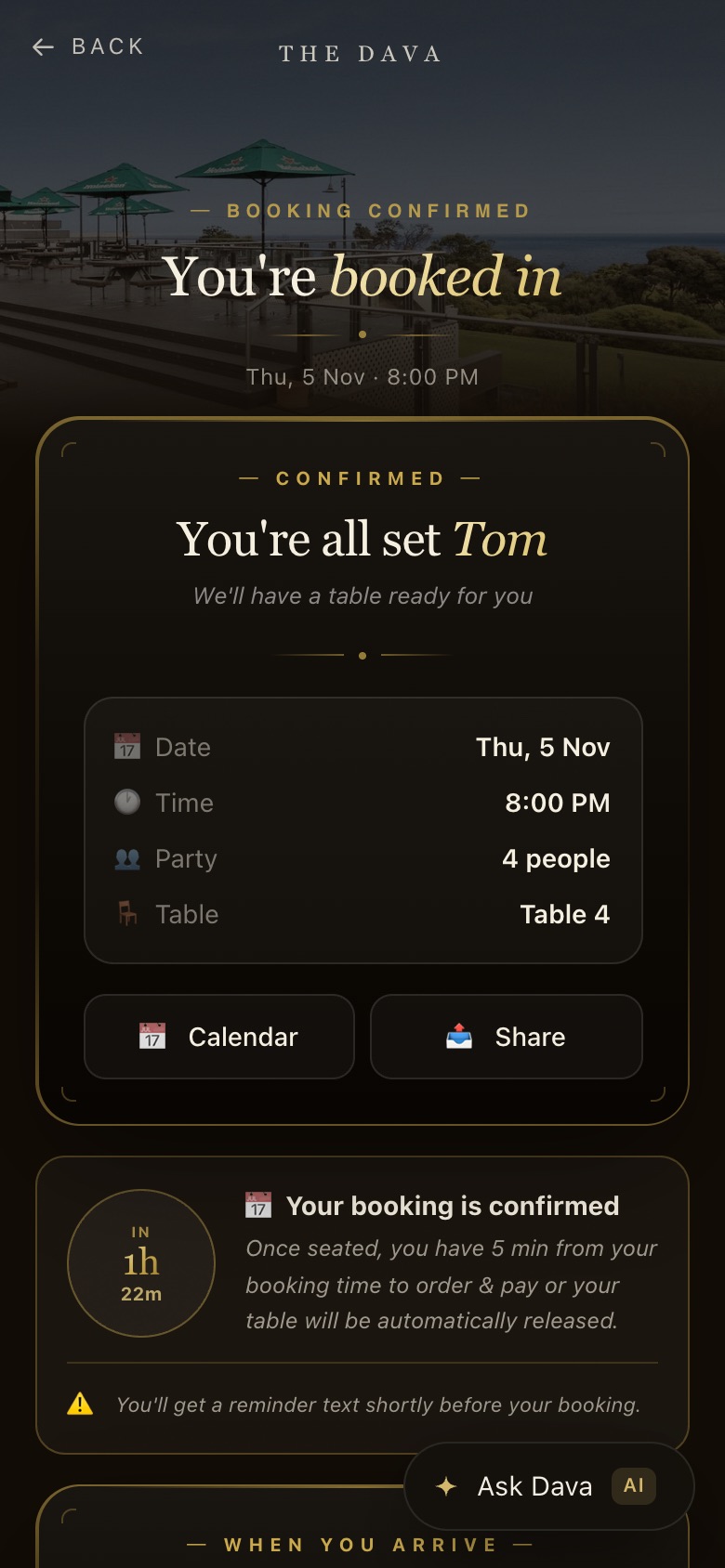
STEP 4 OF 10
You’re booked in
Date, time, party and table, with Calendar and Share. A confirmation text now, and a reminder text shortly before.
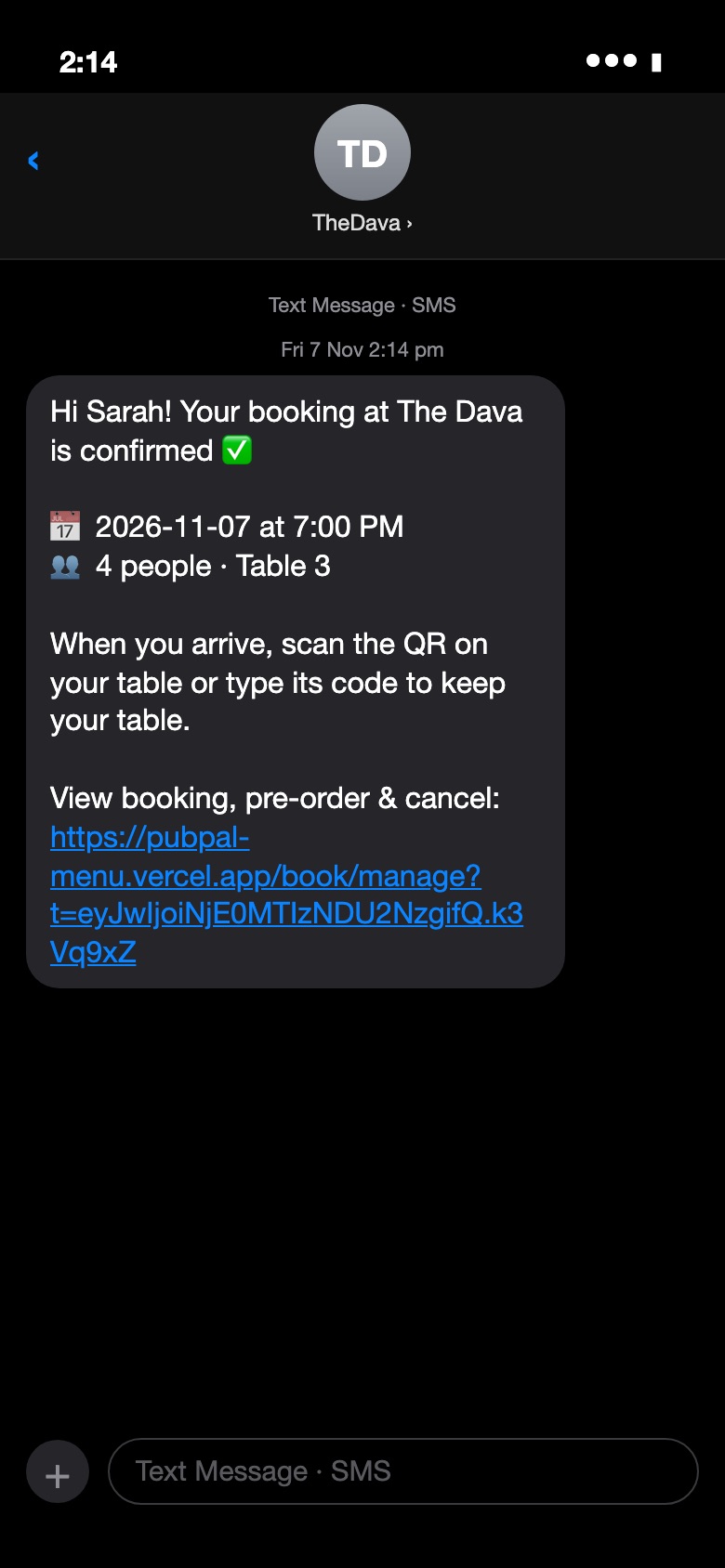
STEP 5 OF 10
The confirmation text
Straight away, from TheDava: the date, time, party size and table, a reminder to scan or type the table code on arrival, and a link to view, pre-order or cancel.
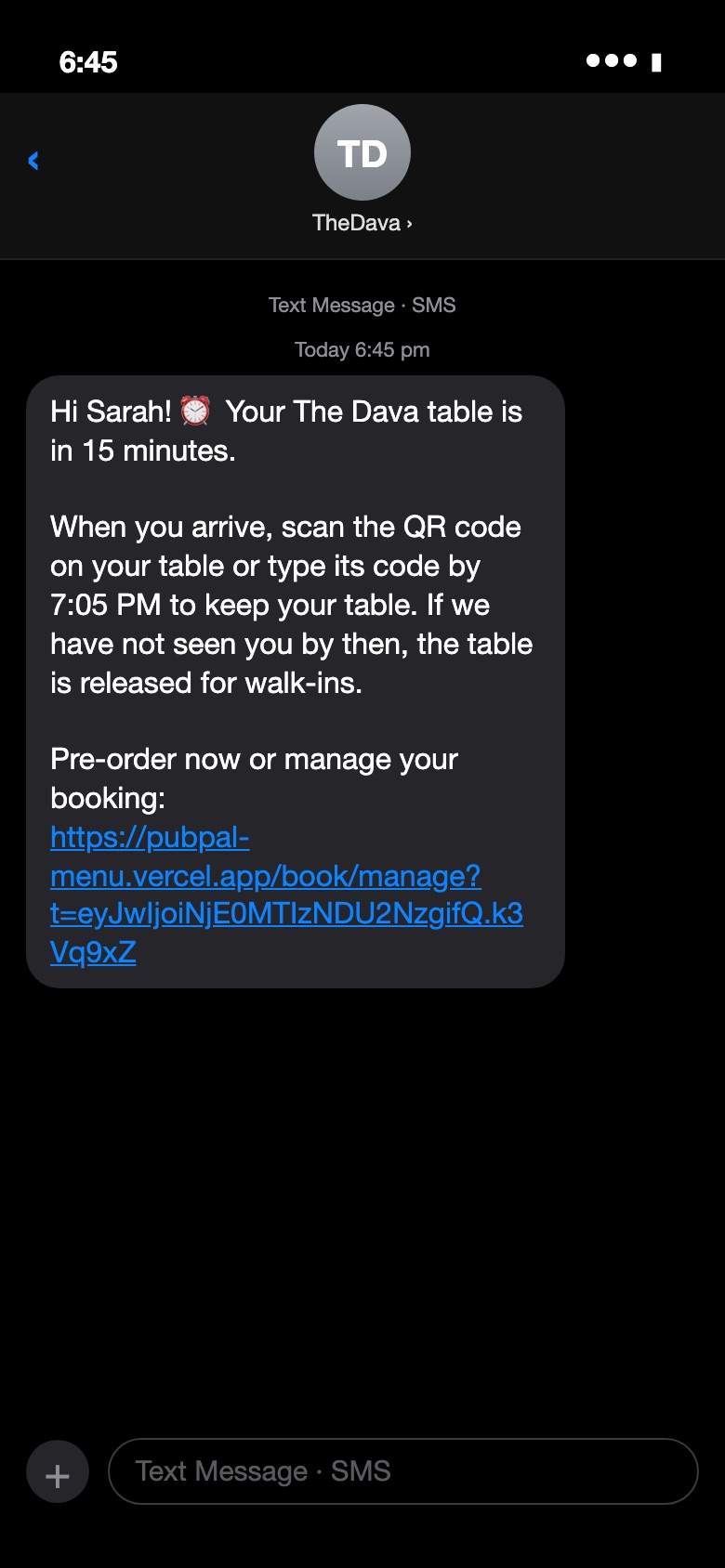
STEP 6 OF 10
The reminder text
Up to 20 minutes before the booking: “Your table is in 15 minutes.” Check in by the hold time from Settings (here 7:05 PM) or the table goes to walk-ins. Already paid or checked in? No reminder.
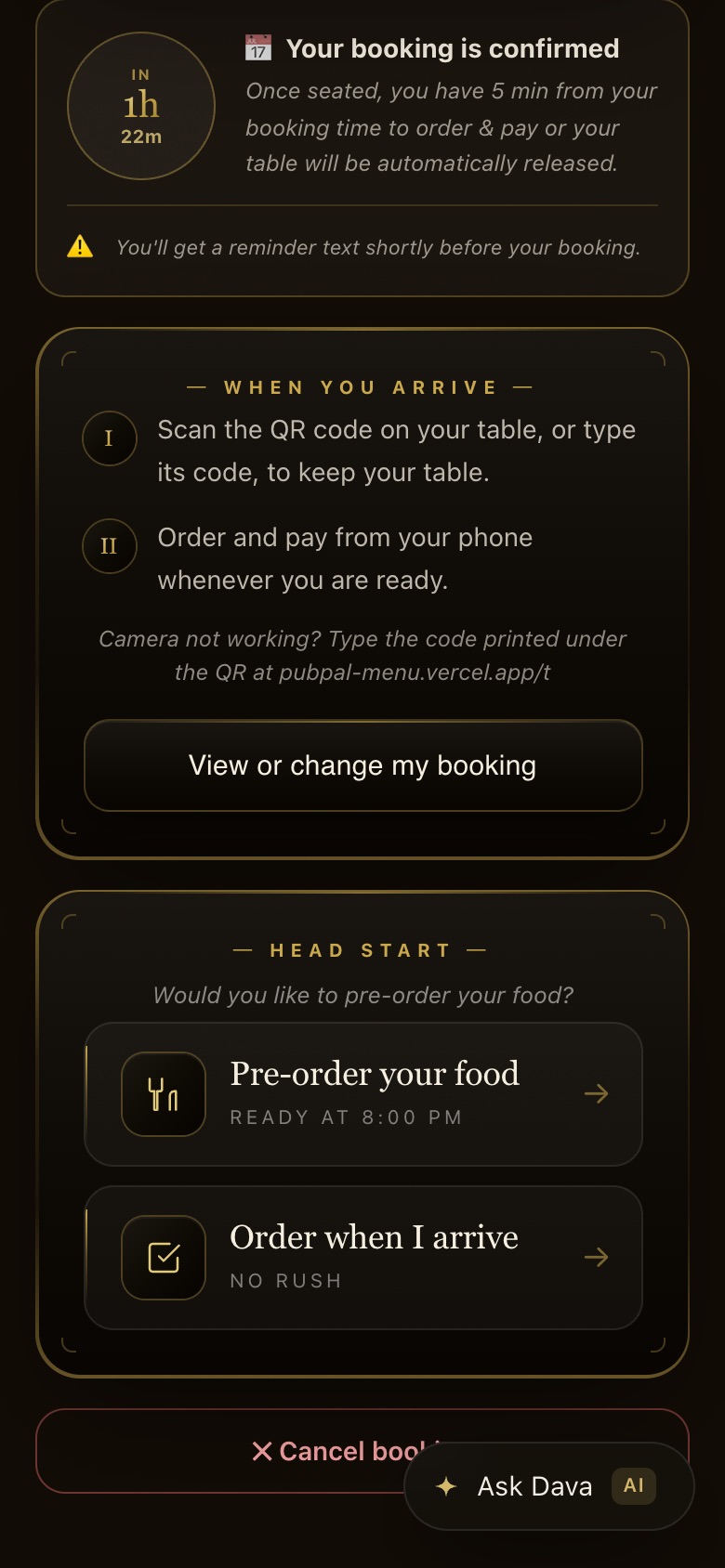
STEP 7 OF 10
When you arrive
Scan or type the table code to keep the table. Pre-order now so the food is ready at the booked time, or order on arrival. Cancel booking is here too.
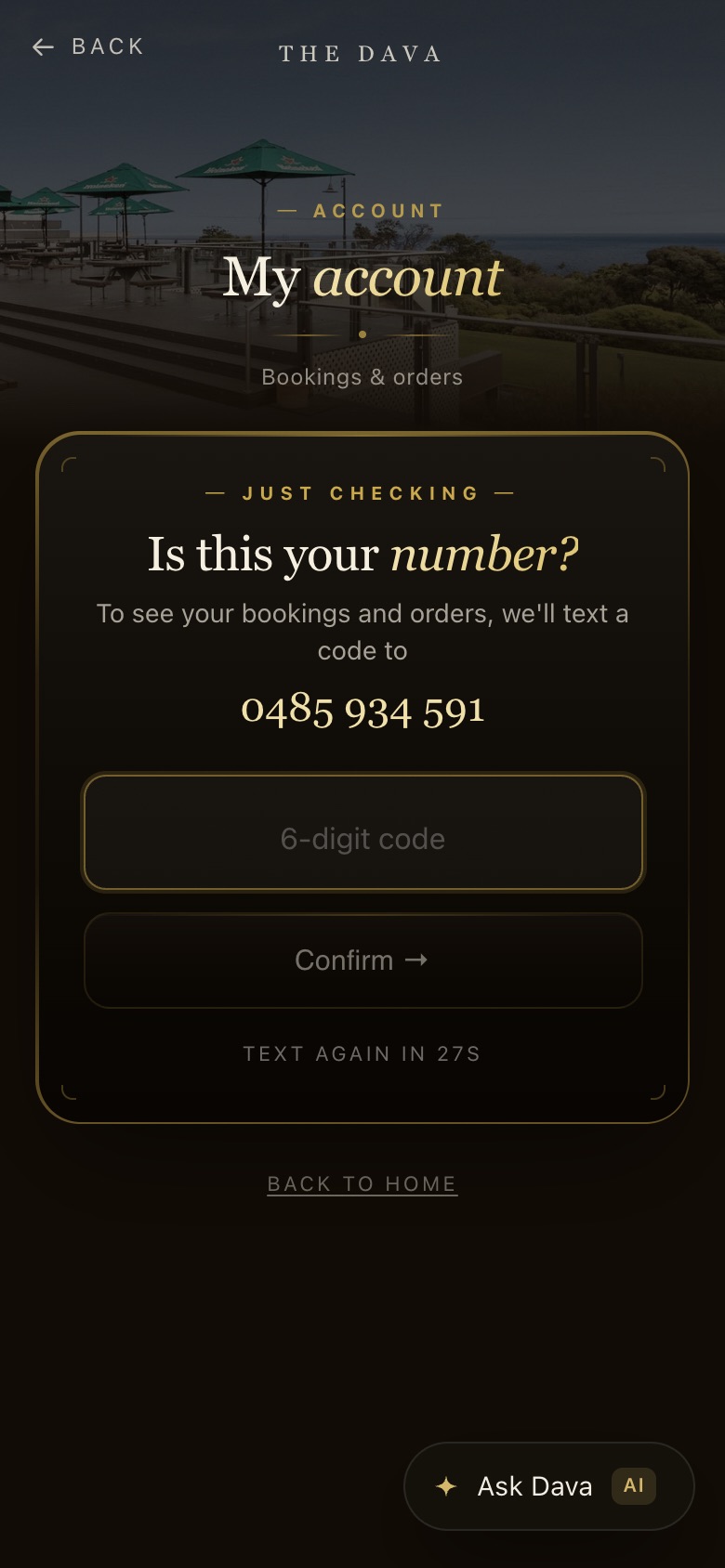
STEP 8 OF 10
Is this your number?
To open a booking later, the app texts a six-digit code to the mobile first, so nobody else can see or cancel it.
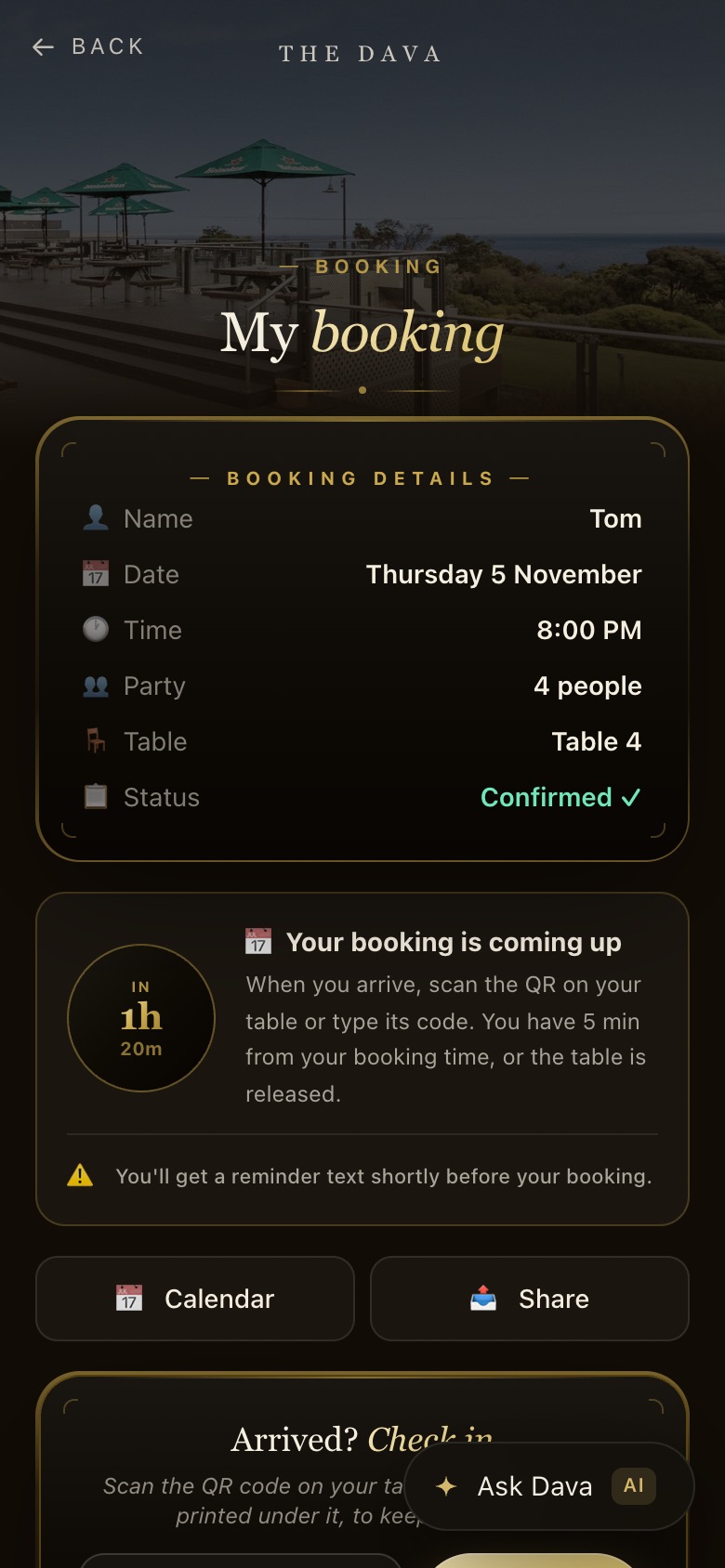
STEP 9 OF 10
My booking
Every detail, a countdown, Check in, View menu & pre-order and Cancel booking.
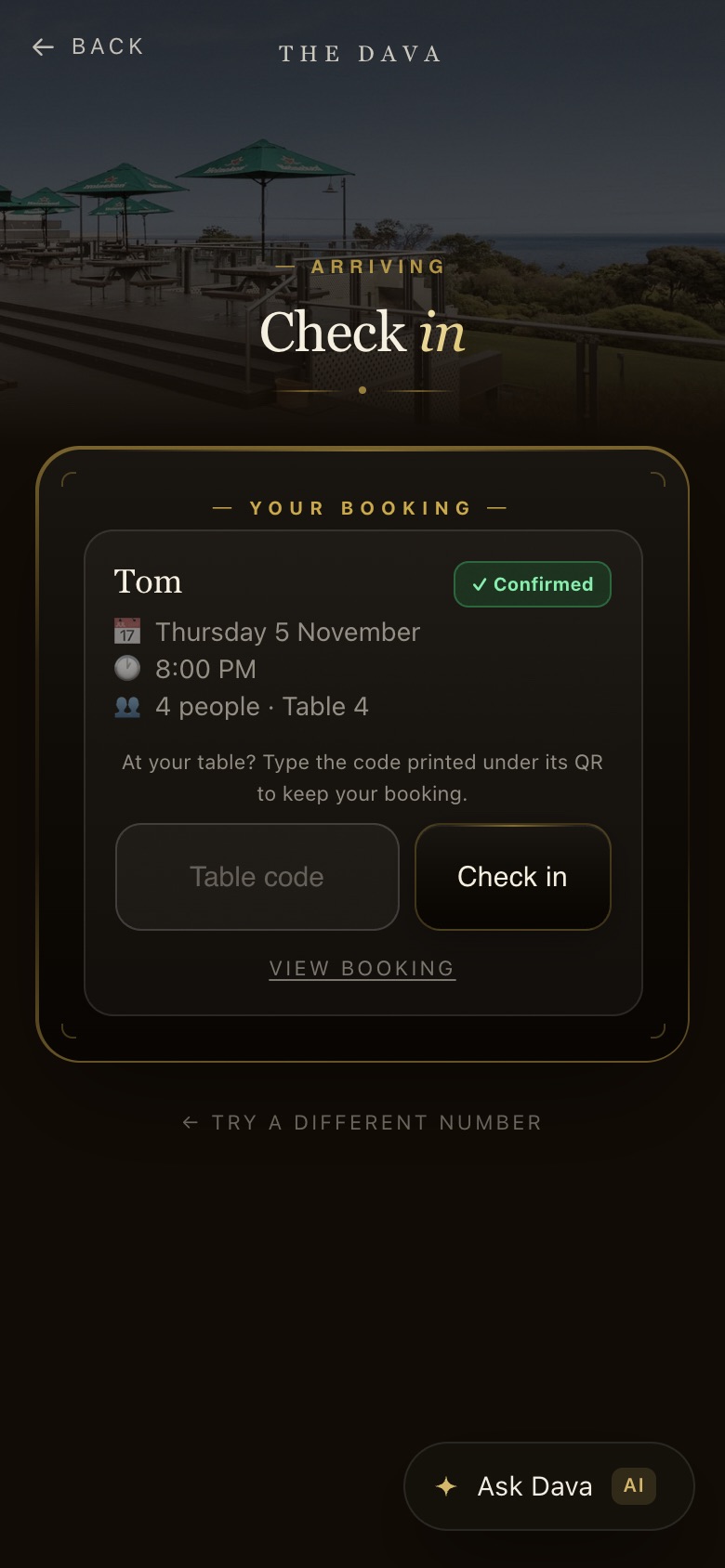
STEP 10 OF 10
Check in
Check In finds the booking by mobile; the table code keeps the table. No check-in or payment within the hold time in Settings and the table goes back to walk-ins.
Takeaway
Ordered through Dava, the AI waiter, paid on the phone, collected when it is ready.
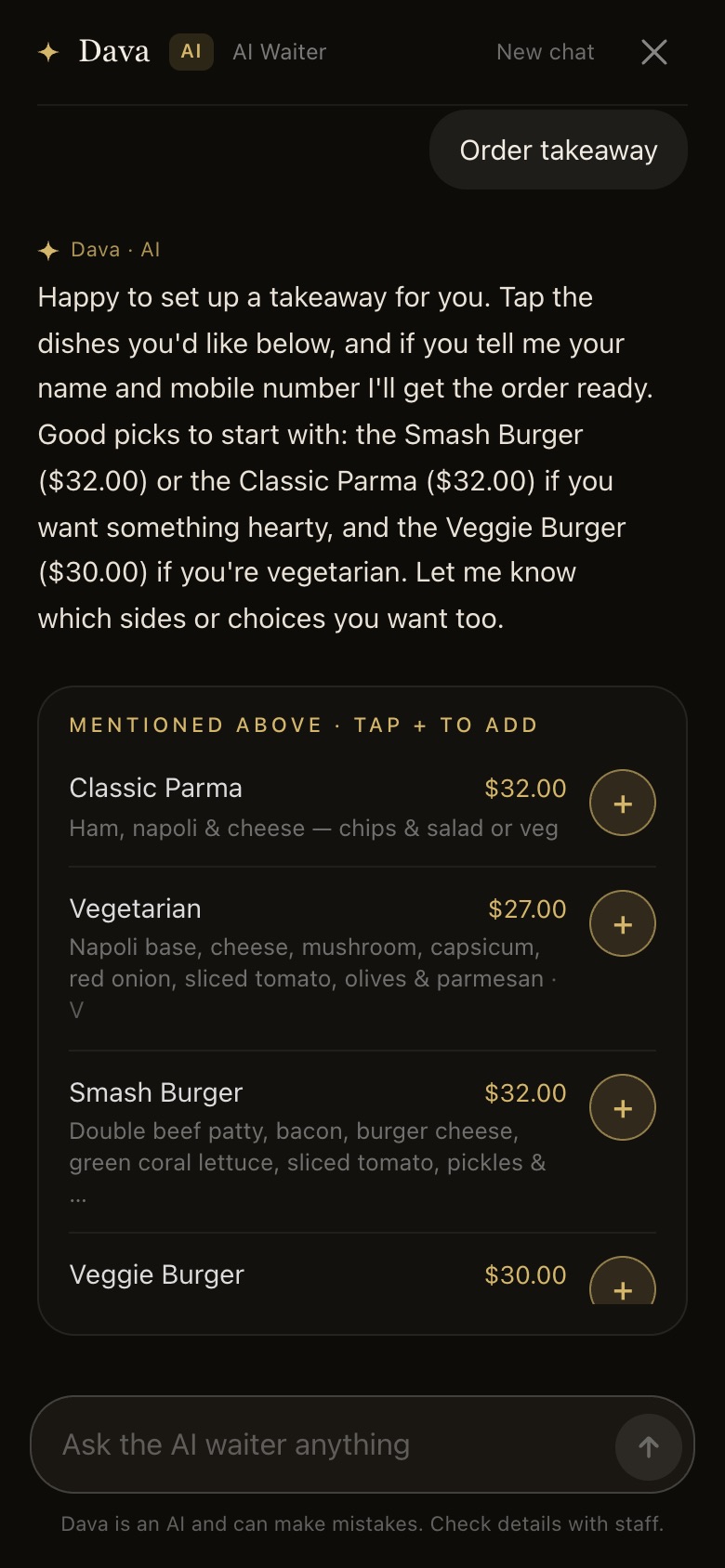
STEP 1 OF 2
Order takeaway
Ask Dava, tap Order takeaway. Dava suggests dishes, each as a card with + to add it.
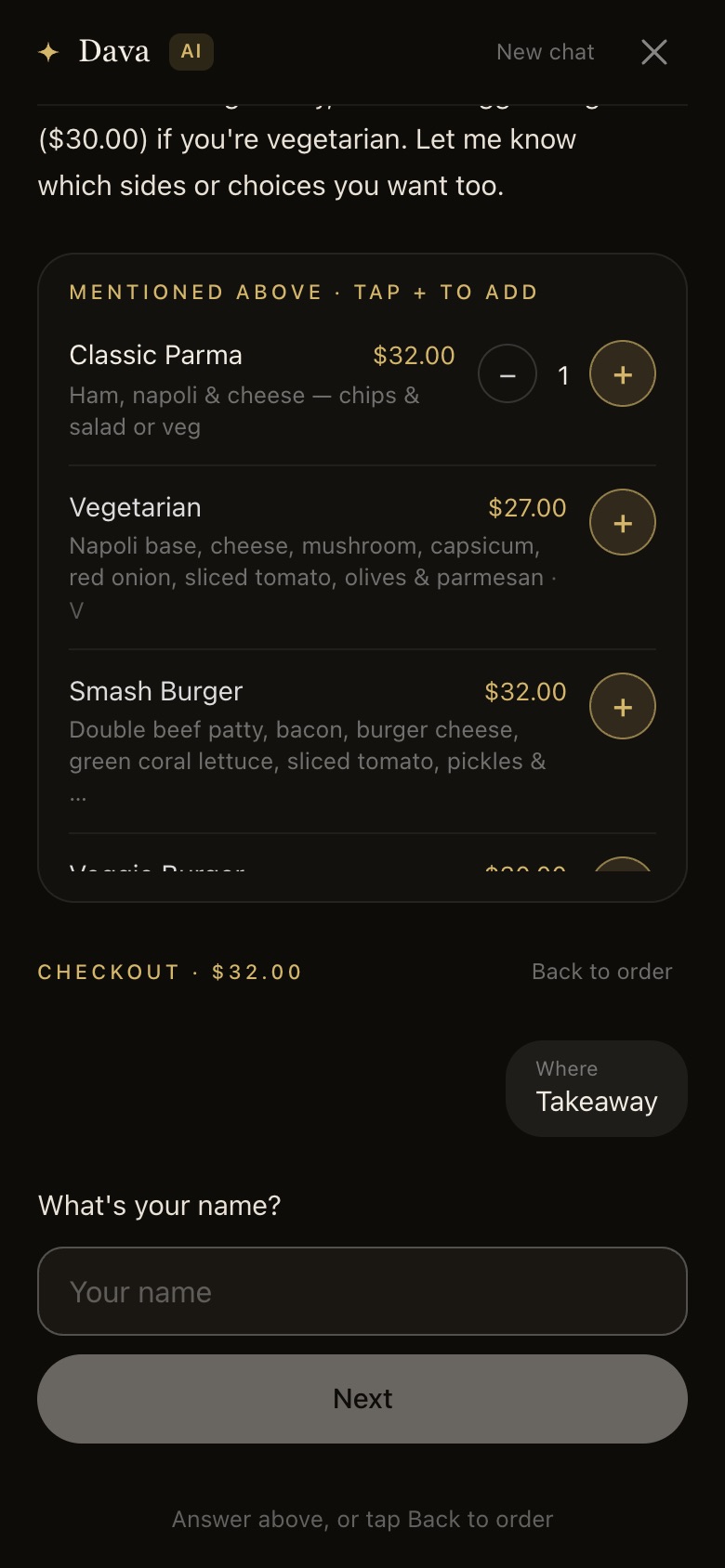
STEP 2 OF 2
Checkout
Continue to Pay, “No, it’s takeaway”, then name, mobile and Stripe. Takeaway is the one order that gets an SMS receipt; staff see it marked Takeaway.
On every page
Dava, the AI waiter
Ask Dava sits at the bottom of every guest page. It answers from The Dava’s own menu and builds the order with the guest.
Talk to Dava
Questions, a table right now, or a whole order in the chat.
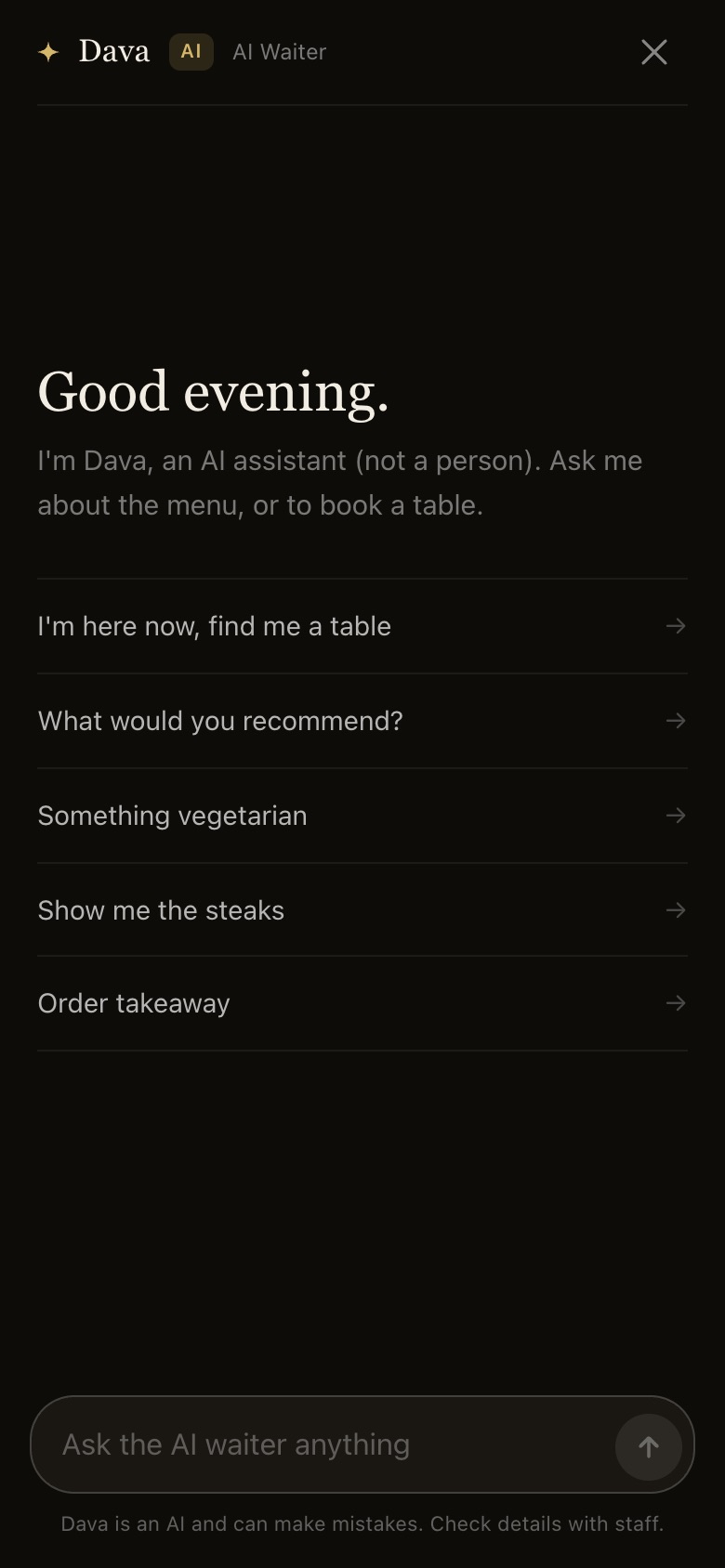
STEP 1 OF 6
Open Ask Dava
It says up front it is an AI, not a person, and offers a start: find me a table, recommendations, vegetarian, steaks, takeaway.
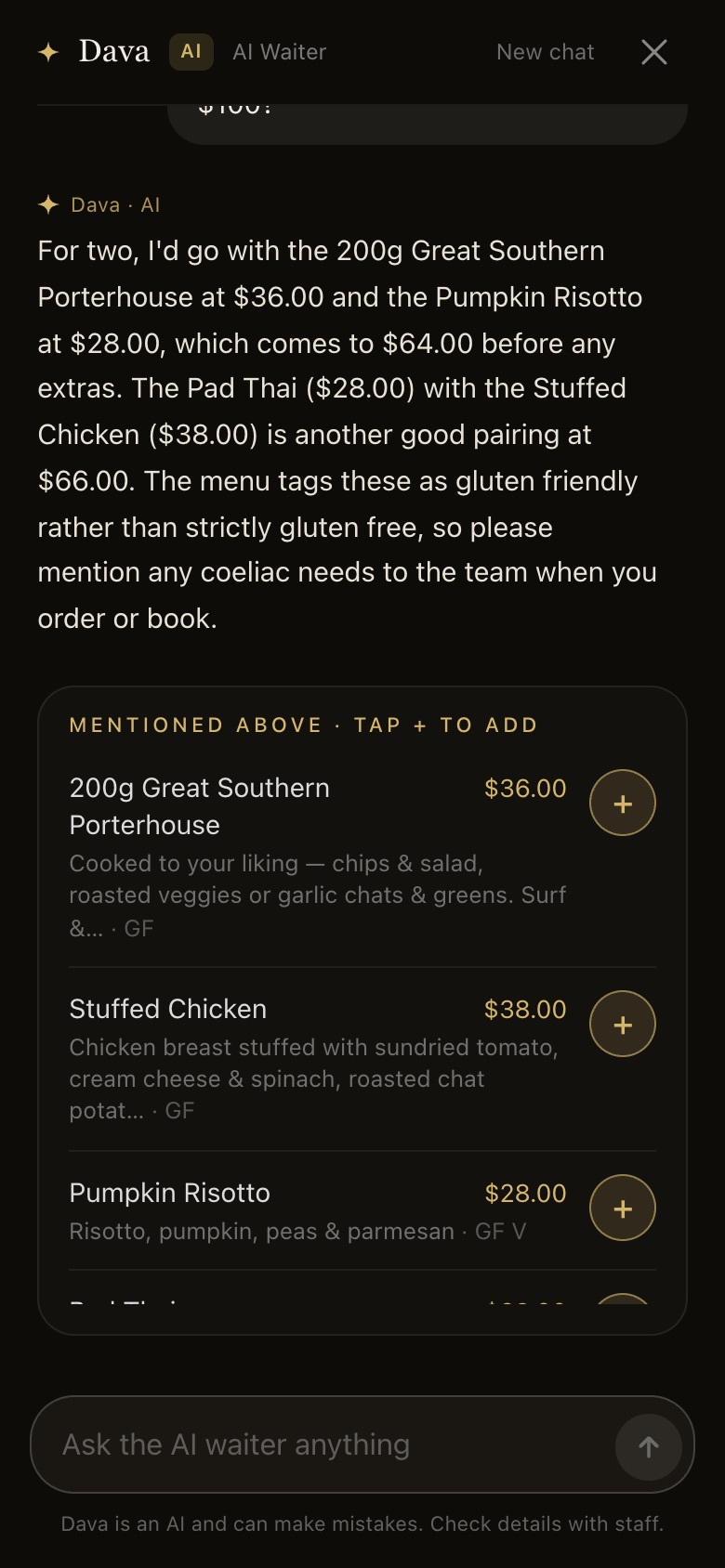
STEP 2 OF 6
Ask about the menu
“Gluten free dinner for two under $100?” It answers with real dishes and prices; every dish it names is a card from the menu with + to add.
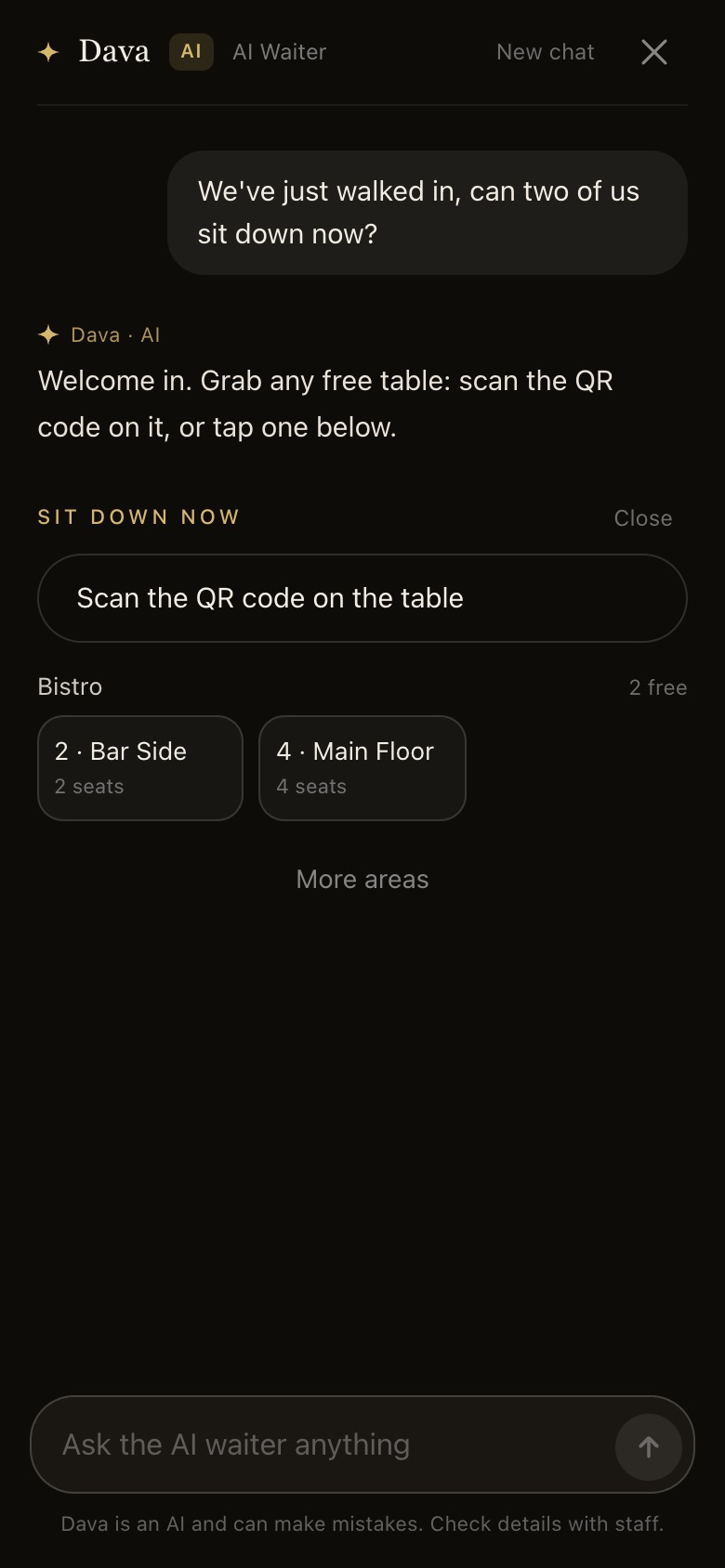
STEP 3 OF 6
“Can two of us sit down now?”
Sit down now: scan the QR on a table, or tap a free one, grouped by area.
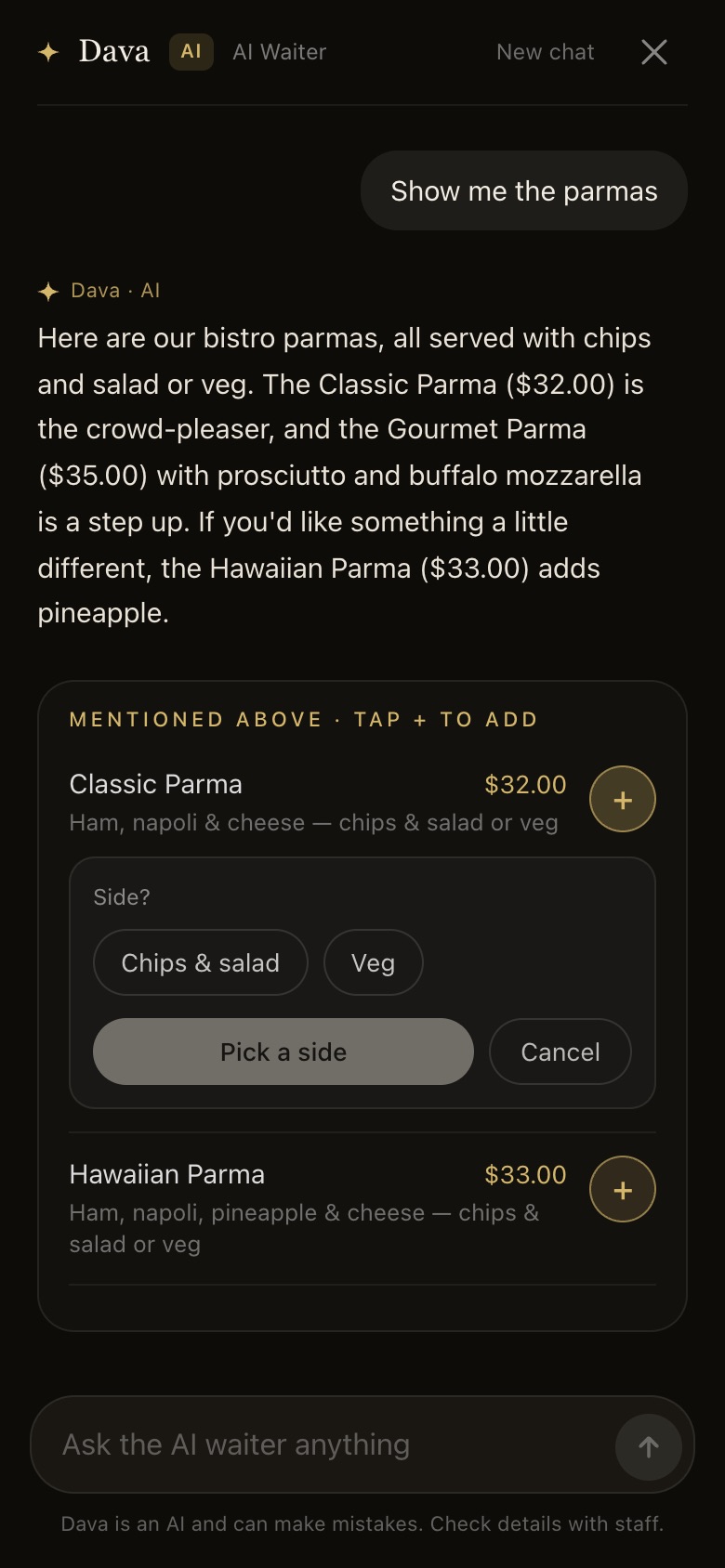
STEP 4 OF 6
Add from a card
Tap +. A dish with a choice asks for it in the chat (chips & salad or veg), then Add · $32.00.
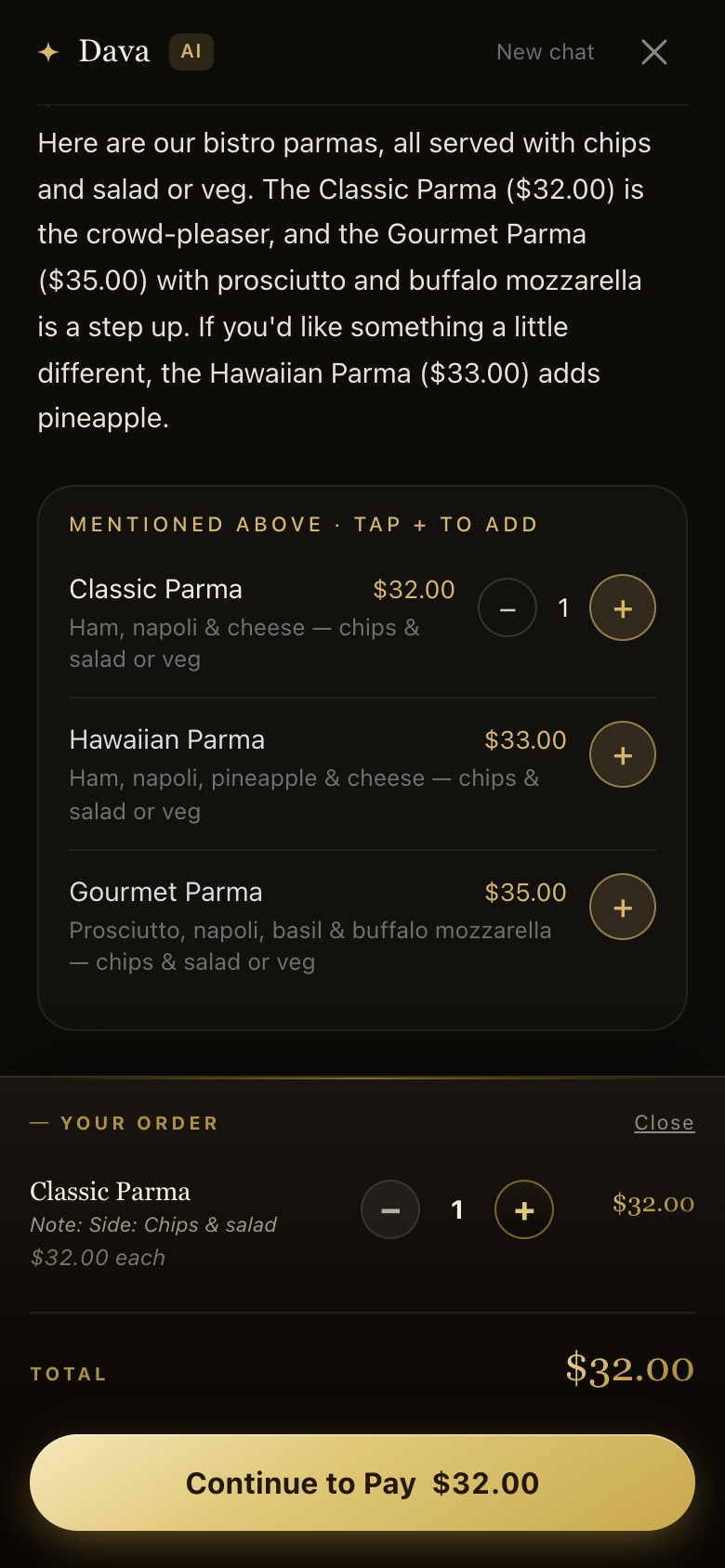
STEP 5 OF 6
The order, in the chat
View Order shows each dish, quantity and the total, then Continue to Pay.
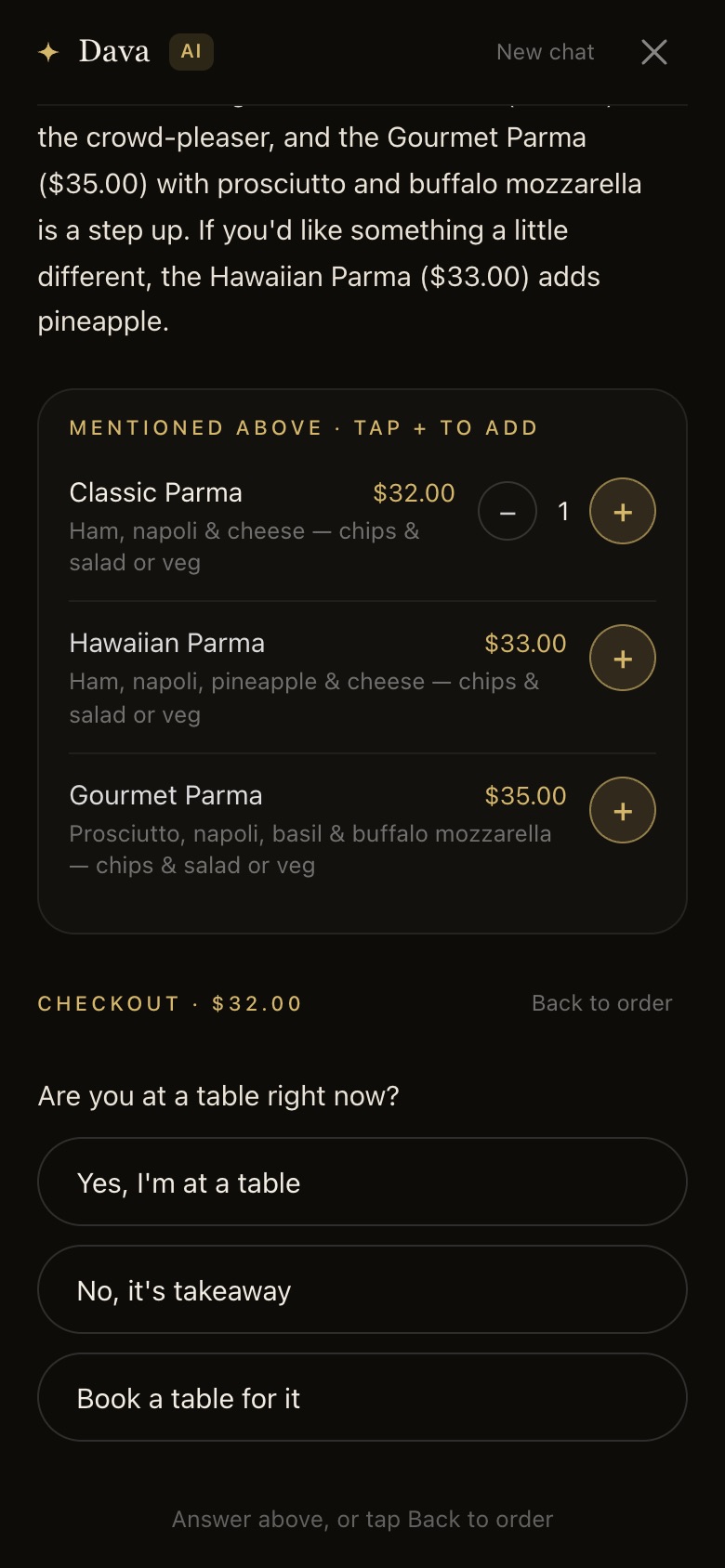
STEP 6 OF 6
Checkout, one question at a time
At a table, takeaway, or for a booking; then name, mobile and Stripe. The kitchen gets it once paid. Every chat says “Dava is an AI and can make mistakes. Check details with staff.”
On the floor team’s phone
Staff
One shared password, six tabs along the bottom: Home, Orders, Tables, Bookings, Menu, Settings.
Watch it live
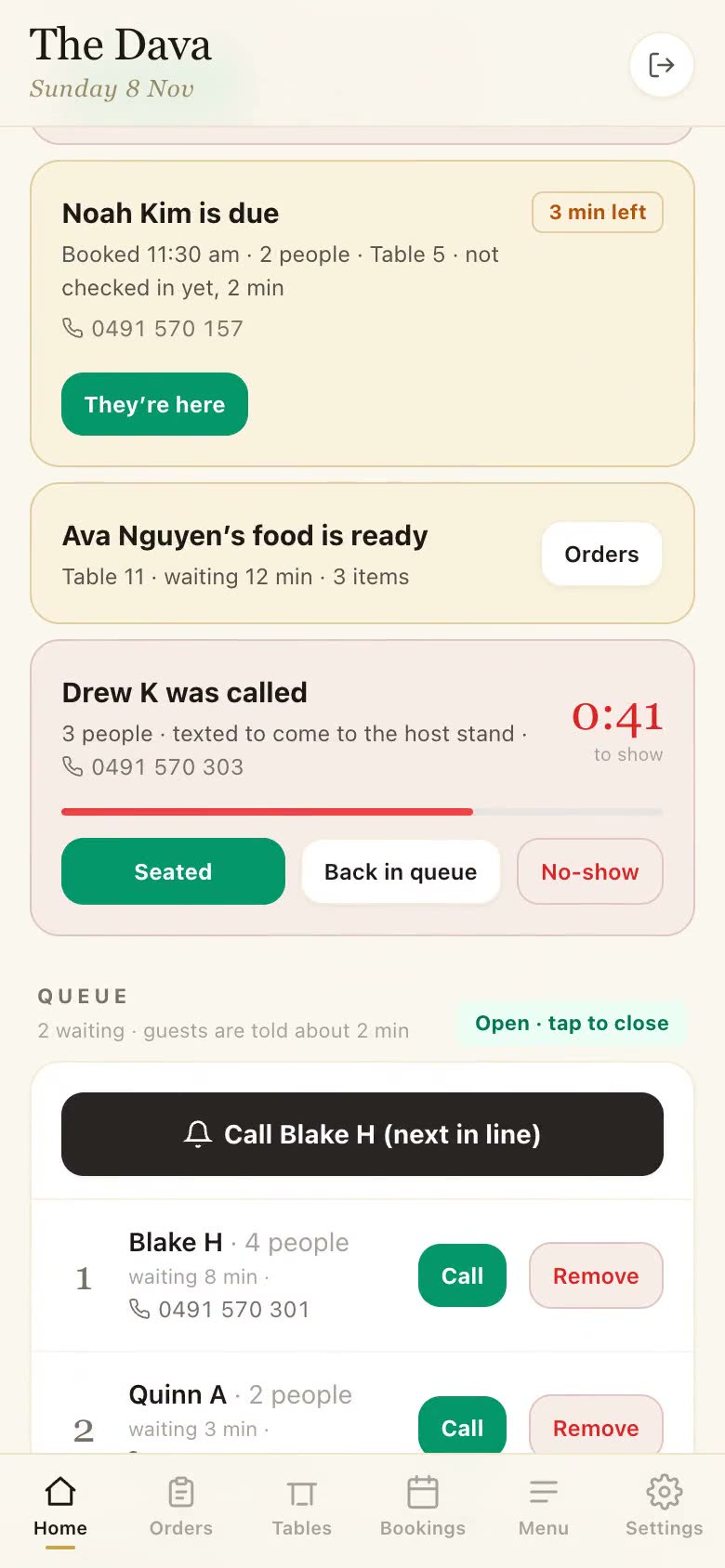
Staff sign in, start cooking an order, tick the dishes, mark food ready, then check Tables and Bookings. Recorded on the real app.
Sign in and Home
The whole floor at a glance.
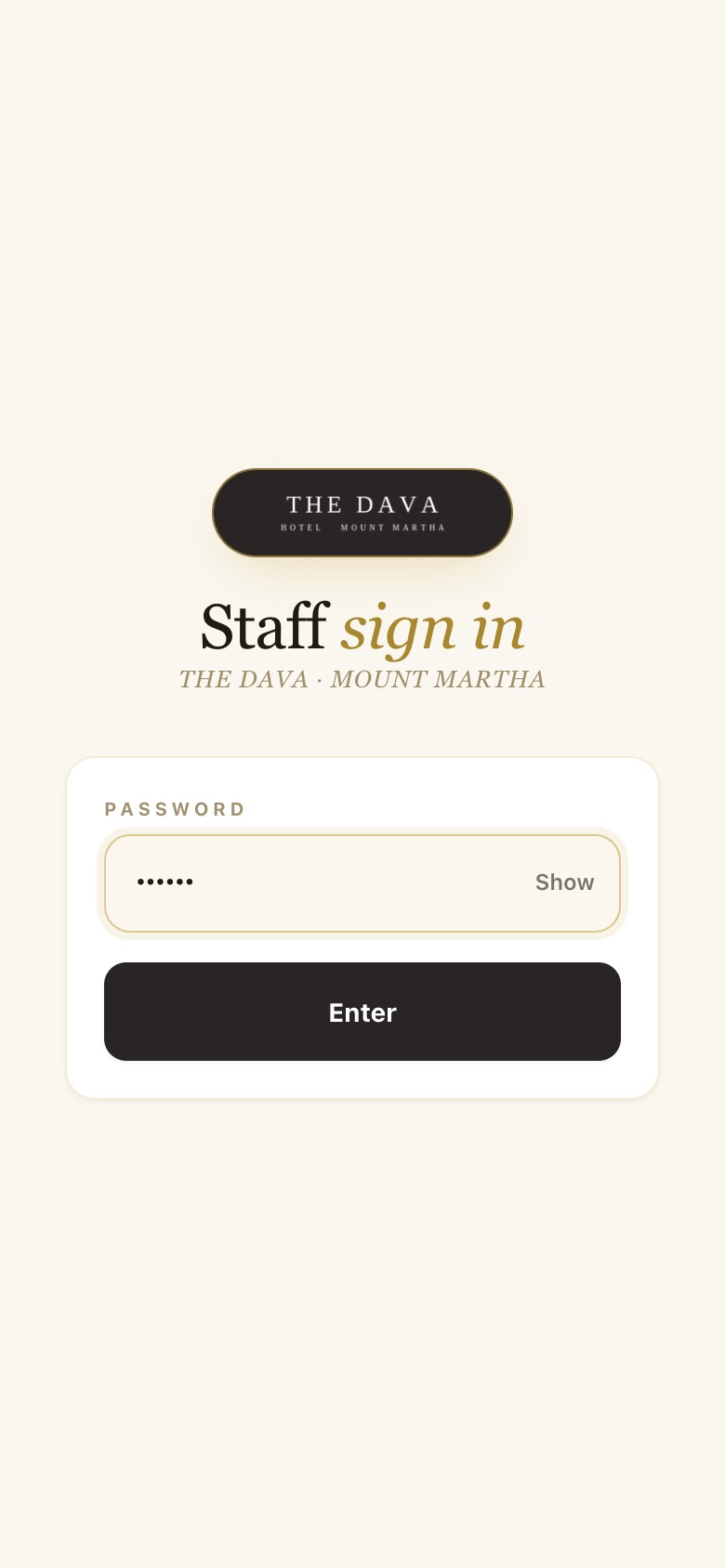
STEP 1 OF 3
Staff sign in
One password for the floor team (Cat123 in the demo). It stays signed in for 12 hours.
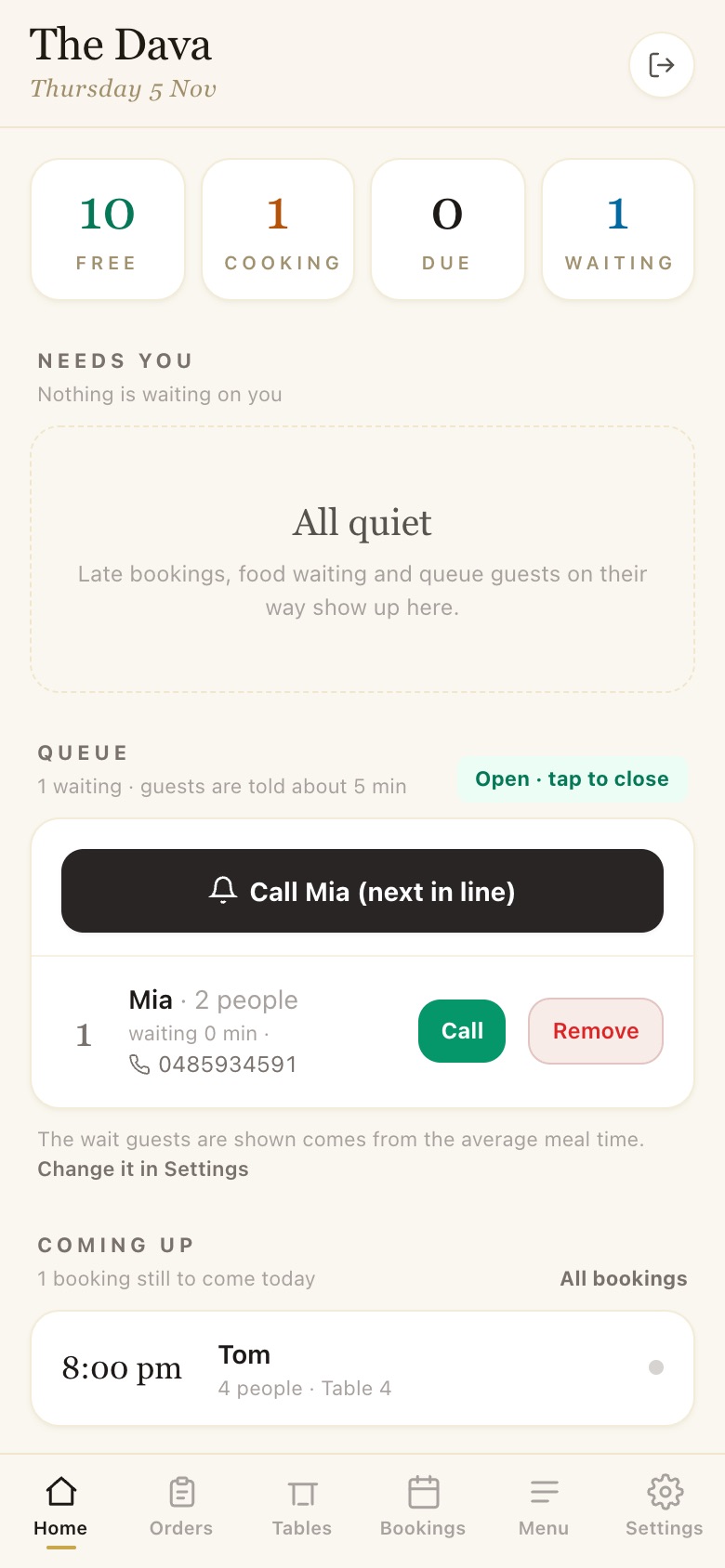
STEP 2 OF 3
Home
Free, cooking, due and waiting counts. Needs you lists late bookings, food waiting and called queue guests; below are the queue and the bookings still to come.
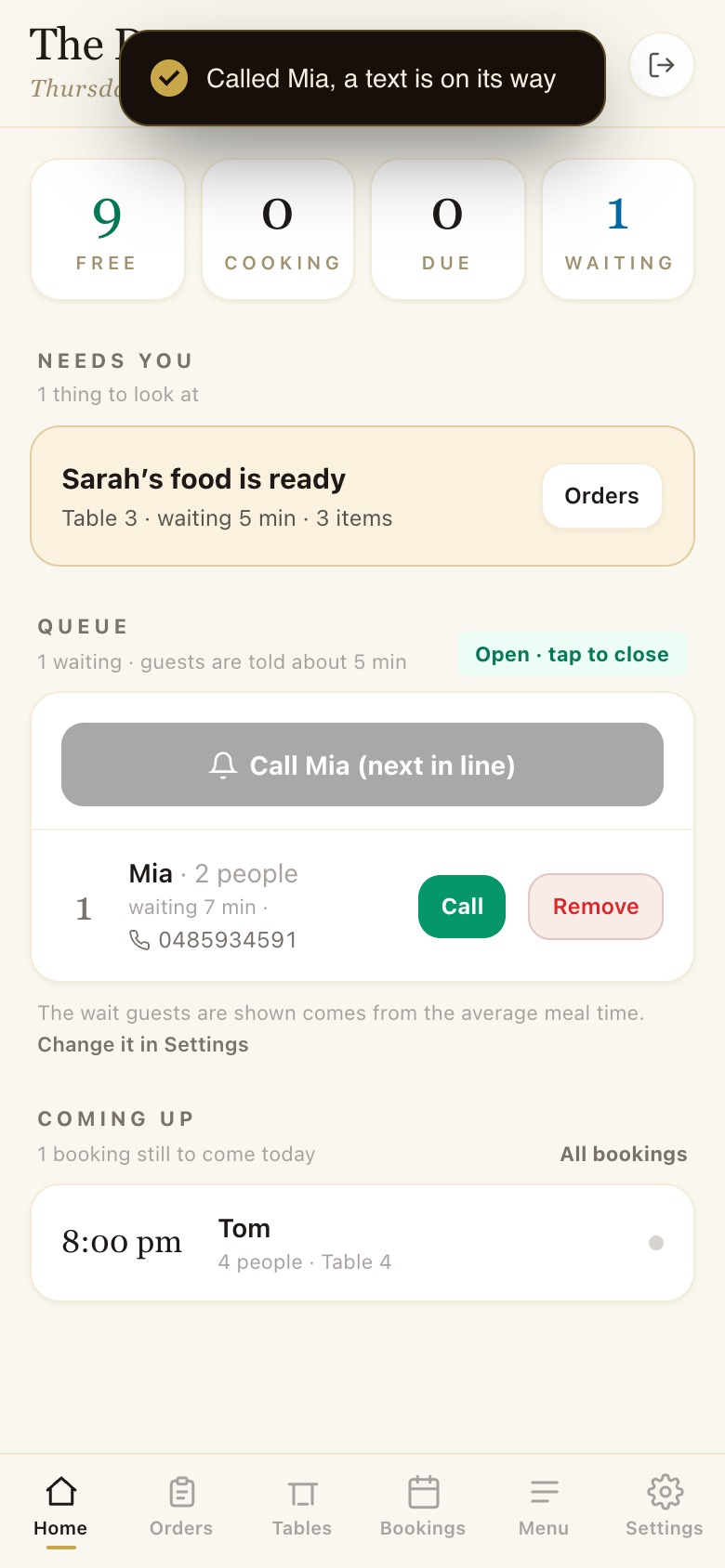
STEP 3 OF 3
Run the queue
Call the next in line, or Call or Remove any guest; the guest gets a text. Tap Open to close the queue.
Orders: the kitchen board
Every paid order lands here within seconds, with the table number.
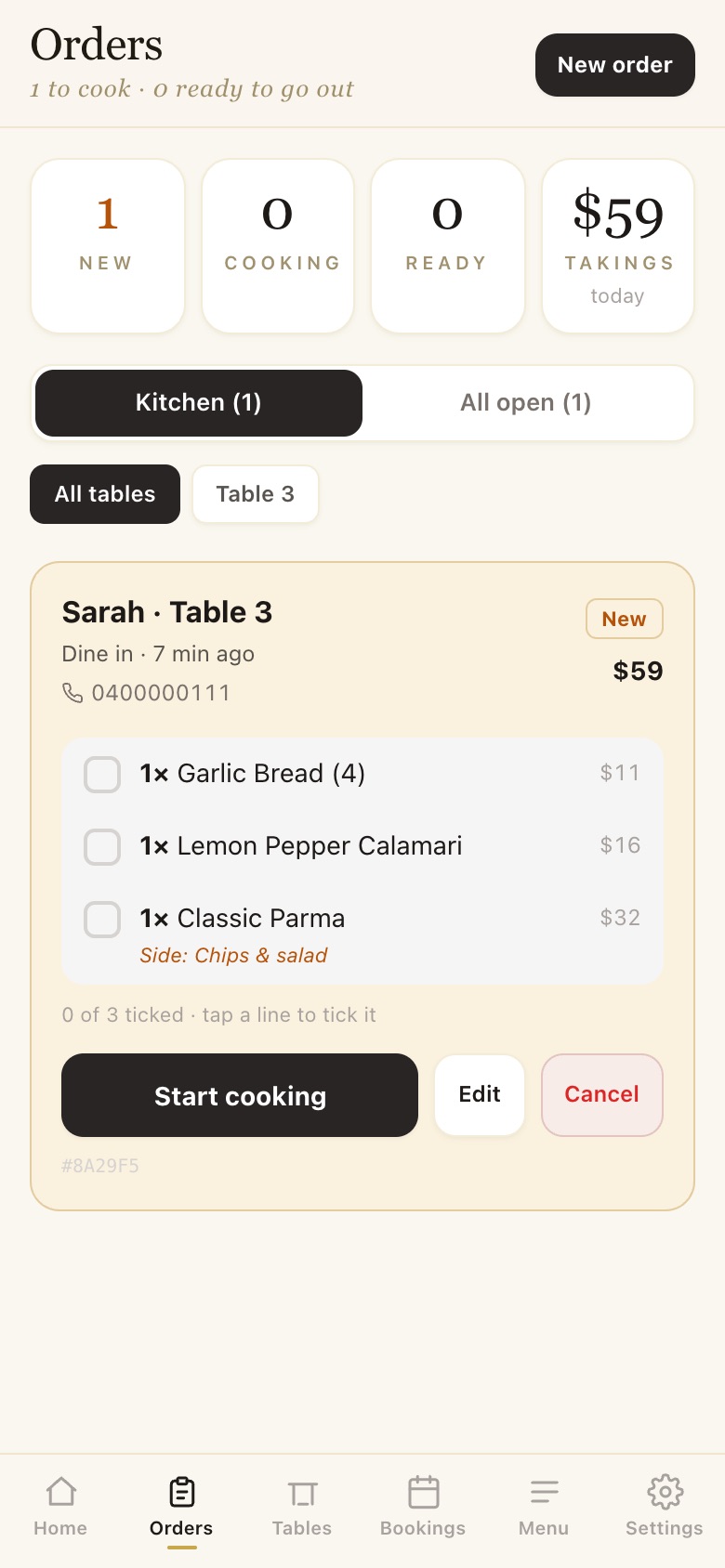
STEP 1 OF 3
A new ticket
Table, guest, mobile and every dish with its options. Kitchen shows what needs cooking, All open shows everything, and the chips filter by table.
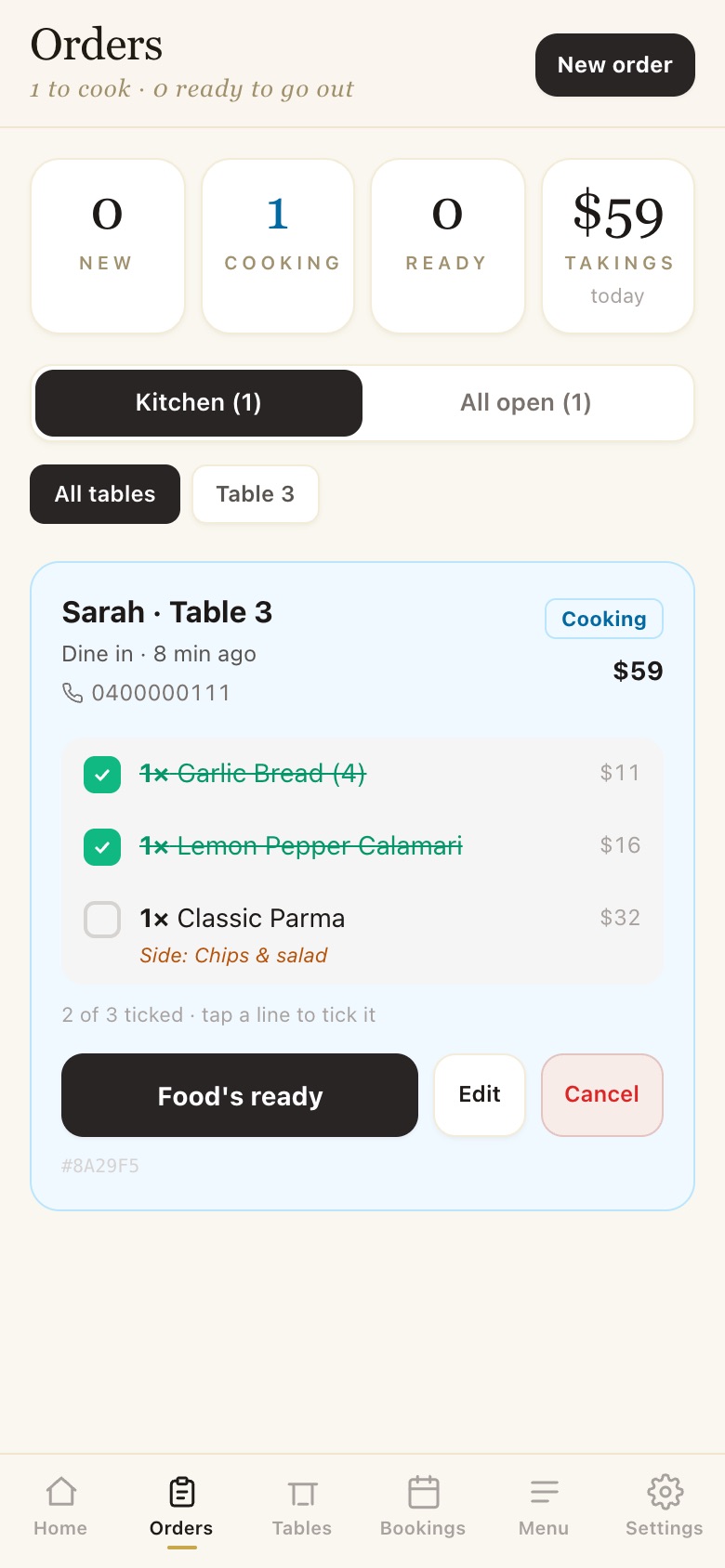
STEP 2 OF 3
Start cooking, tick each dish
Start cooking, then tap each line as it plates up. The guest’s order page ticks the same dish.
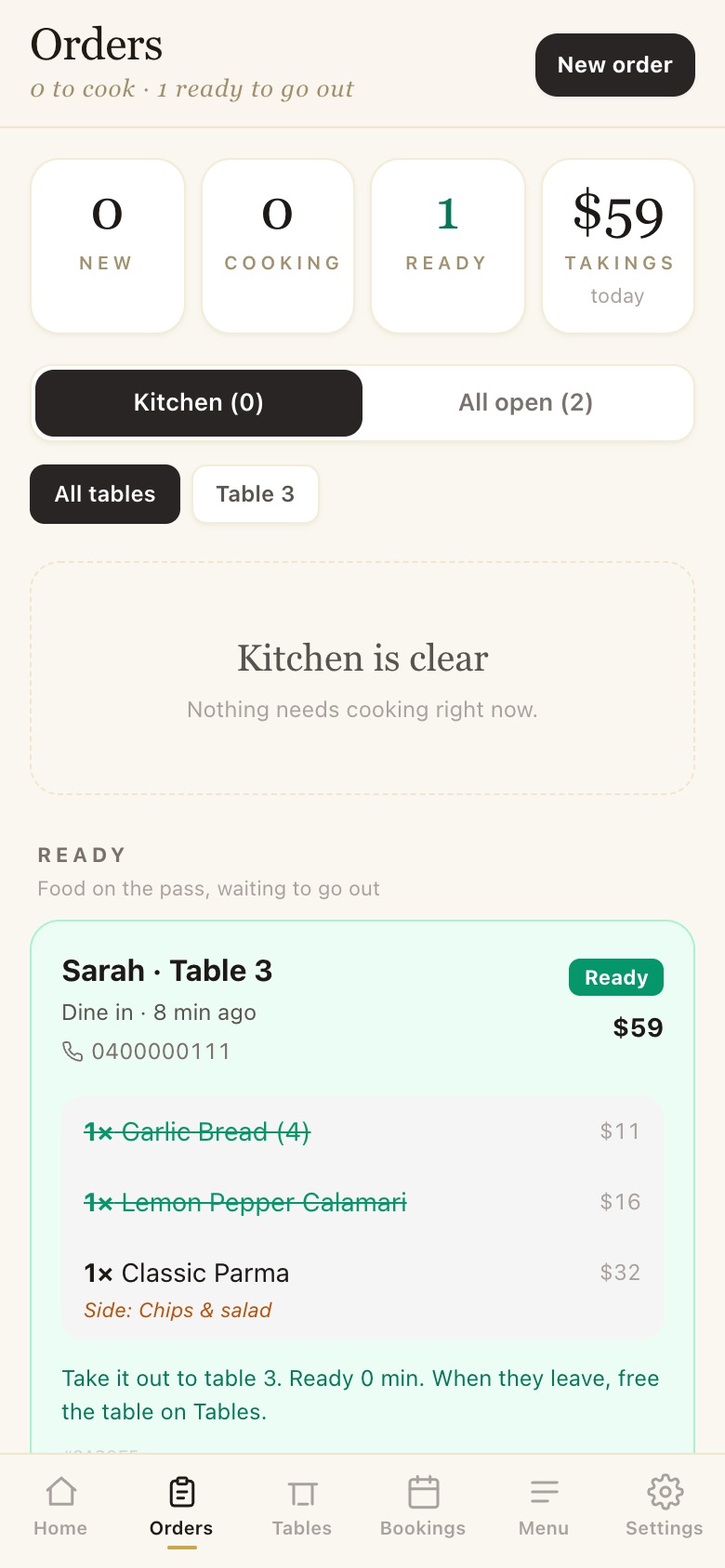
STEP 3 OF 3
Food’s ready
“Take it out to table 3.” When they leave, free the table on Tables. New order (top) lets staff enter an order themselves.
Tables
The room right now, and the night ahead.
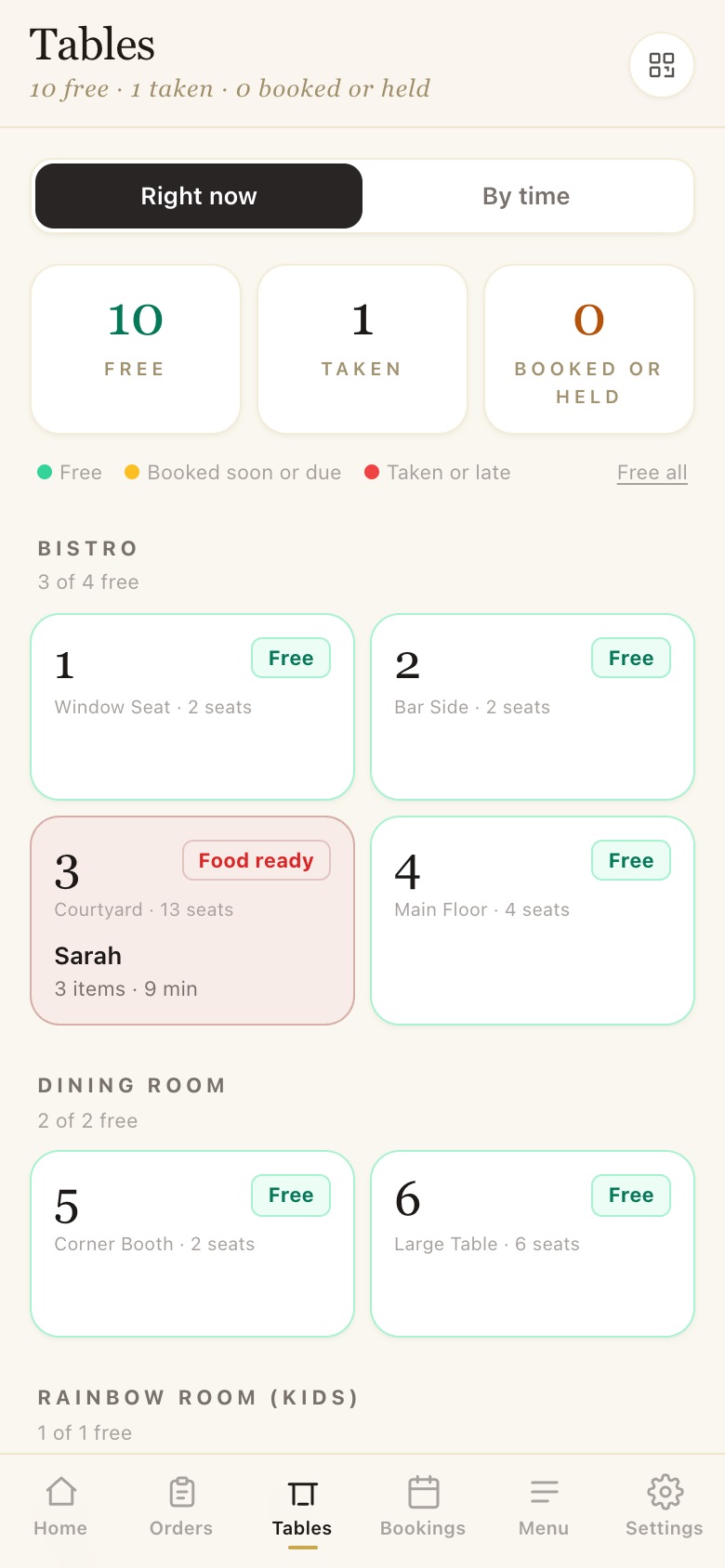
STEP 1 OF 3
Right now
Every table by area: free, booked soon or due, taken or late, with the guest, items and minutes seated.
STEP 2 OF 3
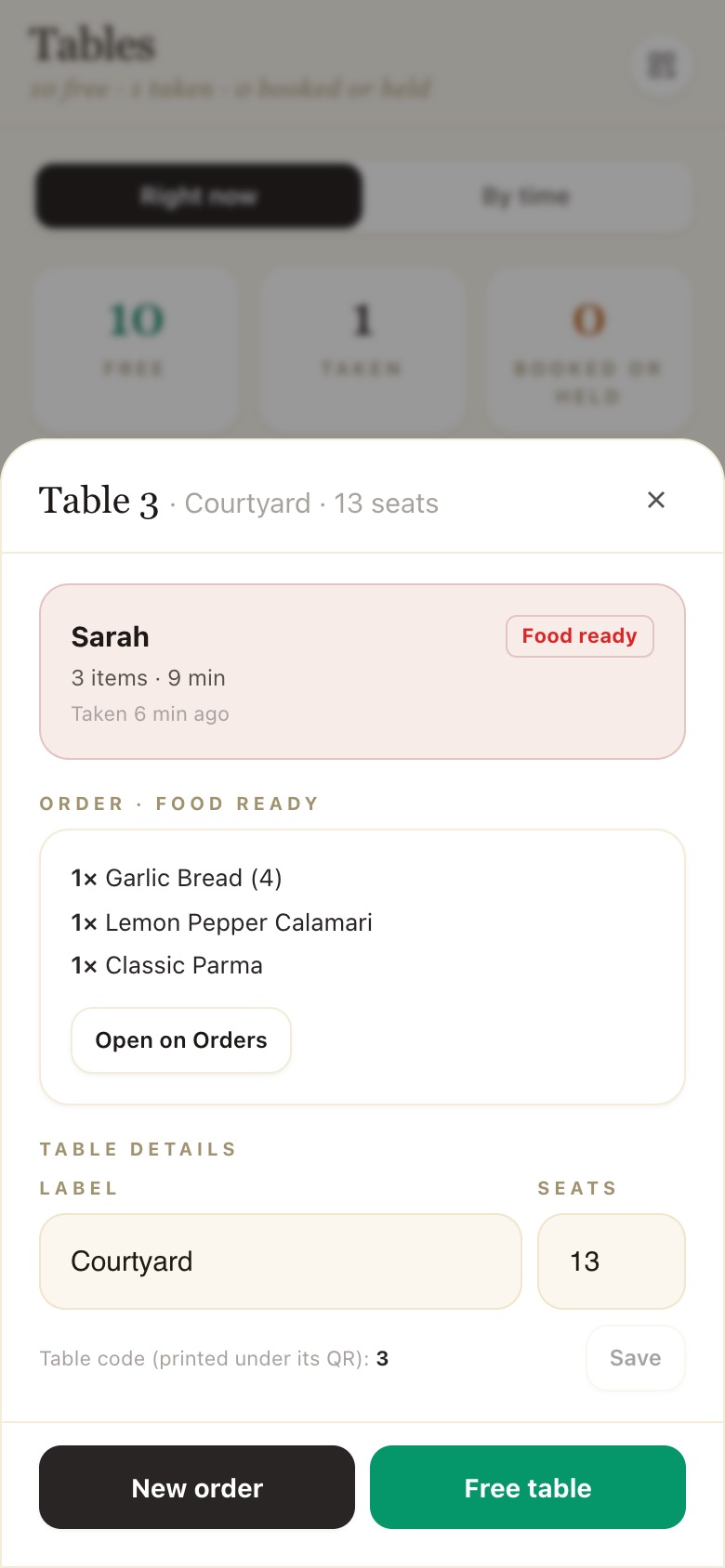
Tap a table
Who is there and their order, Open on Orders, the label and seats, the table code, New order and Free table.
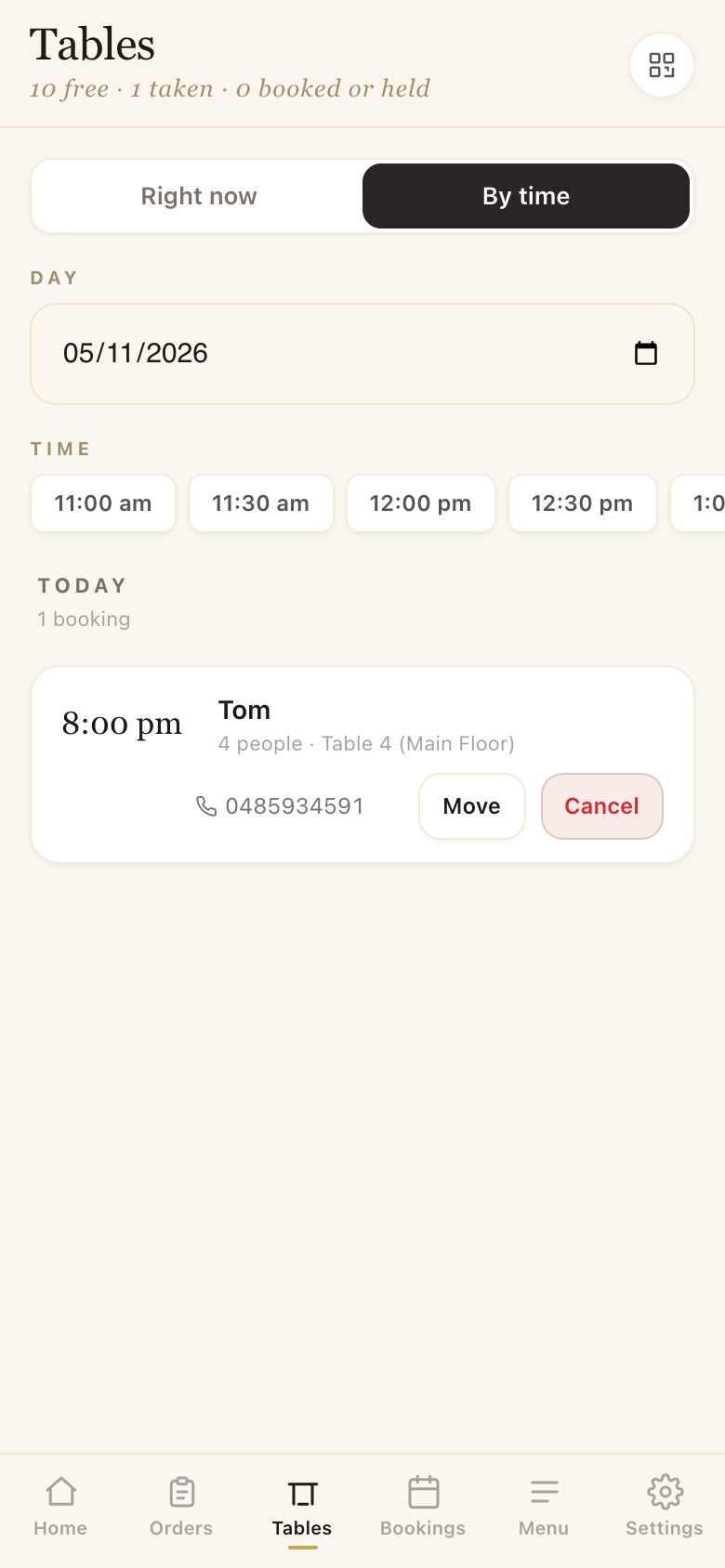
STEP 3 OF 3
By time
Pick a day and a time to see the bookings for it, and Move or Cancel any of them.
Bookings calendar
One calendar for every booking.
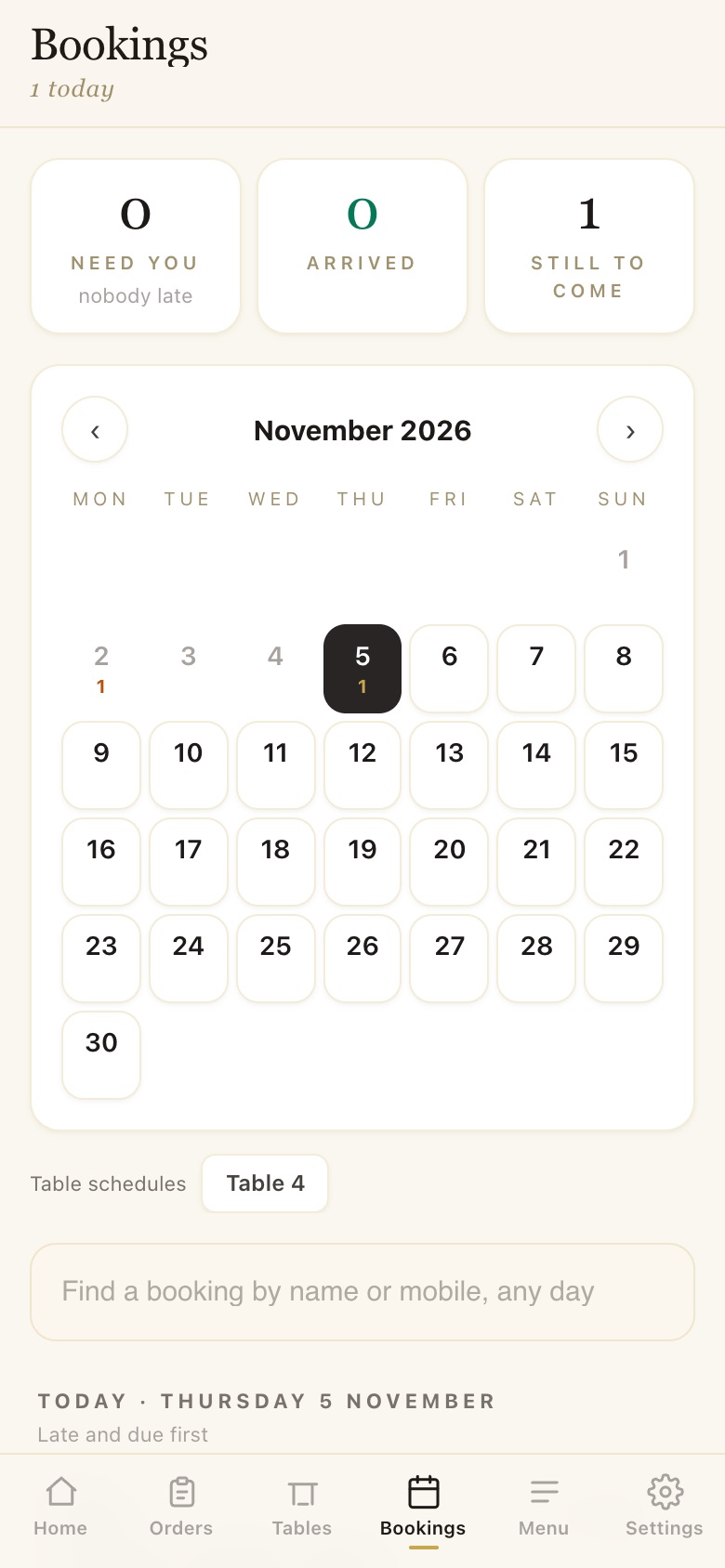
STEP 1 OF 1
Tap a day
Each day shows its count. Tap one and its bookings list underneath, late and due first, with They’re here, Change table and Cancel. Search finds any booking by name or mobile.
Menu switches
Sold out? One tap.
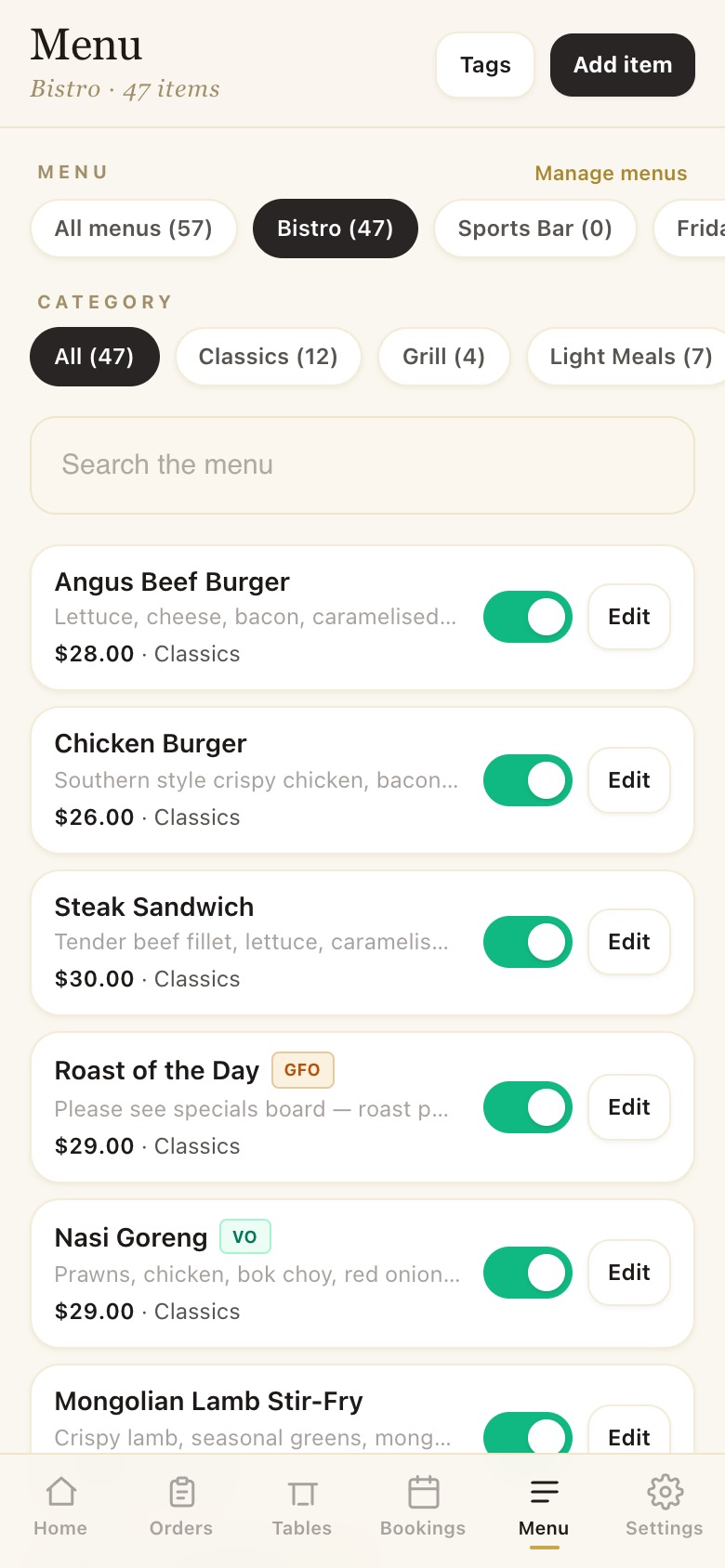
STEP 1 OF 3
Menu
Every item by menu and category, with search, an on/off switch and Edit.
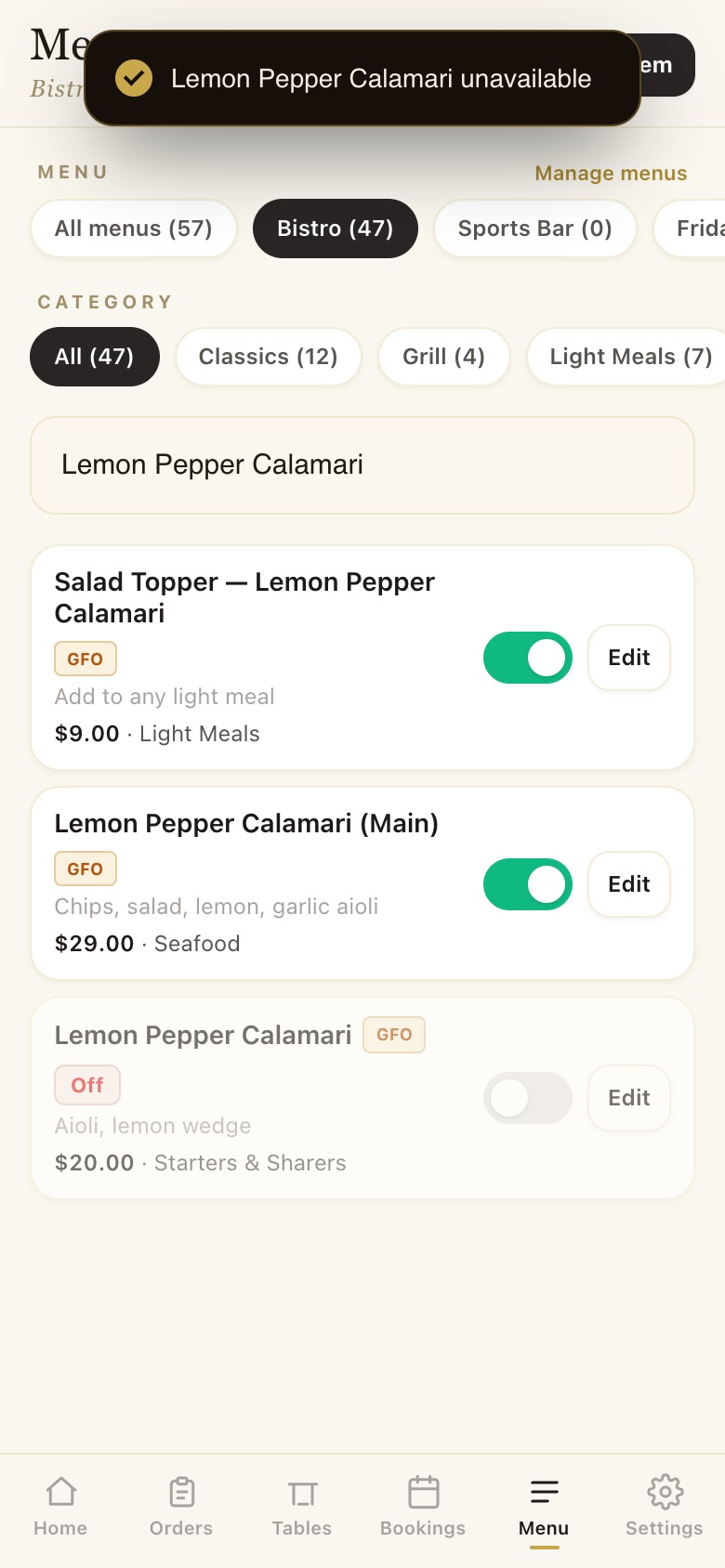
STEP 2 OF 3
Switch a dish off
Tap its switch: “Lemon Pepper Calamari unavailable”. Tap again to bring it back.
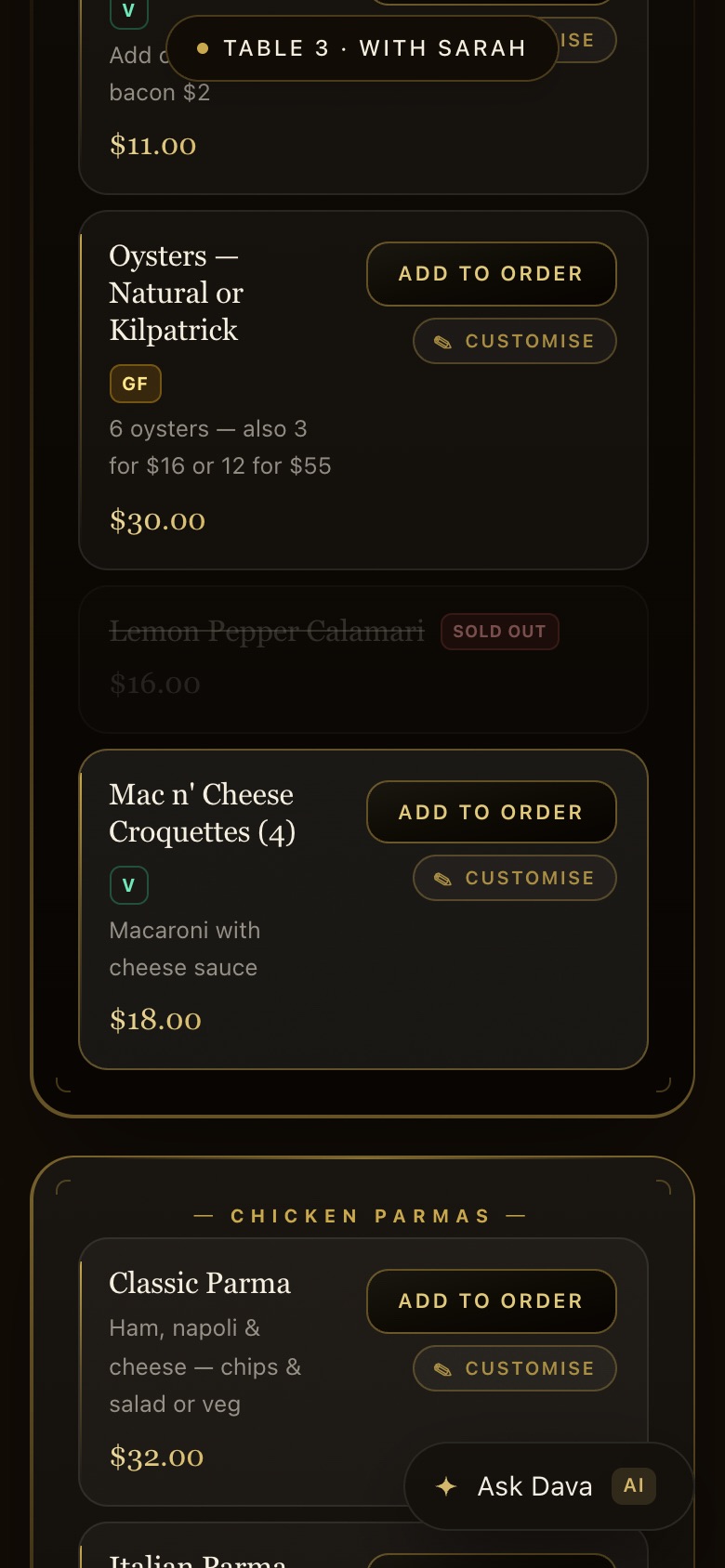
STEP 3 OF 3
What guests see
On the guest menu it shows Sold out with no Add button, straight away.
Settings, QR printing, sections
Set up once, adjust any time.
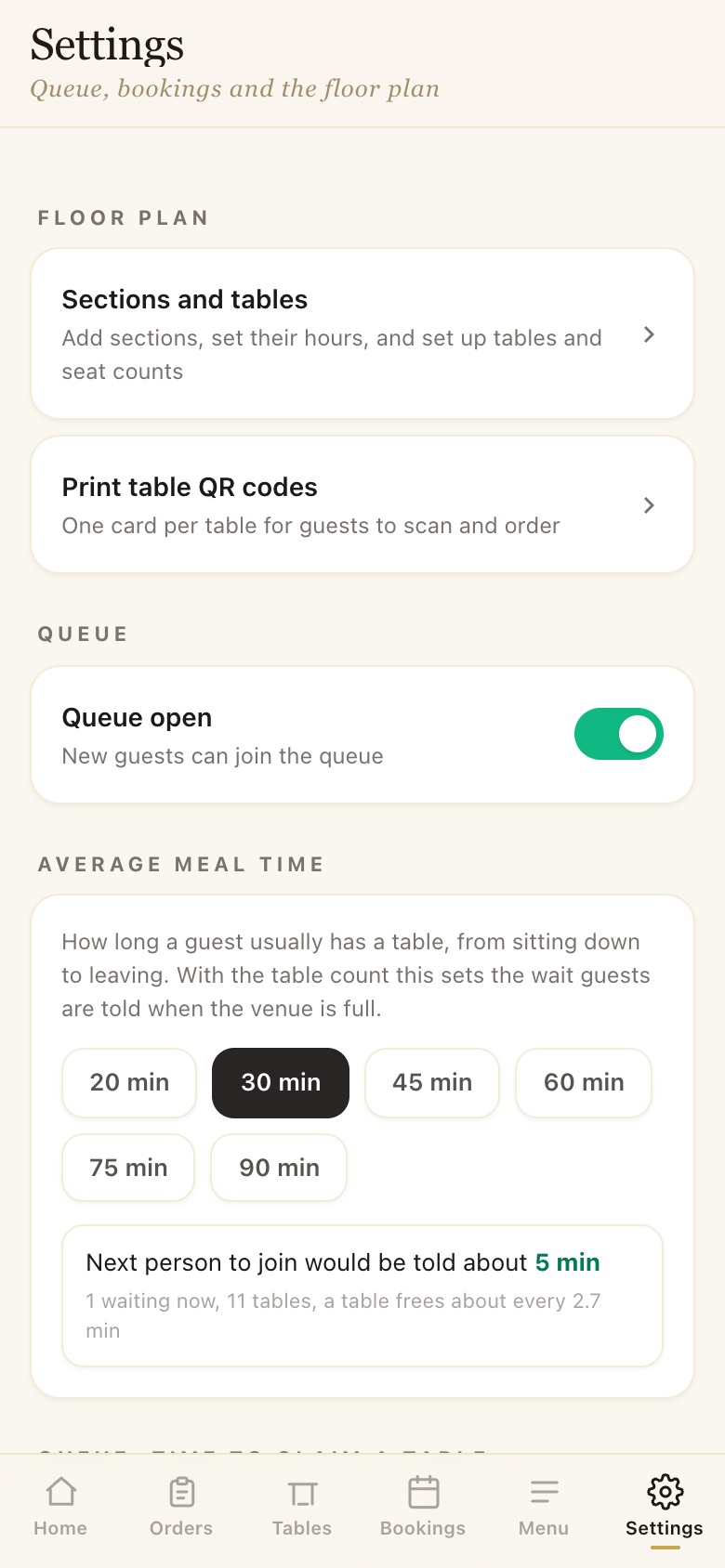
STEP 1 OF 3
Settings
The floor plan, QR printing, the queue switch, the average meal time (it sets the wait guests are told), how long a called guest has to claim a table, and how long a booked table is held.
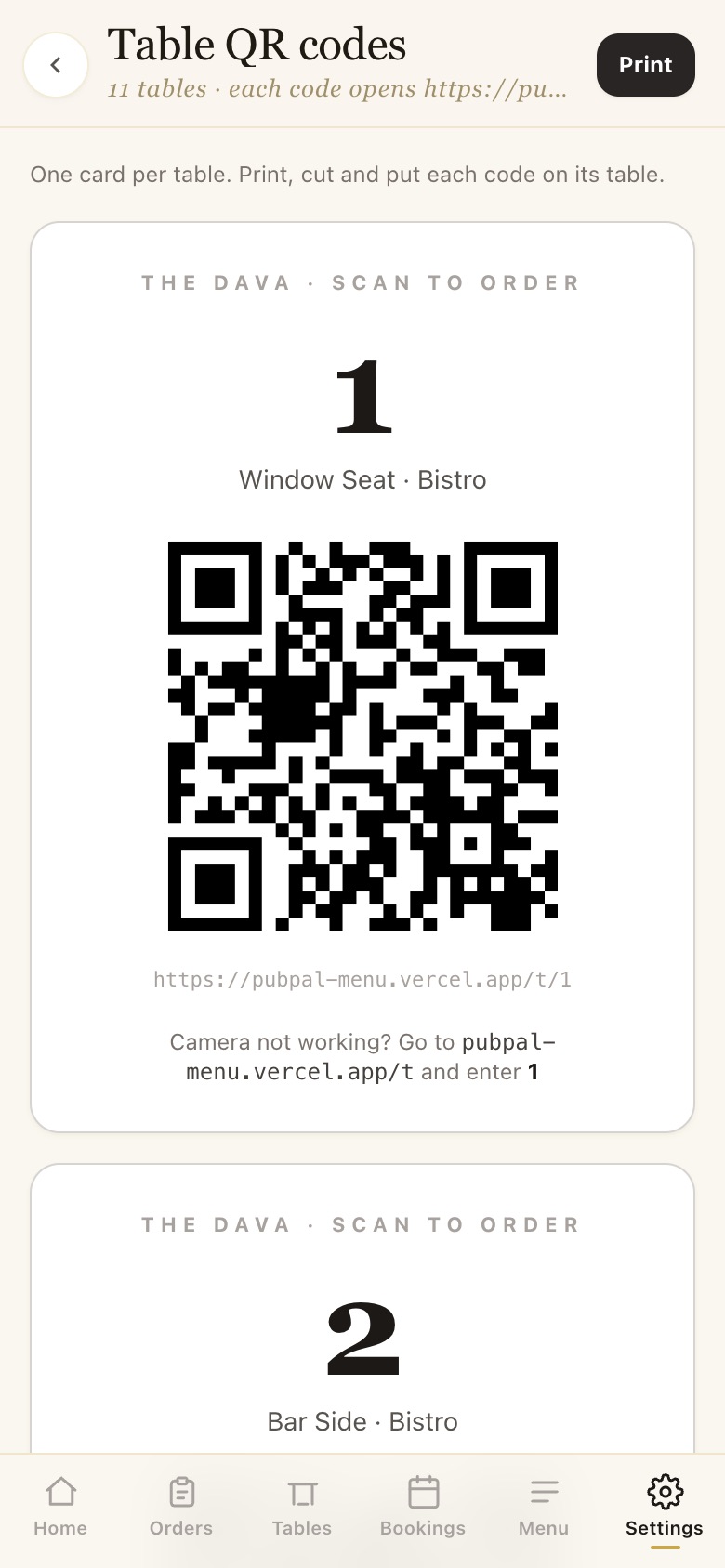
STEP 2 OF 3
Print table QR codes
One card per table, with its code under the QR for phones whose camera will not scan. Print, cut, put one on each table.
STEP 3 OF 3
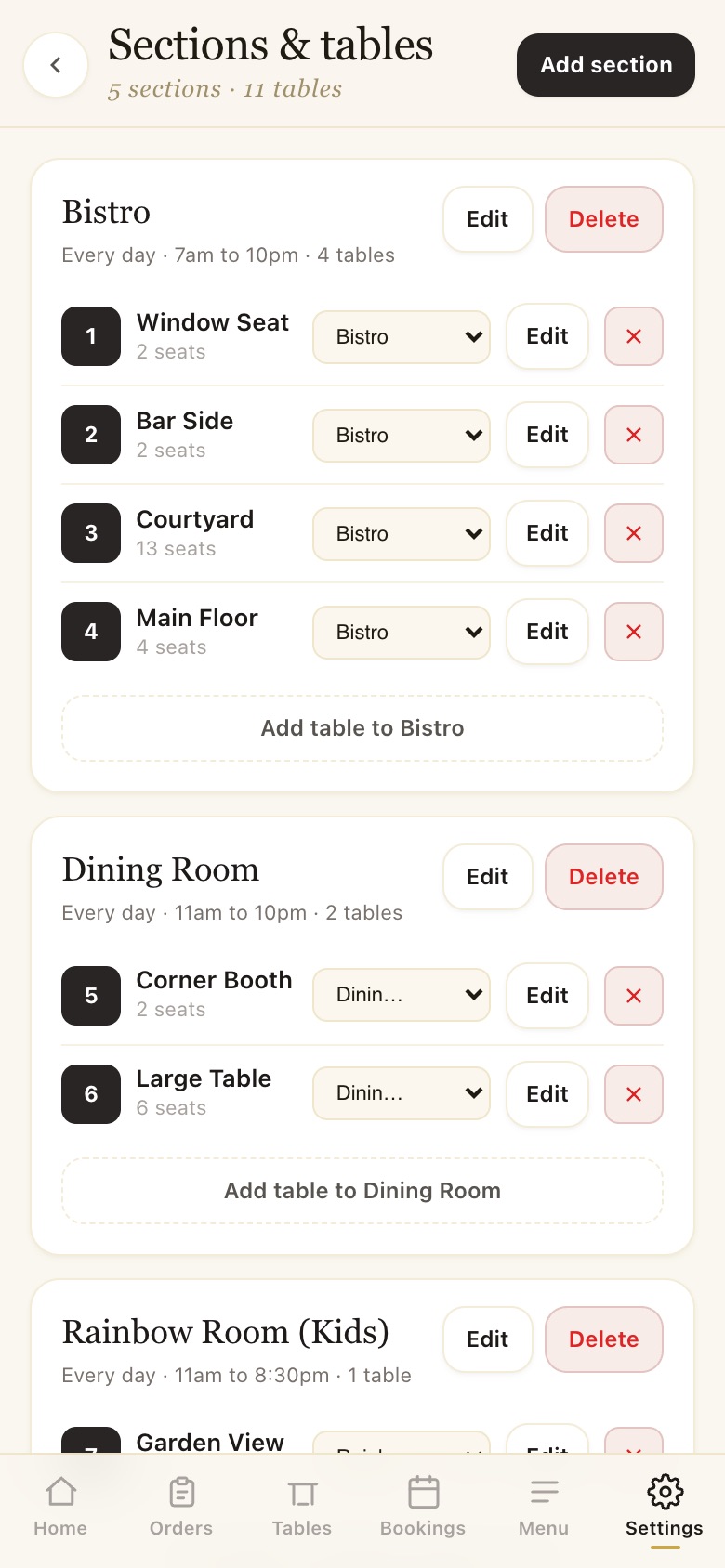
Sections and tables
Each area with its opening days and hours, and its tables and seats. Add, edit, move or delete.
On the owner’s phone
Owner
Six tabs along the bottom. Every number comes from the till, for the day, week, month or year, against the same point the period before. Pictures use the app’s demo data.
Watch it live
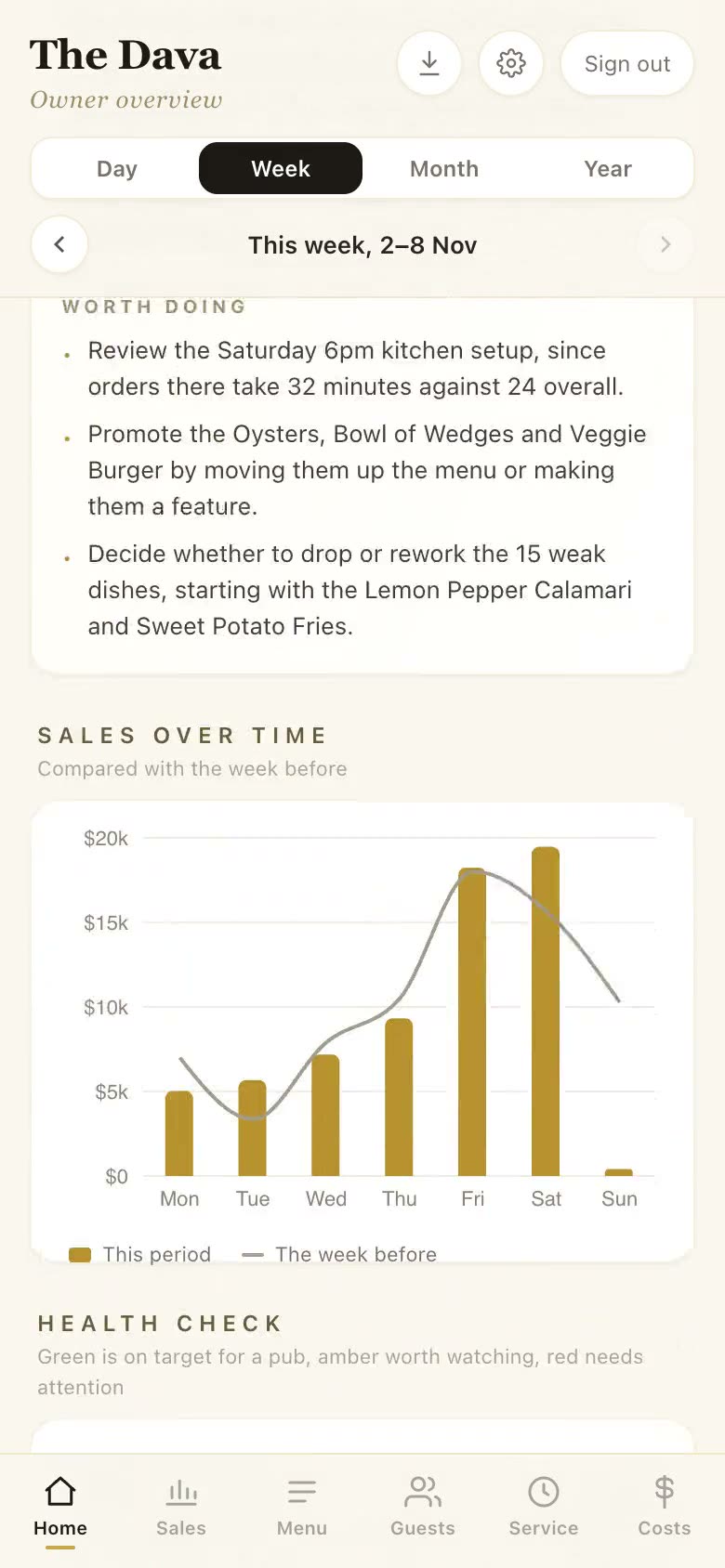
The owner opens the demo data and looks through Home, Sales, Menu and Guests. Recorded on the real app, demo figures.
Every owner tab
Tap “Try with demo data” at the top to see it full of believable trading on the real menu.
STEP 1 OF 8
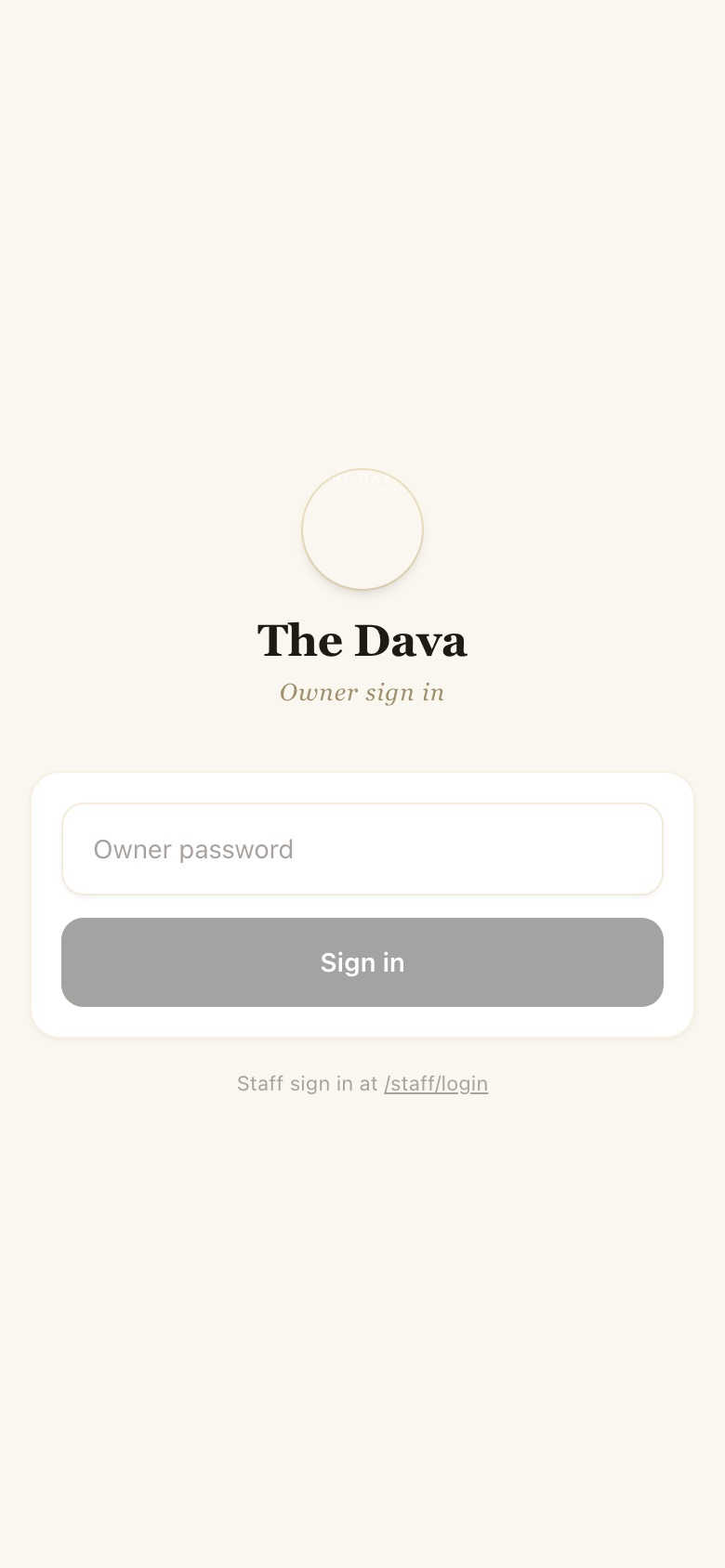
Owner sign in
A separate password (owner2024 in the demo), so sales, costs and profit stay with the owner.
STEP 2 OF 8
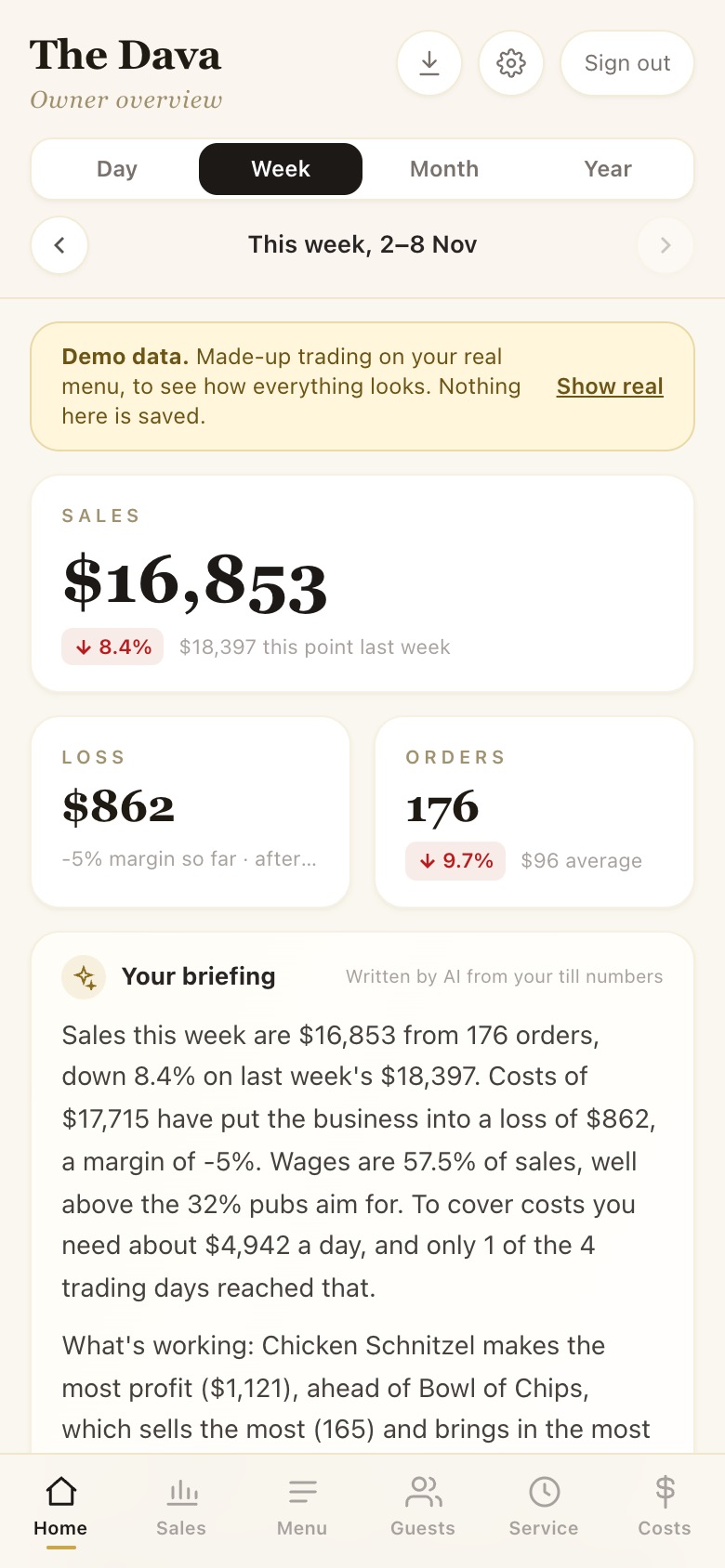
Home
Day, Week, Month or Year with ‹ › to go back. Sales, profit or loss and orders against last period, and a briefing written by AI from the till numbers.
STEP 3 OF 8
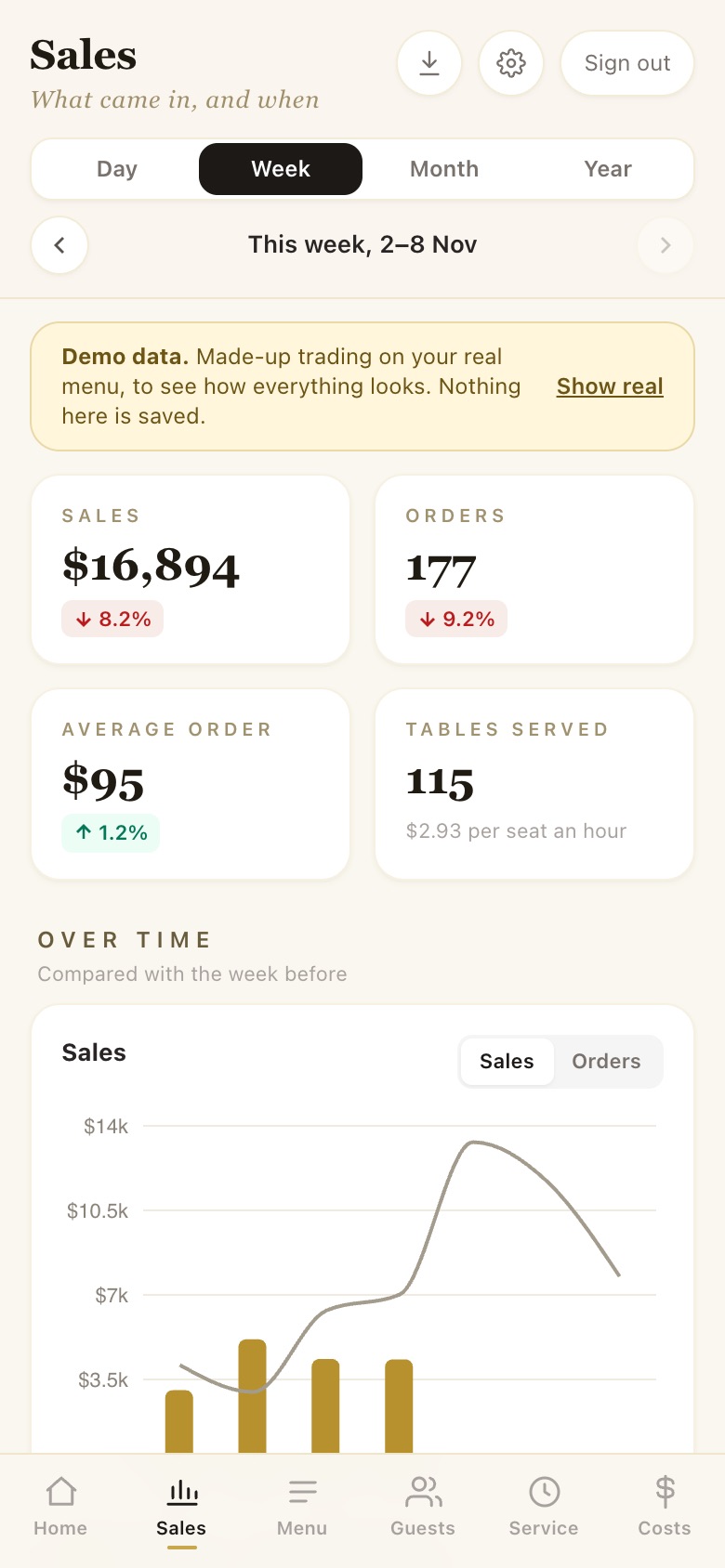
Sales
Sales, orders, average order and tables served; over time against the period before, best days, busiest hours and a heat map.
STEP 4 OF 8
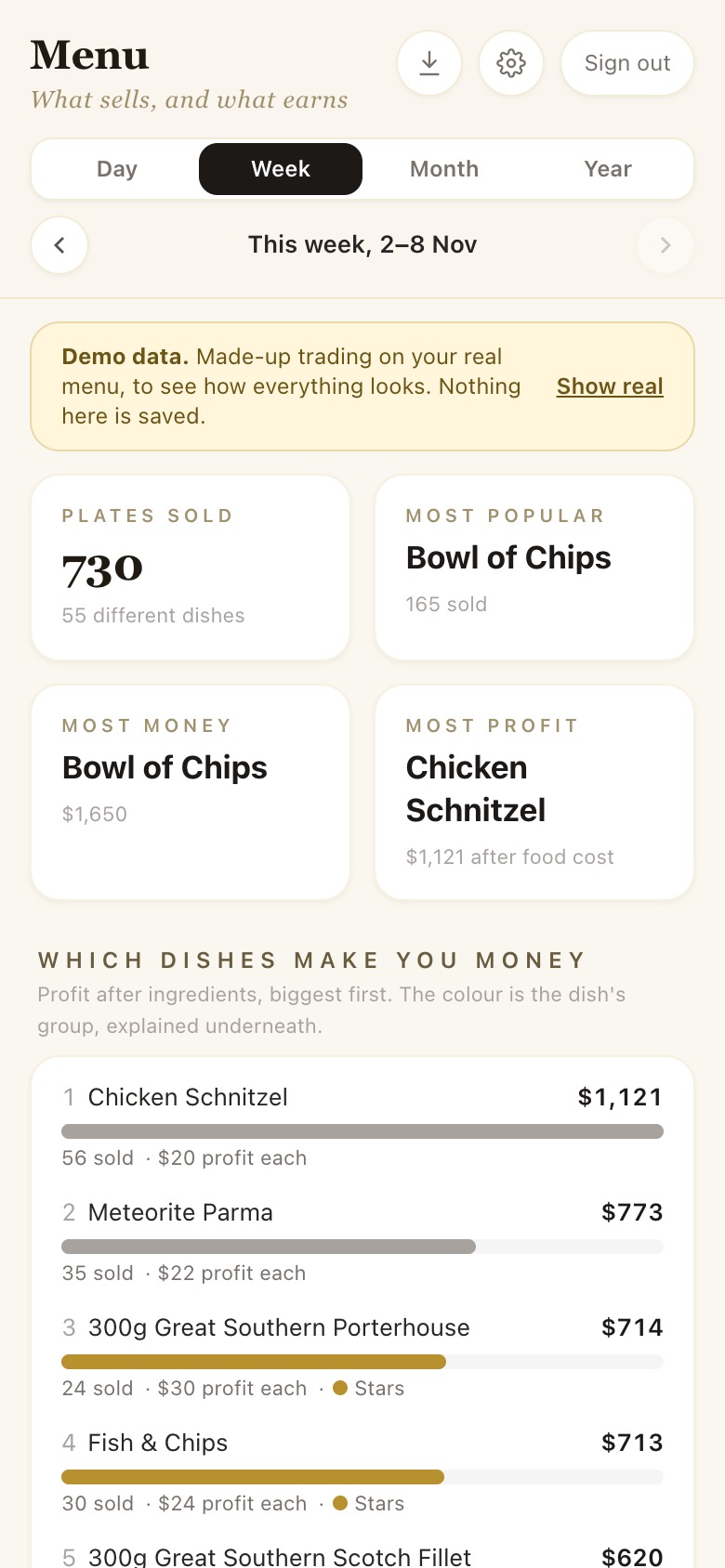
Menu
Plates sold, most popular, most money and most profit after food cost, every dish ranked by profit and grouped so you know what to push and what to drop.
STEP 5 OF 8
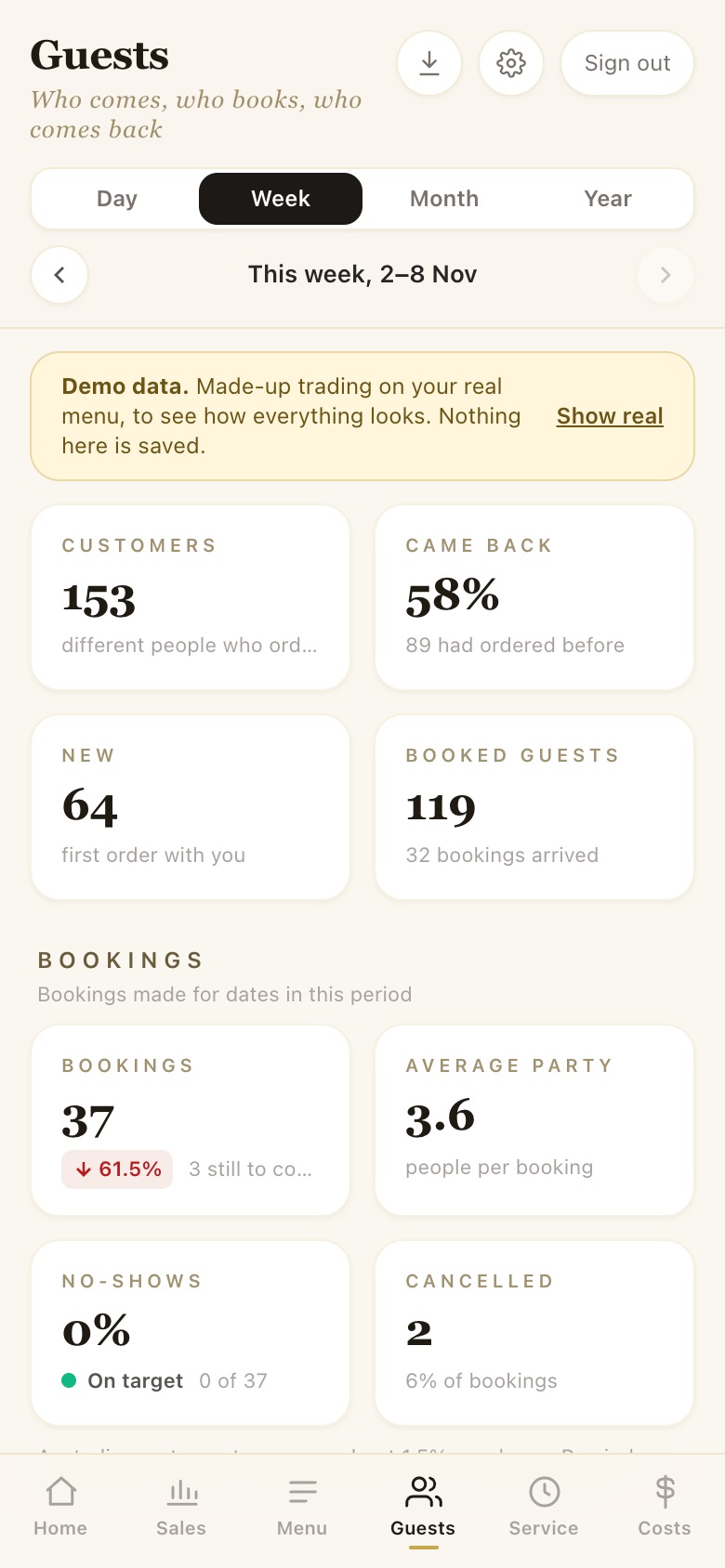
Guests
Customers, how many came back, new guests, bookings, average party, no-shows, cancellations and the wait list.
STEP 6 OF 8
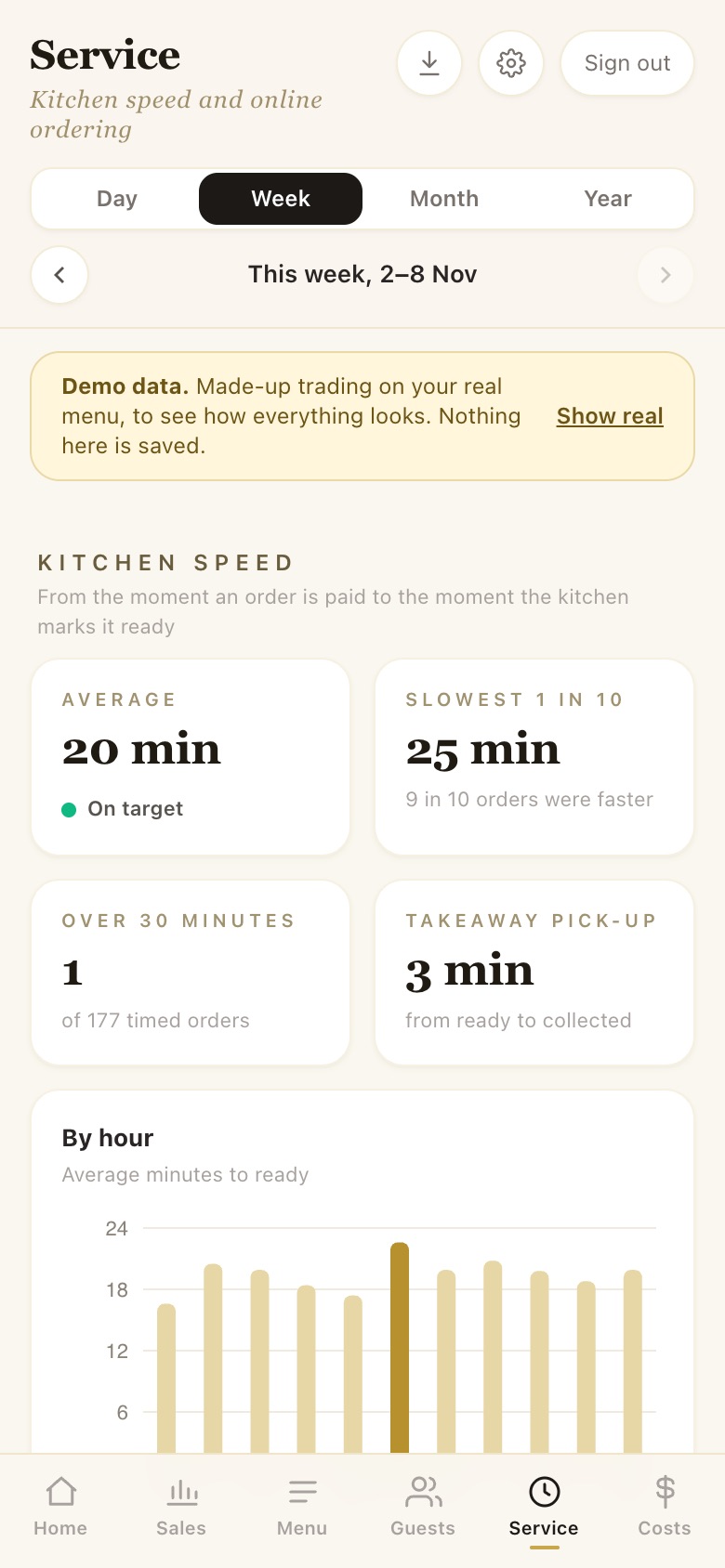
Service
Kitchen speed from payment to ready, the slowest 1 in 10, orders over 30 minutes, and how many people open the app and go on to pay.
STEP 7 OF 8
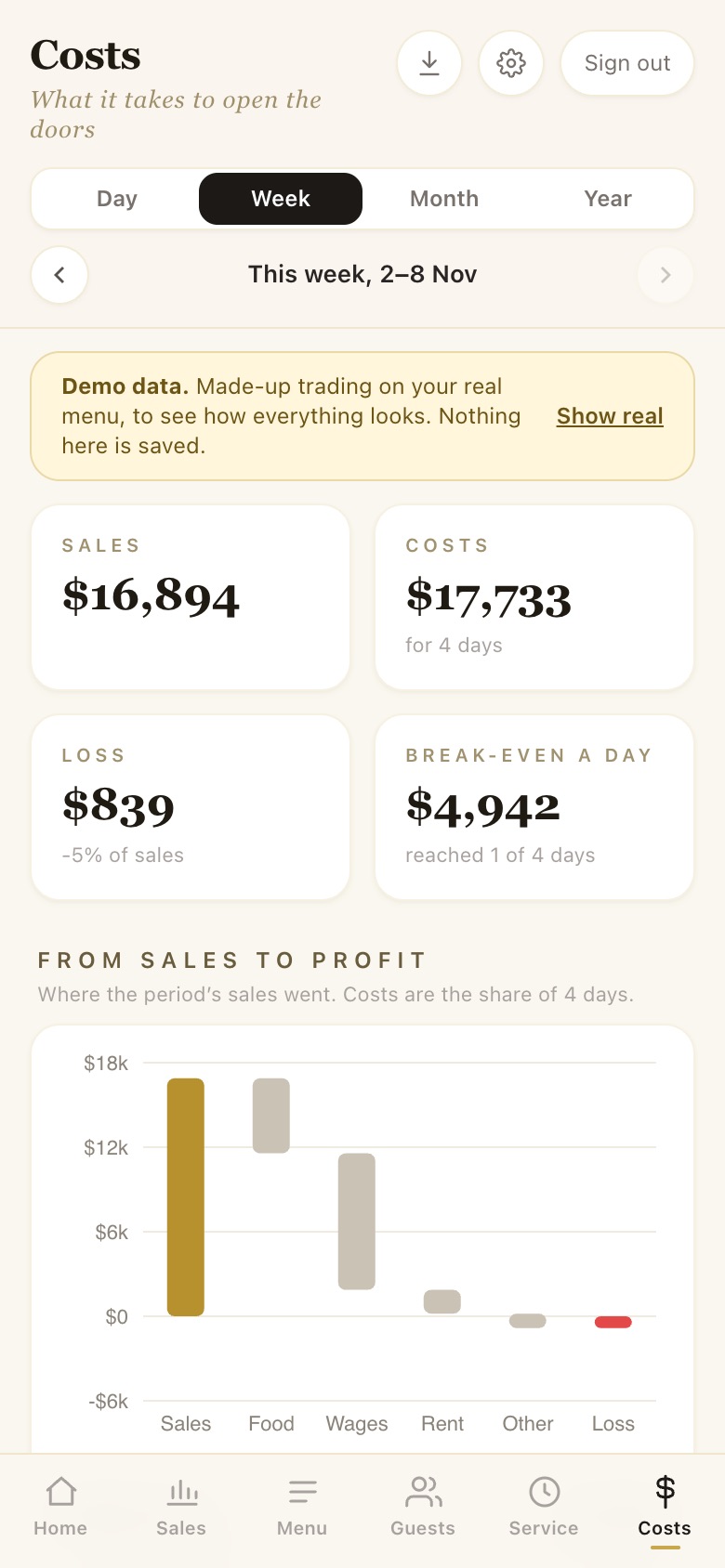
Costs
Food, wages, rent and other costs against sales, profit or loss, the break-even a day, and checks against what pubs aim for.
STEP 8 OF 8
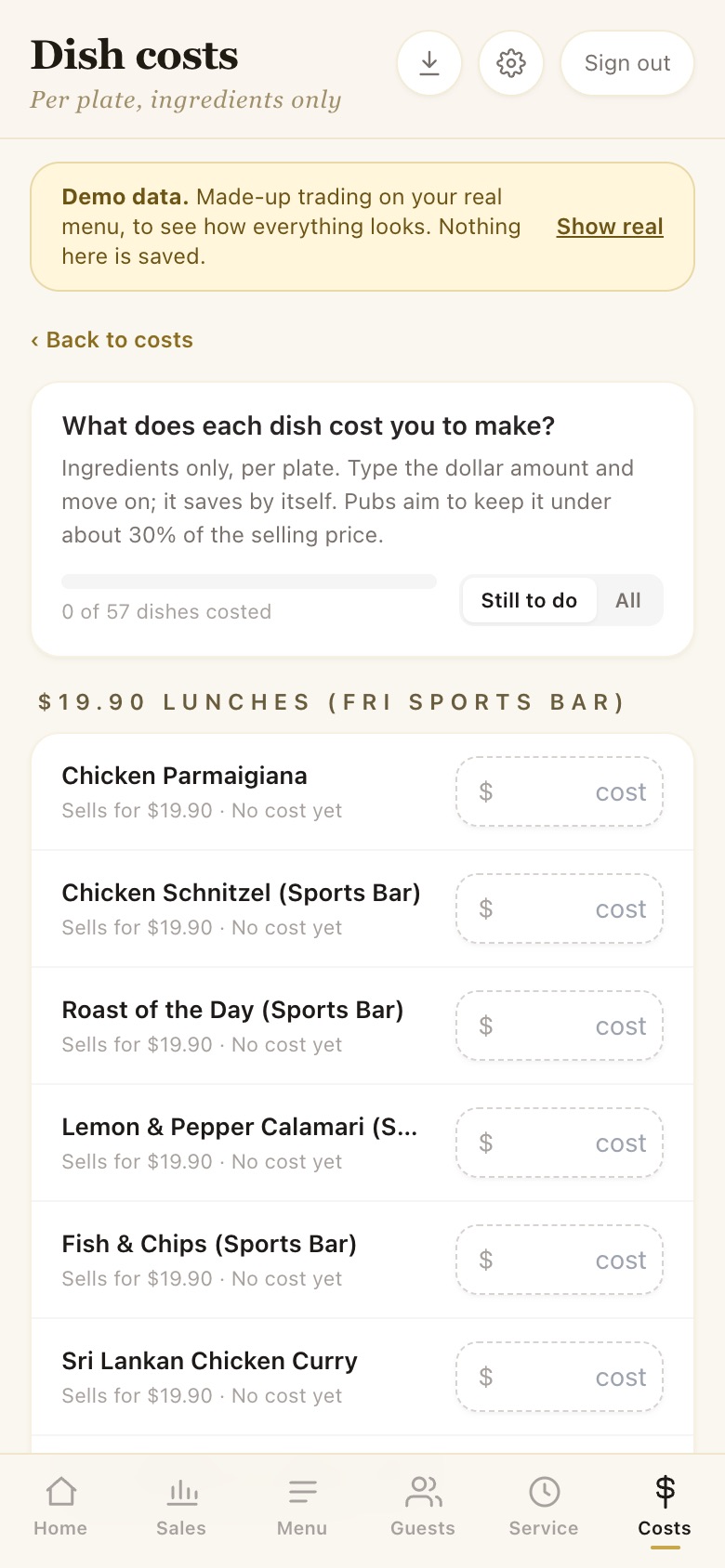
Dish costs
Type what each plate costs to make; it saves by itself and feeds the profit figures. The download button at the top exports orders, daily takings, dishes or a Xero file.